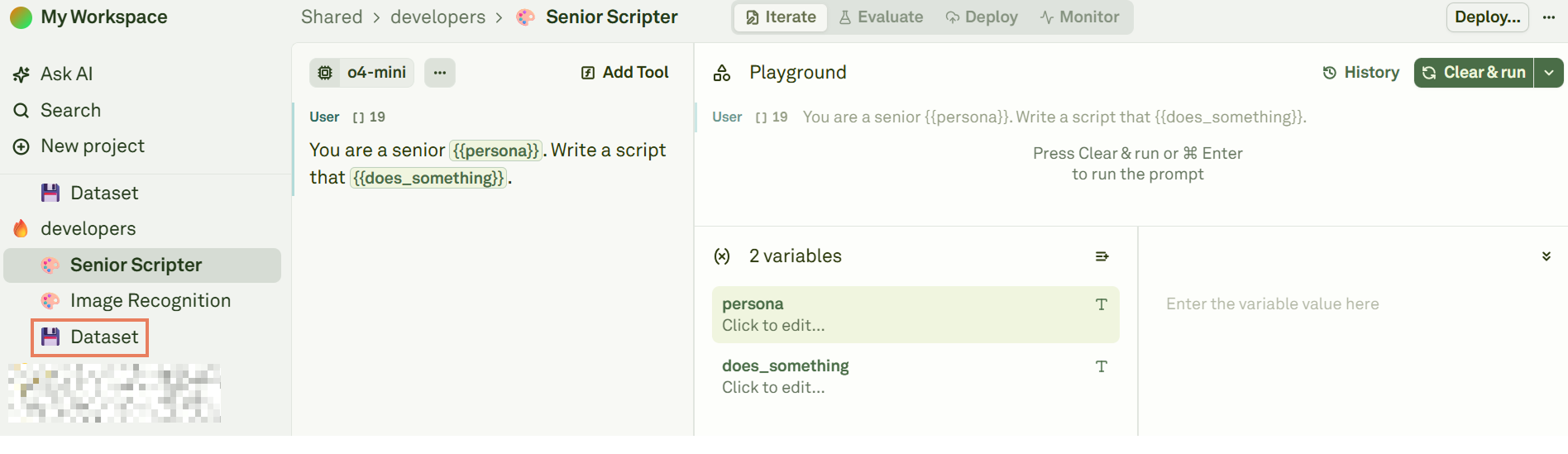
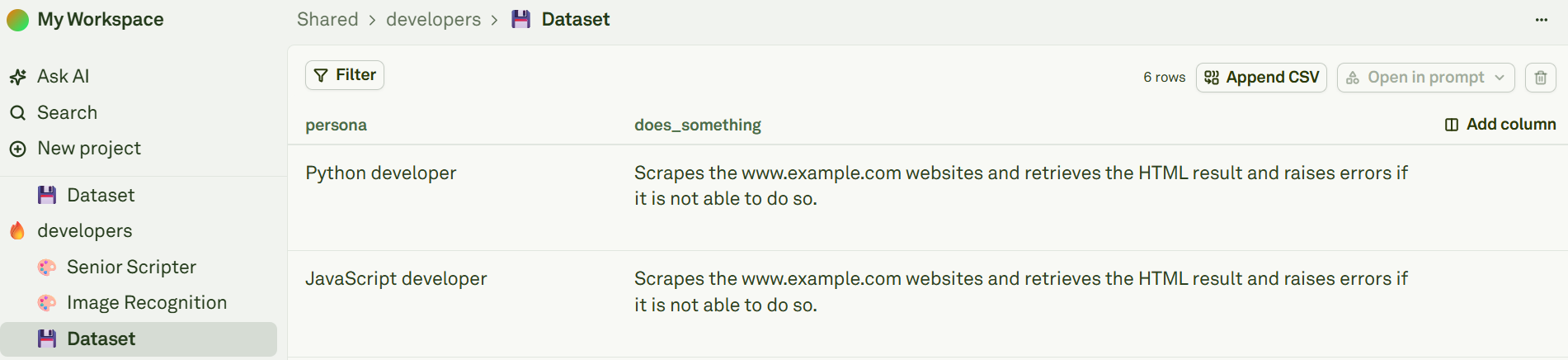
When you create a new project, Adaline automatically creates a Dataset section. You can rename it or leave it as is. Click on it to create a new dataset: Clicking on Dataset in Adaline Click on Add column to add a new column: Clicking on Dataset in Adaline You must create datasets according to the following rules:
  • The names of the columns must match the names of the variables.
  • Each column must have at least one row. This means that each variable must have at least one value.
  • There can be more columns than variables. In this case, columns exceeding the number of variables will be ignored during the evaluation process.

Dynamic Columns

Datasets support dynamic columns that can be configured as API variables or prompt variables at the column level. This allows you to:
  • Fetch live data from external HTTP endpoints
  • Execute other prompts and use their outputs
  • Automatically populate columns instead of manually entering values
To configure a dynamic column, select a column and choose its type (Static, API Variable, or Prompt Variable). When a evaluation is run, the dynamic columns are populated with the values from the external API or the prompt output which will be used to run the evaluation. Learn more about dynamic columns. You can also create datasets by loading CSV files. This allows you for bulk import of your data. Learn more in the bulk import data section. Inside a dataset, to delete rows or columns:
  • Select a column and click on the to delete it.
  • Select a row and click on the to delete it.