
AI assistants are evolving beyond text responses into systems that can directly interact with computer interfaces. Claude Computer Use represents a significant advancement in this direction, allowing the AI to operate within a virtual desktop environment to perform tasks just as a human would. For teams building AI products, understanding how to implement this capability securely and effectively is becoming essential.
This guide provides a technical roadmap for implementing Claude Computer Use through containerization. You'll learn about the underlying architecture that allows Claude to interact with applications, why Docker offers the ideal security framework, and how to properly configure API integrations. The implementation process balances powerful automation capabilities with essential security controls.
By following this implementation approach, your team can safely explore AI desktop automation for tasks like form filling, document processing, and multi-application workflows. This creates opportunities to offload repetitive tasks while maintaining complete system isolation and security compliance.
This article covers:
- 1Understanding Claude Computer Use's virtual environment architecture
- 2Setting up a containerized security framework
- 3Docker environment configuration requirements
- 4Anthropic API integration setup
- 5Container deployment and interface options
- 6Practical automation implementation examples
- 7Performance constraints and effective workarounds
- 8Enterprise security implementation strategies
Understanding Claude Computer Use architecture
Virtual environment framework
Claude Computer Use is an AI-powered desktop automation capability that operates through a virtual display environment. This system allows Claude to interact with computer interfaces just as a human would. The architecture functions as an agent loop driven by API requests and visual feedback.
The core technical components include a virtual X11 display server (Xvfb) that renders desktop interfaces, a lightweight window manager (Mutter) for graphical interface management, and pre-installed Linux applications like Firefox and LibreOffice.
Workflow mechanics
The technical workflow follows a precise sequence:
- 1First, an API request initiates the process via user query.
- 2The virtual environment then executes the requested action.
- 3Claude receives visual feedback through screenshots to understand the desktop state.
- 4Based on this visual input, Claude determines the next appropriate action.
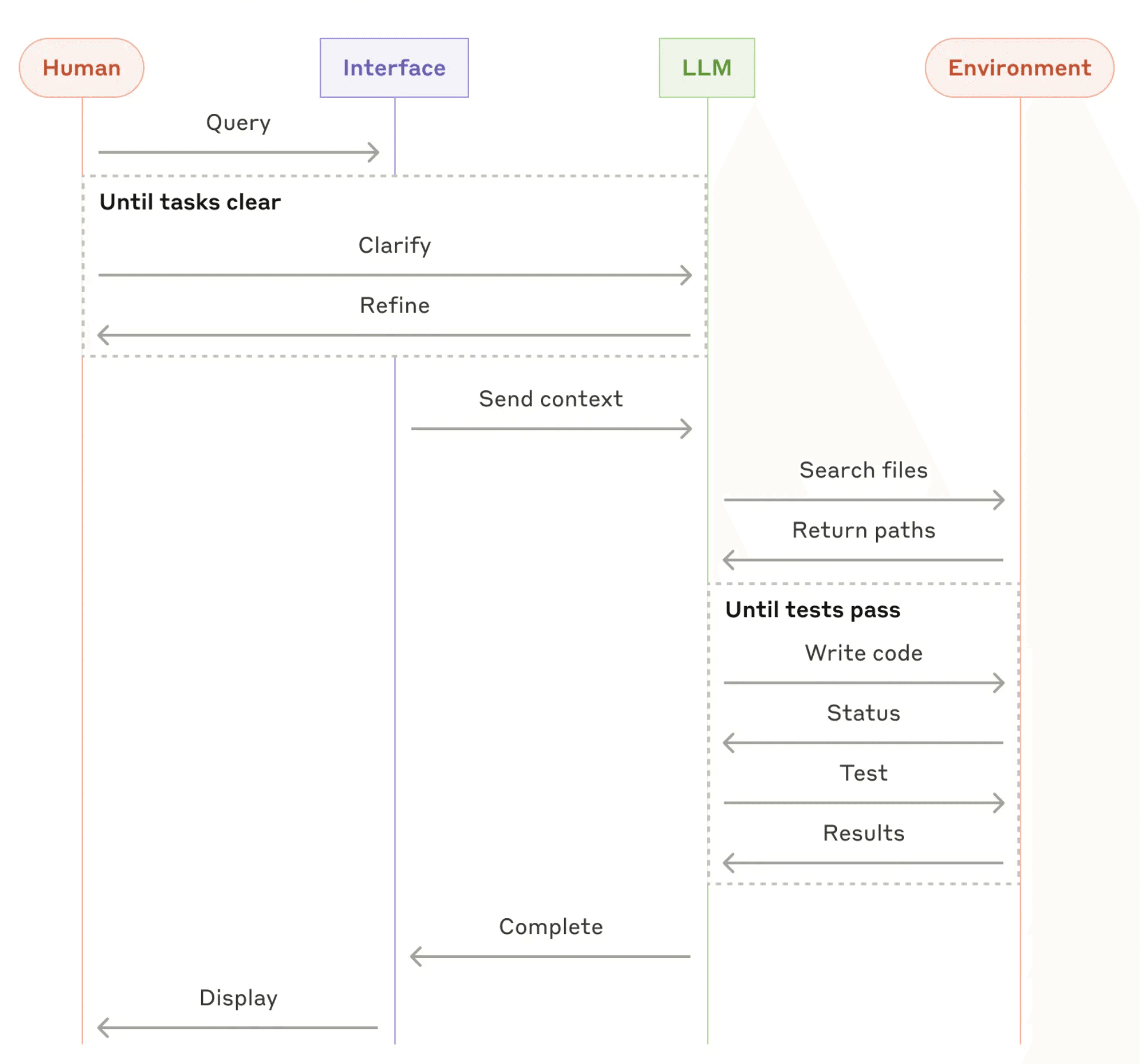
Overview of how Claude Computer Use works | Source: Building effective agents
This architecture creates a sandboxed computing environment where Claude can safely interact with applications and web interfaces. The system translates abstract tool requests into concrete operations within the isolated environment.
Integration implementation
Developers implement Computer Use by connecting Claude's requests to actions in the computing environment. The system requires no direct connection between Claude and the environment. Instead, your application acts as the intermediary, translating Claude's tool use requests into actions and returning results.
For security reasons, the implementation typically runs inside a Docker container with appropriate port mappings. This containerized approach ensures robust security isolation, which we'll explore in greater detail in the next section.
Containerization security framework for AI desktop control
Isolation as security foundation
Docker containers provide robust security isolation for AI desktop control. The virtualized environment creates a protective barrier between Claude's actions and your host system. This separation prevents potential system-wide access vulnerabilities. Each container runs independently with limited permissions, ensuring Claude cannot access sensitive data outside its assigned workspace.
Multi-layered defense architecture
The security framework implements defense-in-depth principles. Access controls restrict container privileges to only necessary operations. Encrypted communications protect data transfers. Dedicated user accounts with limited permissions enhance protection against unauthorized actions. This architectural approach minimizes potential attack surfaces.
Resource management and scaling
Containerization offers significant infrastructure advantages for deploying AI desktop controls. System resources can be precisely allocated and monitored based on specific needs. This efficiency enables seamless scaling of Computer Use deployments across organizations. Teams can quickly adjust container configurations to match workload requirements without compromising security.
Risk mitigation strategy
The containerized approach dramatically reduces risk compared to direct desktop access implementations. Firewall rules restrict network access to only necessary services. Regular security updates maintain protection against emerging threats. When combined with audit logging, this comprehensive framework enables safe automation while maintaining complete system integrity.
Now that we understand the security foundations, let's examine the specific Docker configuration requirements needed to implement this framework effectively.
Docker environment configuration requirements
System requirements for installation
Docker Desktop requires specific hardware configurations across operating systems. Users need a multi-core CPU with X86-64 or ARM64 architecture compatibility. A minimum of 4GB RAM is essential for basic functionality, though 8GB is recommended for optimal performance. Storage requirements include sufficient disk space for container images and volumes.
Operating system compatibility
Docker Desktop supports multiple operating systems with different implementation requirements. Windows users must enable Hyper-V or WSL2 backend, depending on their Windows version. Mac users have dedicated versions for Intel processors and Apple Silicon. Linux environments require specific kernel versions and configurations for container runtime.
Container setup commands
Setting up Docker containers requires proper command implementation. The basic syntax follows this pattern:
Each parameter serves a specific function in container configuration.
Environment variables and port configuration
Environment variables enable runtime customization for containers. They're defined using the -e flag:
Port forwarding connects container services to the host system. Configure it with the -p flag to map internal container ports to external host ports.
Volume persistence management
Docker volumes preserve data between container restarts. Mount volumes using the -v flag to create persistent storage:
This ensures critical data remains accessible even when containers are removed or rebuilt.
With these Docker configurations in place, the next step is connecting to the Anthropic API, which will enable your container to communicate with Claude for Computer Use functionality.
Anthropic API integration setup
Creating an API console account
Registration for the Anthropic API takes about five minutes. Visit the API console and complete the sign-up process. After registering, you'll have access to the Workbench for testing prompts and API key creation.
Setting up payment information
Enter your payment details in the Billing menu. A minimum one-time charge of $5 is required. You can activate automatic top-up for uninterrupted API usage. Payment processing happens instantly in most cases.
Generating your API key
Create a workspace for your project and generate an API key within it. This unique identifier will authenticate your requests to the Anthropic API.
Environment configuration
Set your API key as an environment variable for authentication:
For macOS:
export ANTHROPIC_API_KEY='My-API-key'
Testing your connection
Verify your setup by making a simple API call. This confirms proper authentication and gives you confidence to start building with Claude.
Once your API integration is properly configured, you'll need to understand how to deploy and interface with the Claude Computer Use container, which we'll cover next.
Container deployment and interface configuration
The Claude Computer Use Docker container offers a streamlined deployment process with multiple interface options. Understanding the port mappings and configuration parameters ensures successful implementation.
Initial setup and launch
Deploy the container with a single command that includes your API key:
This command mounts your local configuration directory to preserve settings between sessions. The container initialization takes 1-3 minutes.
Interface access options
Multiple interfaces provide flexibility for different interaction needs:
- Combined interface:
http://localhost:8080 - Streamlit interface only:
http://localhost:8501 - Desktop view only:
http://localhost:6080 - VNC client connection:
vnc://localhost:5900
The combined interface shows both chat and desktop views for complete interaction.
Display configuration
Optimize performance by adjusting screen resolution with environment variables:
For best results, keep resolutions at XGA/WXGA levels (approximately 1280×800). Higher resolutions may impact model accuracy and performance.
Advanced integration options
Developers can extend functionality through Python SDK integration. The container includes access to the agent loop and implementations of computer use tools.
For clean restarts, remove the ~/.anthropic/ directory to reset all settings.
With your container deployed and interfaces configured, let's examine practical examples of automation tasks you can implement with this technology.
Automation task implementation examples
Web form automation with Claude Computer Use
Claude can automate web form filling by extracting data from spreadsheets and completing online forms. This capability streamlines customer information processing, inventory updates, and product ordering tasks. Claude navigates to forms, extracts required information, and populates correct fields accurately.
Document processing implementation patterns
For document automation, start with simple, well-defined tasks before progressing to complex workflows. Specify clear expectations in your prompts, such as "After clicking the download button, confirm that the file appears on the desktop." This verification ensures each action completes properly before proceeding to the next step.
Keyboard shortcuts often provide more reliable navigation than mouse movements. For example:
Cross-application data transfer
Claude excels at multi-step workflows spanning multiple applications. It can transfer data from spreadsheets to web forms or CRMs with minimal human intervention. Establish checkpoints for critical operations where Claude can verify results before continuing. For optimal results, provide screenshots and example prompts for repetitive actions.
Output parsing frameworks
When implementing automation, incorporate error handling in your scripts to manage issues Claude might encounter. Create structured templates for output parsing that standardize how results are interpreted. One effective approach uses progressive automation—starting with simple commands before advancing to more complex workflows.
Error handling approaches
To debug automation failures, implement logging at each step of the process. Common failure scenarios include screen resolution limitations and scrolling reliability issues. Claude 3.7 Sonnet introduces dedicated scroll actions with direction control and more precise mouse controls for better spreadsheet interactions.
While these automation examples demonstrate the power of Claude Computer Use, it's important to understand the current technical limitations and how to work around them effectively.
Performance constraints and technical workarounds
Claude's computer use functionality faces several key limitations that require strategic approaches. Latency issues make it better suited for background processes rather than time-sensitive operations. The current response time lags behind human interactions, making it ideal for tasks where speed isn't critical.
Computer vision challenges affect coordinate precision for mouse actions. Claude may occasionally misclick or misinterpret visual elements. Well-defined prompts can help mitigate these accuracy issues.
Common failure modes
Spreadsheet interactions present particular difficulties. Cell selection often fails due to the small target size. Users should prompt Claude to utilize keyboard shortcuts instead of mouse movements whenever possible.
Complex GUI elements like dropdowns and scrollbars prove challenging for the model to manipulate reliably. When encountering these interfaces, implementing keyboard navigation offers better results.
Implementation workarounds
Self-correction capabilities exist but remain experimental. The model attempts to correct errors through an "agent loop," repeating actions until success. However, this process isn't fully dependable yet and may require human intervention.
Breaking tasks into simpler components improves success rates. Specific, step-by-step instructions yield better outcomes than complex, multi-stage directives.
Recent updates have introduced improvements in tool selection accuracy and thinking capabilities that help clarify the model's reasoning process when issues occur. Beyond understanding performance constraints, enterprise deployments require additional security measures to ensure safe implementation at scale.
Enterprise security implementation
Container isolation strategies
Strong container isolation forms the foundation of secure enterprise deployments. Docker containers must operate with precise access controls and firewall configurations to prevent lateral movement. Each application container should run with minimal privileges, following the principle of least privilege to limit potential attack surfaces.
Network security configuration
Implementing robust network security requires careful configuration of firewall rules. Restrict outbound connections to whitelisted domains only, creating a default-deny policy for all other external network access. Deploy intrusion detection systems to monitor container communications and identify anomalous behaviors that could indicate security breaches.
Sensitive data protection
Comprehensive data protection demands both applied cryptography and proper access controls. Implement encryption for data at rest and in transit using industry standards like AES. Classify sensitive information with appropriate labels to enforce security policies consistently across environments.
Prompt injection prevention
Mitigate prompt injection vulnerabilities by isolating Claude from sensitive data and systems. Implement classifiers to detect potentially harmful instructions in user input. Review suggested commands before approval and avoid piping untrusted content directly to Claude, thereby maintaining a secure operation environment.
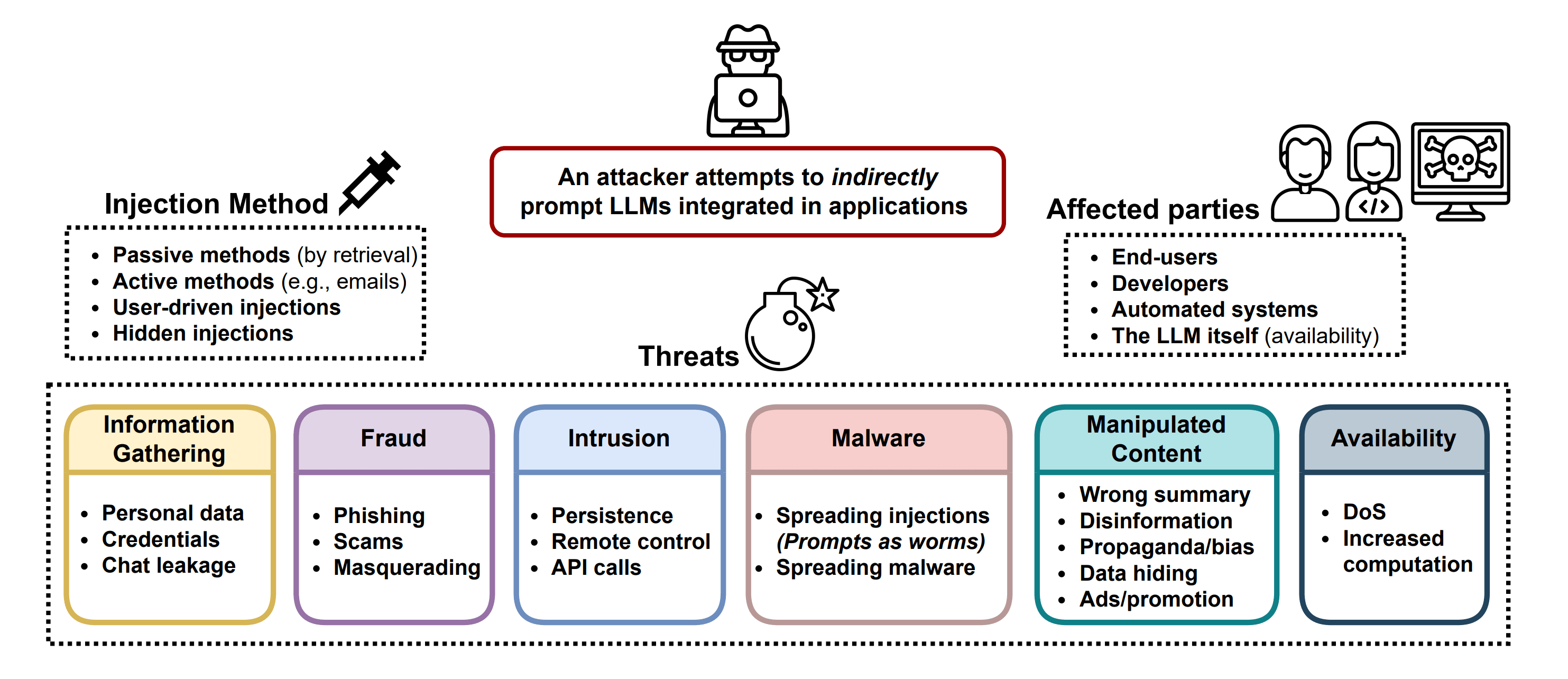
An overview of adversarial attacks to LLM-based applications. | Source: Not what you've signed up for: Compromising Real-World LLM-Integrated Applications with Indirect Prompt Injection
Compliance monitoring architecture
Deploy systematic monitoring to ensure continuous compliance with regulatory requirements. Implement audit logging to track all container activities and authenticate sensitive operations. Regular security updates and validation of firewall rules maintain protection against emerging threats in containerized environments.
Conclusion
Implementing Claude Computer Use offers a powerful approach to desktop automation when properly containerized and secured. The architecture provides AI teams with a sandboxed environment where Claude can safely manipulate applications without risking host system integrity.
Key technical takeaways include using Docker for robust security isolation, configuring multiple interface options through appropriate port mappings, and implementing keyboard shortcuts rather than mouse interactions for more reliable task execution. The progressive automation approach yields the best implementation results, starting with simpler tasks before advancing to complex workflows.
For product teams, this technology enables new automation opportunities in your roadmap, particularly for repetitive data-processing workflows that span multiple applications. Engineering leaders should focus on the containerization security model, which provides the necessary guardrails for safe AI desktop control. Claude Computer Use represents a strategic capability for startup executives that can reduce operational overhead while maintaining strong security compliance.
As this technology matures, expect improvements in visual recognition accuracy and interaction speed. Building proper security frameworks now creates a foundation for safely expanding AI automation capabilities as these systems continue to evolve.