- Avoid manual copy-pasting of different set of variables values. Rather, hold all of them together and quickly navigate between them to test individual scenarios.
- New variables created in the prompt automatically get added as columns in the linked dataset.
- Run evaluations on thousands of rows for automated testing.
Dynamic Columns in Datasets
Datasets can have dynamic columns configured at the column level. You can set a column to be an API variable or prompt variable directly in the dataset, allowing you to:- Fetch live data from external HTTP endpoints for specific columns
- Execute other prompts and use their outputs as column values
- Run dynamic columns for all rows, failed rows only, or just the first row to test your configuration
Linking Datasets to Variables
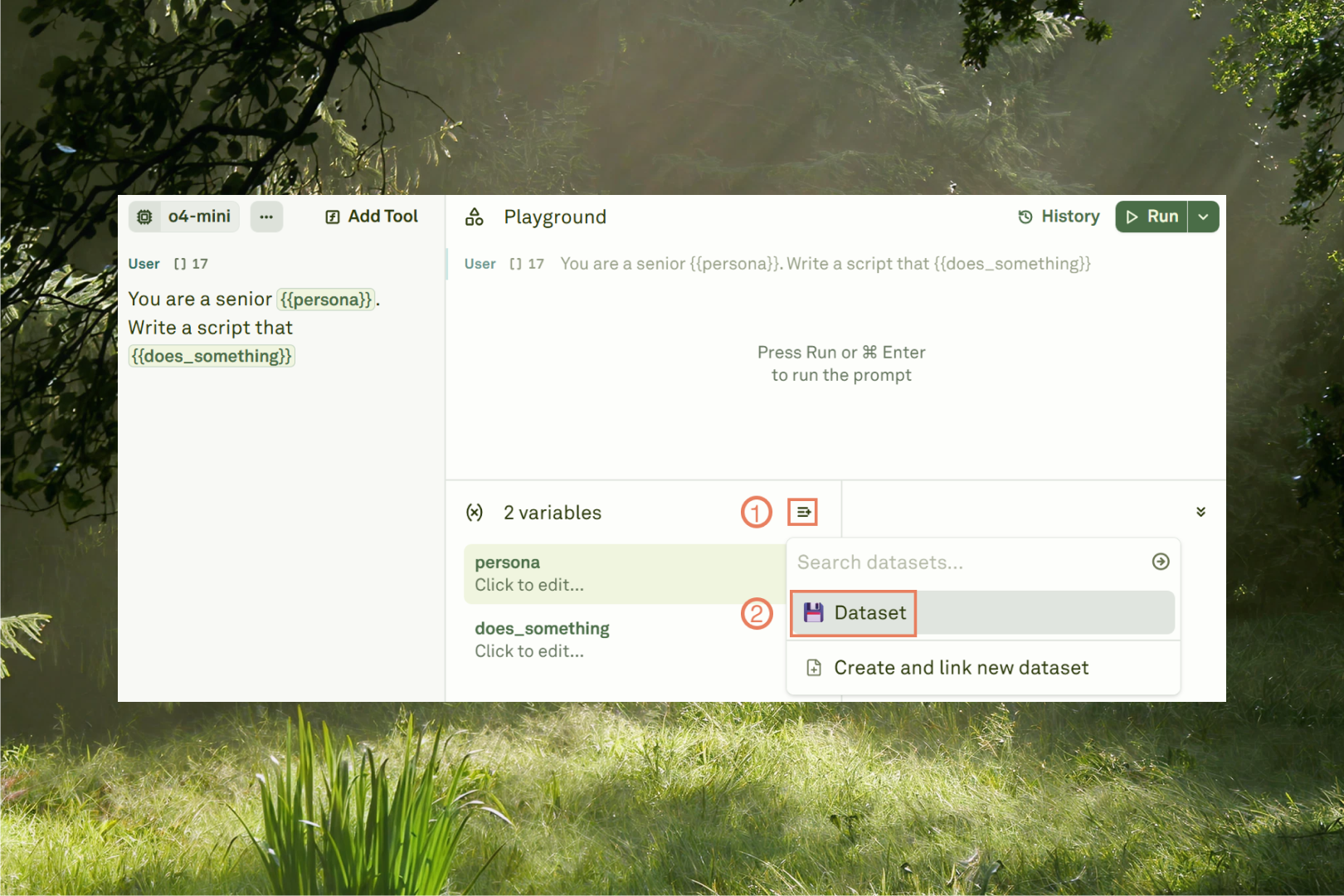
Follow the steps below to link a dataset to your variables: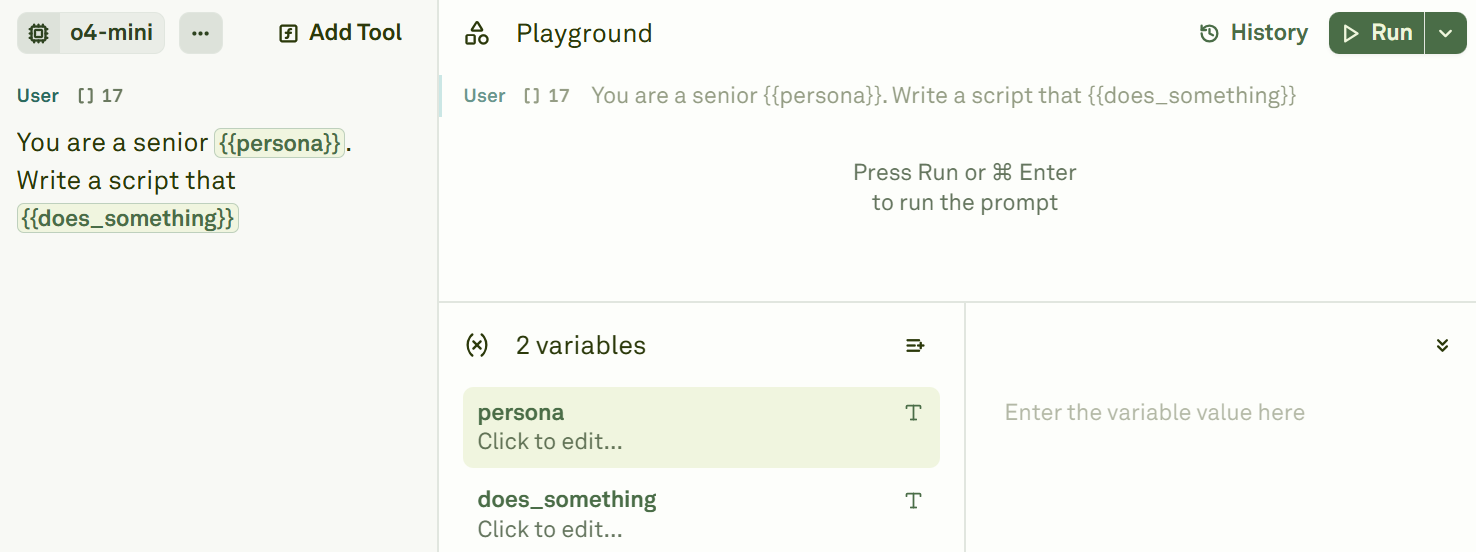
Run a dataset's row into the Playground
When the dataset is linked to the Playground, you can navigate all the rows. When you select a row, the variables take on the value of the selected row. If you run the prompt in the Playground, the test case run will use the variable values of the selected row.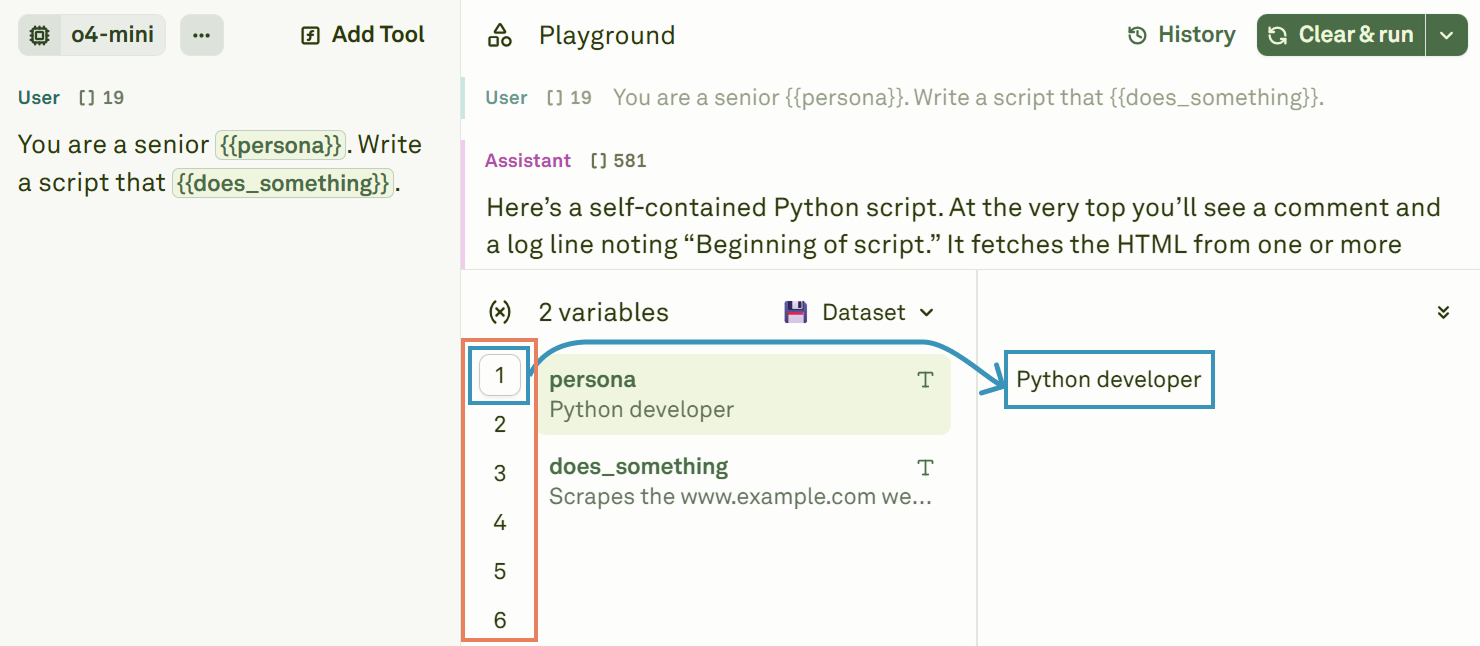
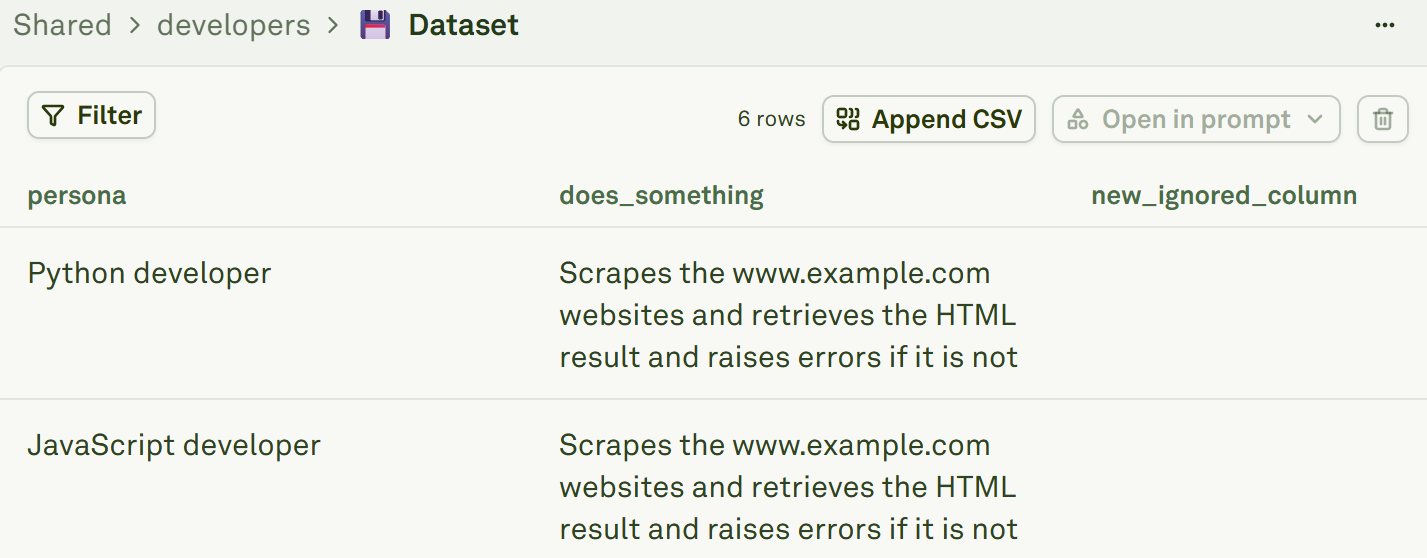
Verify the columns of the linked dataset
Go inside the linked dataset and verify that the columns match the variables, with respect to the names. With respect to the numbers, a linked dataset can have more columns than the number of variables. The exceeding columns will be ignored in the computation.