

Adding Tools
Adaline enables you to add tools to LLMs that support function calling. Tools are part of the prompt and are sent to the LLM alongside your messages. You can add multiple tools in your prompt, each representing a unique call to an external service that the LLM can invoke. To add tools, follow the steps below: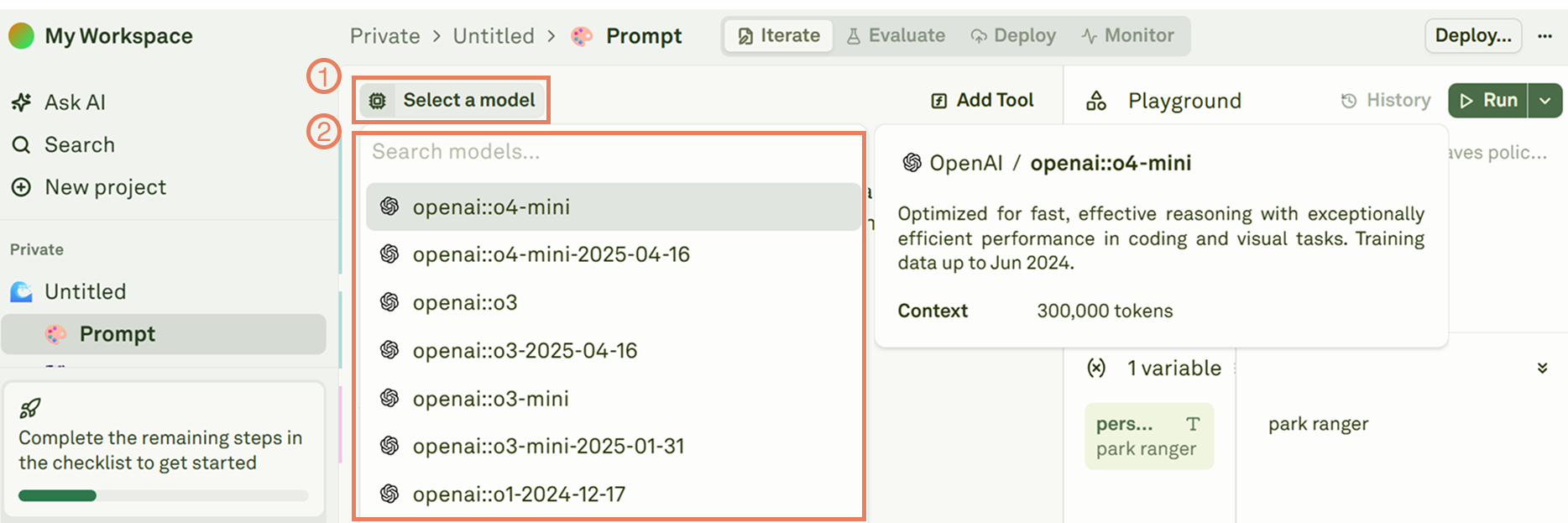

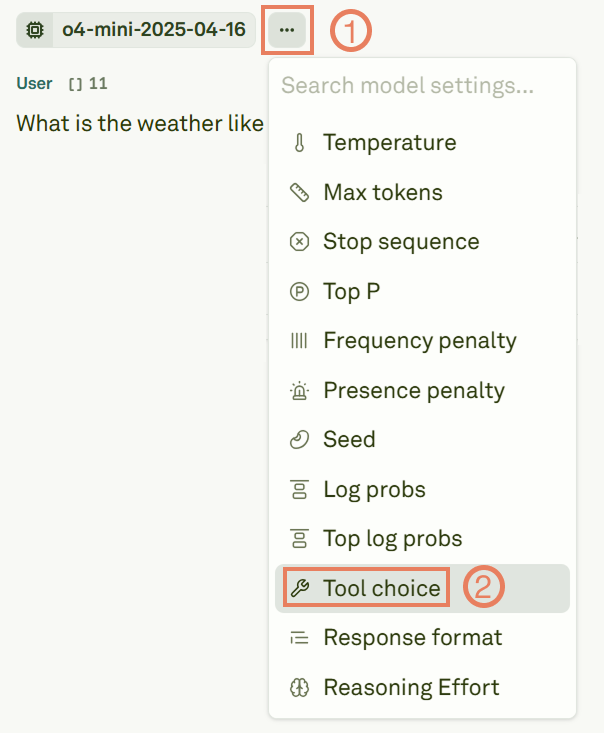
Configure tool choice
Ensure the tool choice feature is properly set in the LLM settings to allow the LLM to generate tool calls effectively.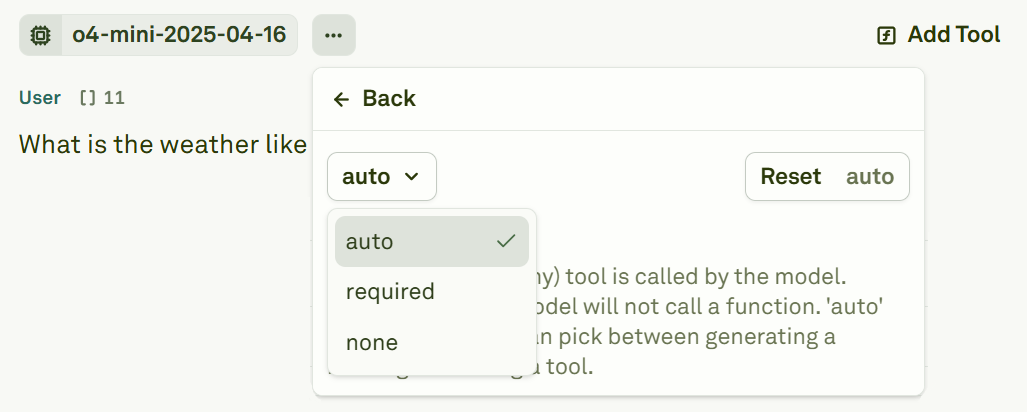
none: Instructs the LLM to not invoke any tool.auto: Lets the LLM decide which tool and how many to use, based on the content of the message or the conversation.required: Forces the LLM to invoke at least one tool.any: Allows the LLM to call any of the available tools.
Tools Schema Definition
Adaline supports tools with JSON schema format, giving you precise control over tool definitions and parameter validation. Define your tool’s schema within theschema property of the tool definition. When clicking on Add tool, the system will show a new section where you can define the schema of the tool you want to call:
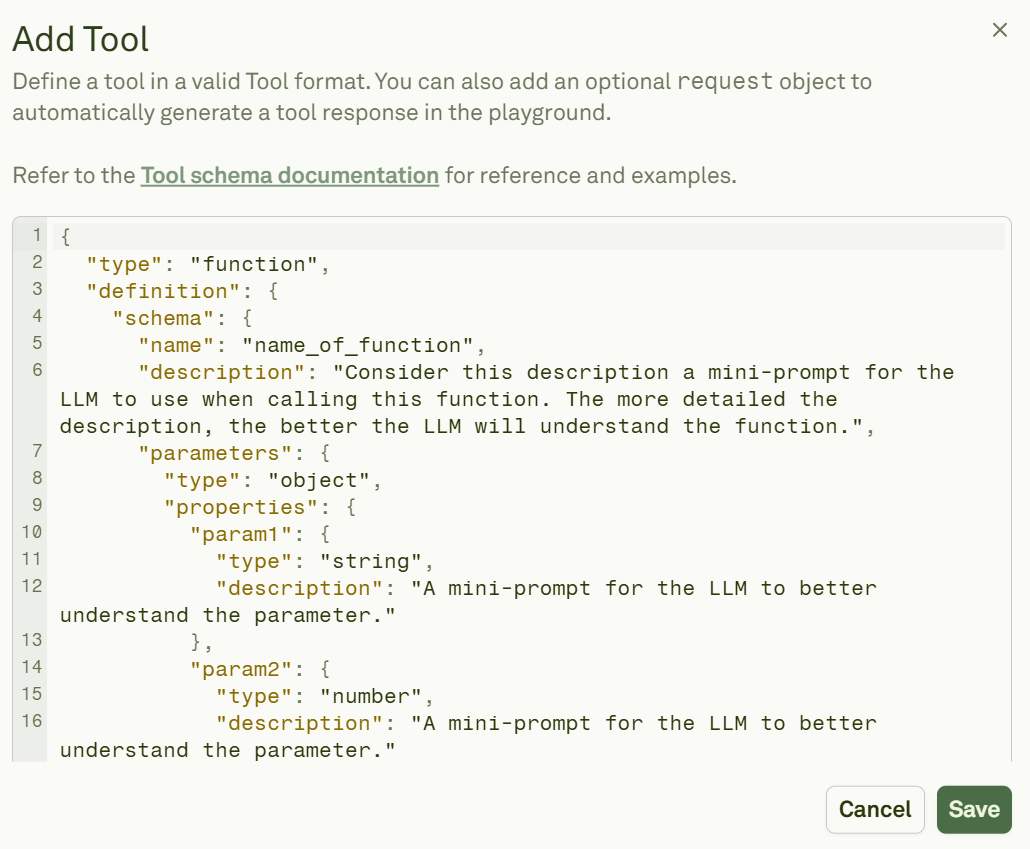
NOTE: Refer to the OpenAI JSON schema for more examples.
tools' JSON schema structure
| Parameter | Type | Description | Required |
|---|---|---|---|
type | String | Always set it to “function” | Yes |
name | String | The name of the tool | Yes |
description | String | Describes what the tool does | Yes |
parameters.type | Object | The parameter structure (“object” is a typical choice) | No |
parameters.properties | Object | Defines individual parameter’s definitions with types and descriptions. | No |
required | Array | Lists the mandatory parameter names | No |
Request Structure
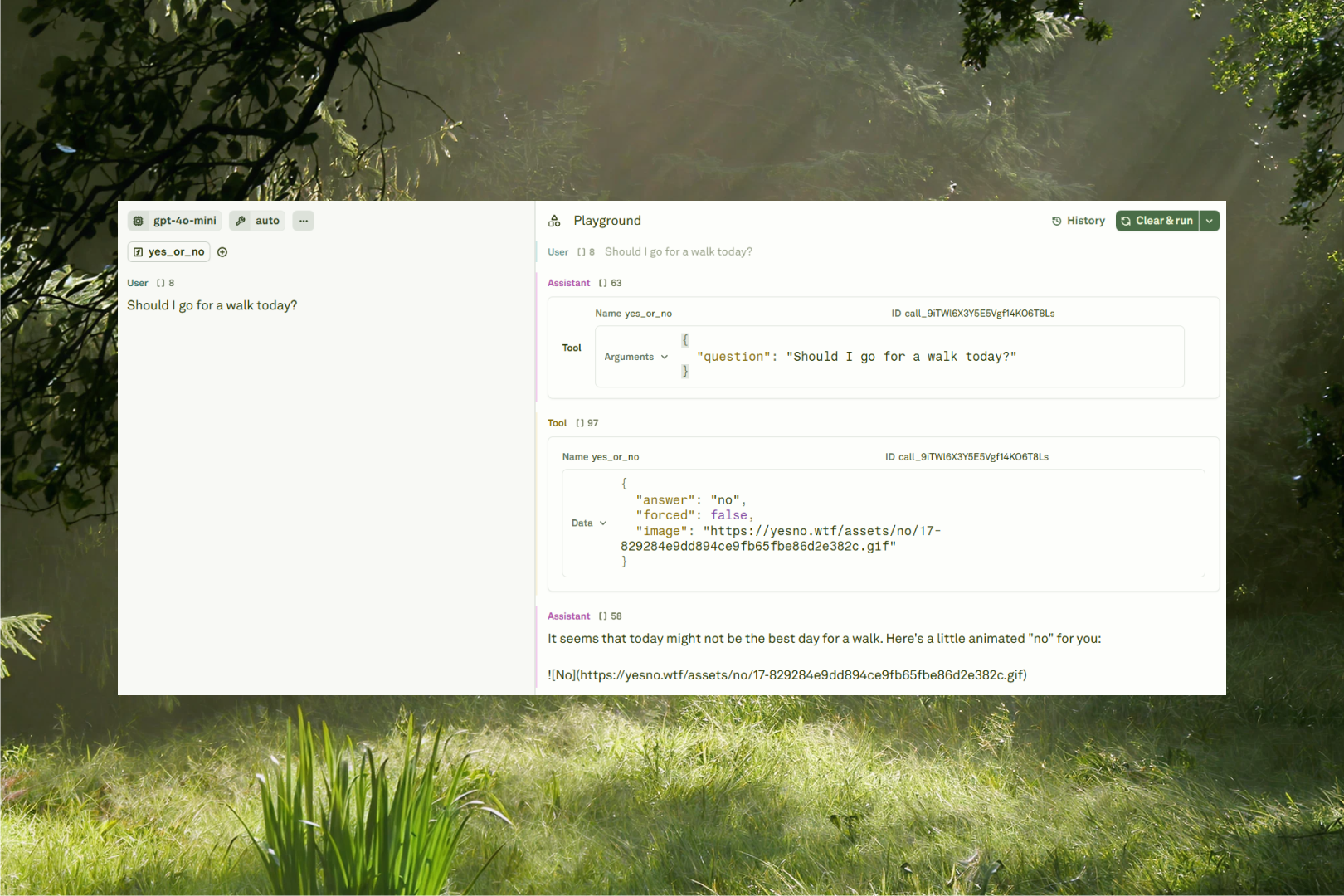
Optionally, you can configure the tool’s HTTP request endpoint, headers, etc. By adding a request object to a tool you configure it for ‘Auto Tool Calls’ in the Playground. If the LLM invokes this tool, the Playground will fetch a response from the custom backend configured and continue the conversation with LLM. The JSON below shows the complete schema when adding request parameters:tools' JSON schema structure with request
| Parameter | Type | Description | Required |
|---|---|---|---|
type | String | Always set it to “http” | Yes |
method | String | The HTTP method used for the call (GET or POST) | Yes |
url | String | The URL of the endpoint to call | Yes |
retry | Object | Define a retry mechanism for failed requests | No |