Selecting An LLM
Adaline’s Editor’s LLM setting menu lets you choose which LLM processes your prompts. It displays all supported LLMs corresponding to the Providers you have configured in Adaline’s settings: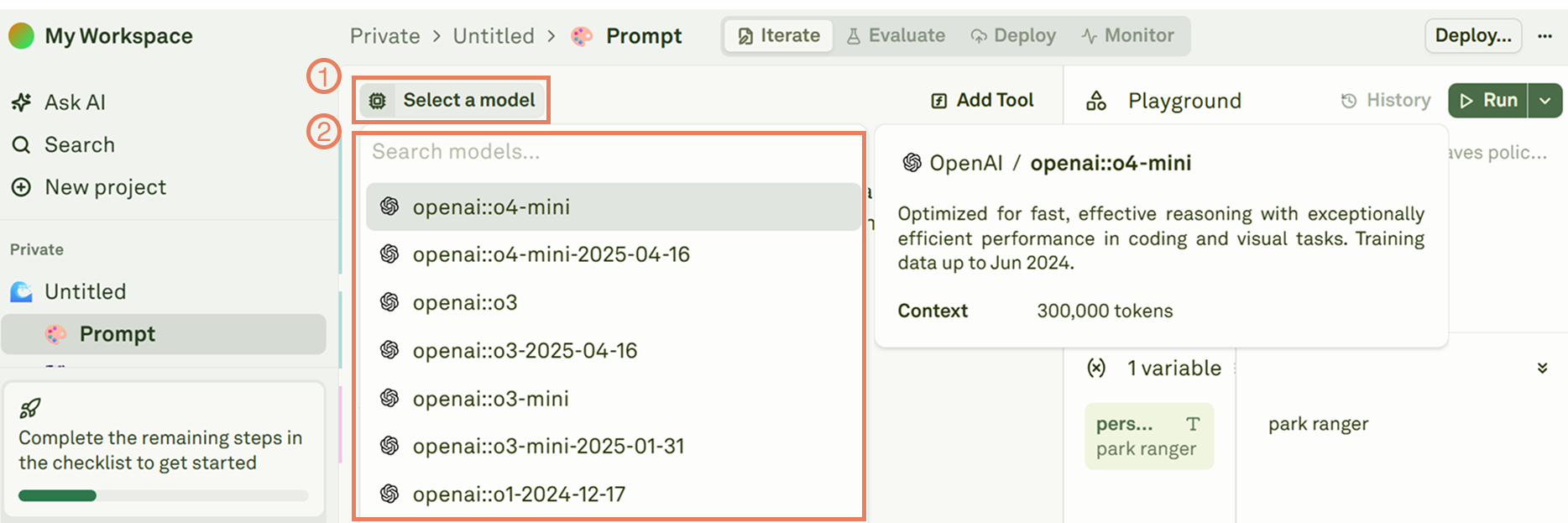
"::". This prefix helps you choose which specific provider account to use. This is useful when you have multiple keys for the same provider, such as “OpenAI-dev” and “OpenAI-prod” setups.
Configuring an LLM Settings
Configure an LLM’s settings by clicking on the meatballs menu: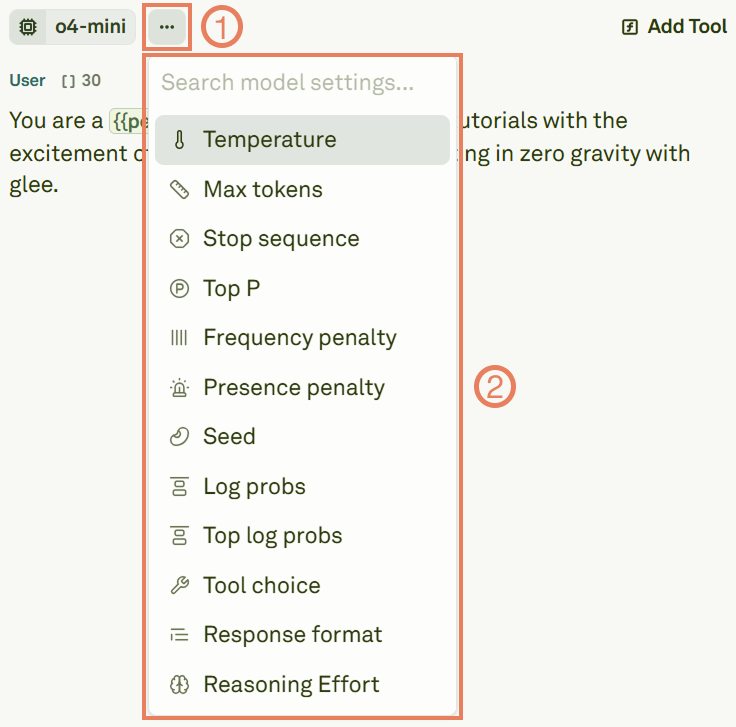
NOTE: The settings displayed depend on the selected LLM. The interface automatically shows only relevant parameters for the LLM you selected.
Configure Response Format
Among the settings, you can choose the LLM’s response format by clicking on Response format: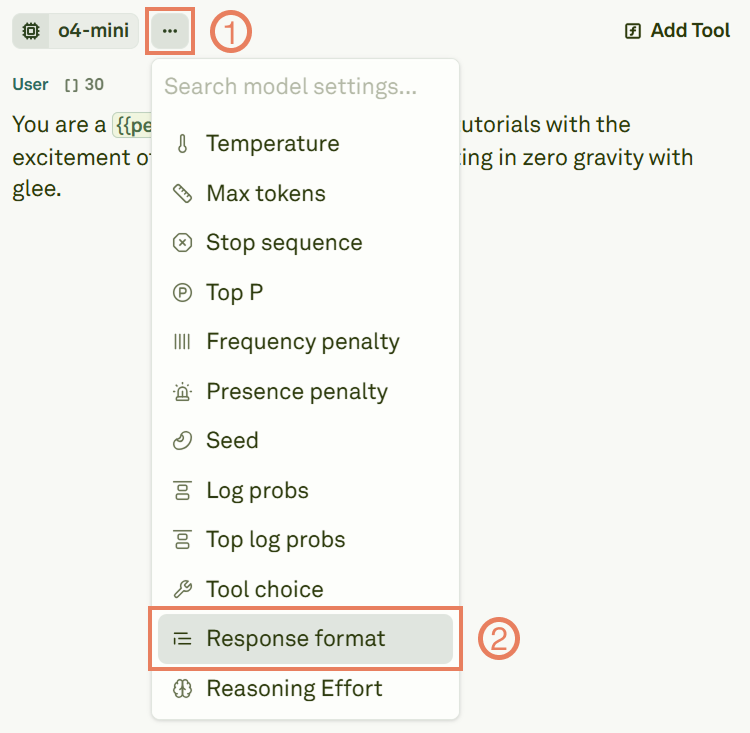
- text: Instructs the LLM to return the output in textual format.
- json_object: Instructs the LLM to return the output in the JSON format in any schema as it deems fit. To work properly, the prompt must contain the term “json” (case insensitive).
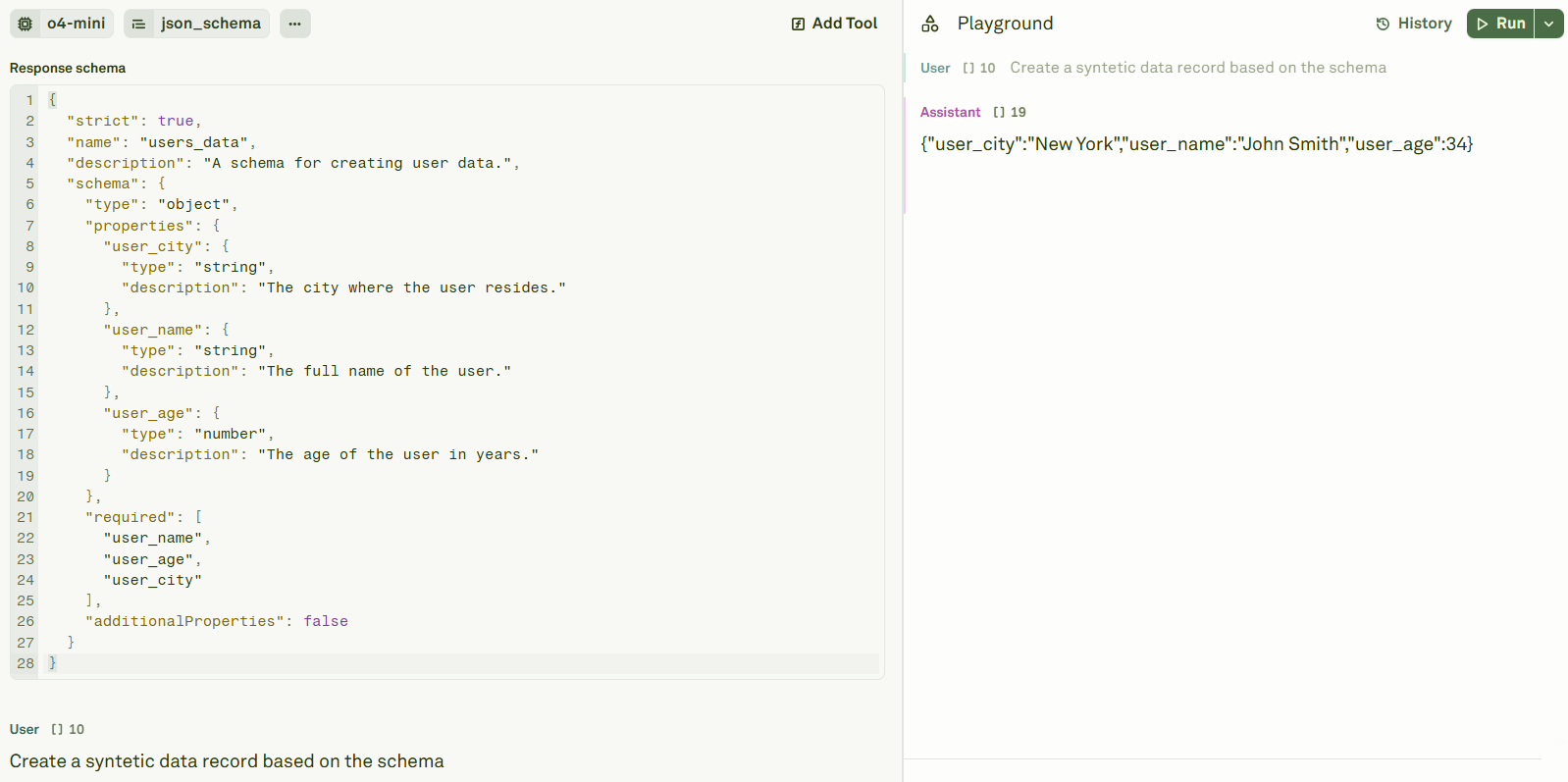
- json_schema: Instructs the LLM to return the output in the JSON format that adheres to a precise schema you define.
- The
"strict": truefield is mandatory. - The
namefield is mandatory. If you need to use more than one words in it choose between the following options:- Use the underscore. For example:
users_data. - Use the camel case notation. For example:
usersData.
- Use the underscore. For example:
- You must use the
"schema"field to define the JSON schema and its subfields.