Roles And Content Blocks
In Adaline, messages are the building blocks of your prompts. Each message has two components:- The role: Specifies the actor for the content block
- The content block: Defines the actual content of the prompt.
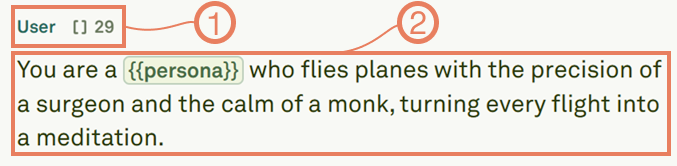
- System: Sets the overall instructions and context of the prompt.
- User: Represents the end-user inputs.
- Assistant: Defines the LLM’s output.
- Tool: Allows you to add tool responses to tool calls in your role-based prompts conversations.
Adding Comments
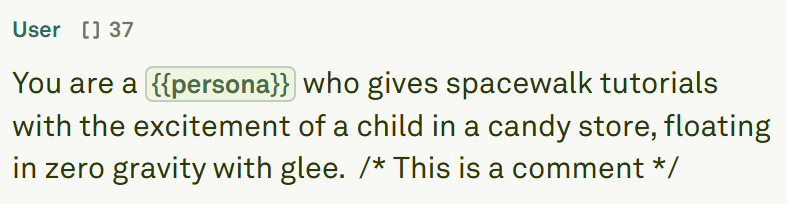
Message comments in Adaline help you annotate your prompts without affecting the actual LLM interaction. They are visible only in the message interface and are stripped out before sending the prompt to the LLM. Use the comment syntax/* Your comment here */ to add notes about prompt design choices or reminders for future edits. Place comments strategically near complex sections to explain your reasoning, making it easier for team members to understand your prompt structure.
Adding Images
Images bring visual context to your prompts. In Adaline, you can add multiple images per message. Follow the steps below to embed images in your messages:-
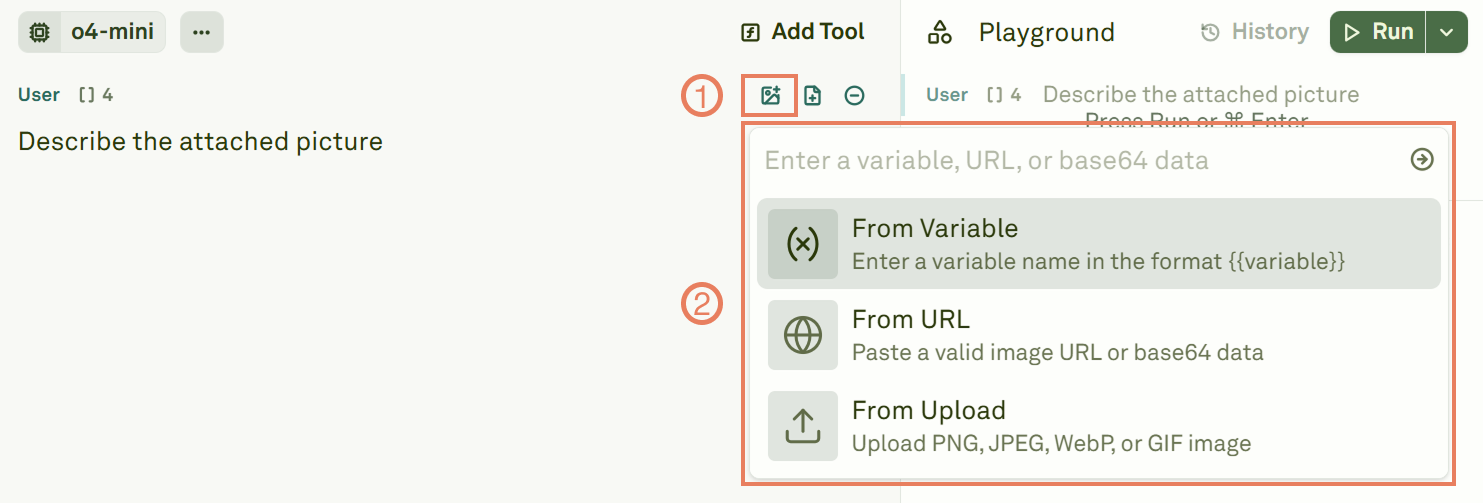
Navigate to the message block and click on the image button . You can either retrieve the image from a variable, paste the URL of the image, or upload it from your computer:
-
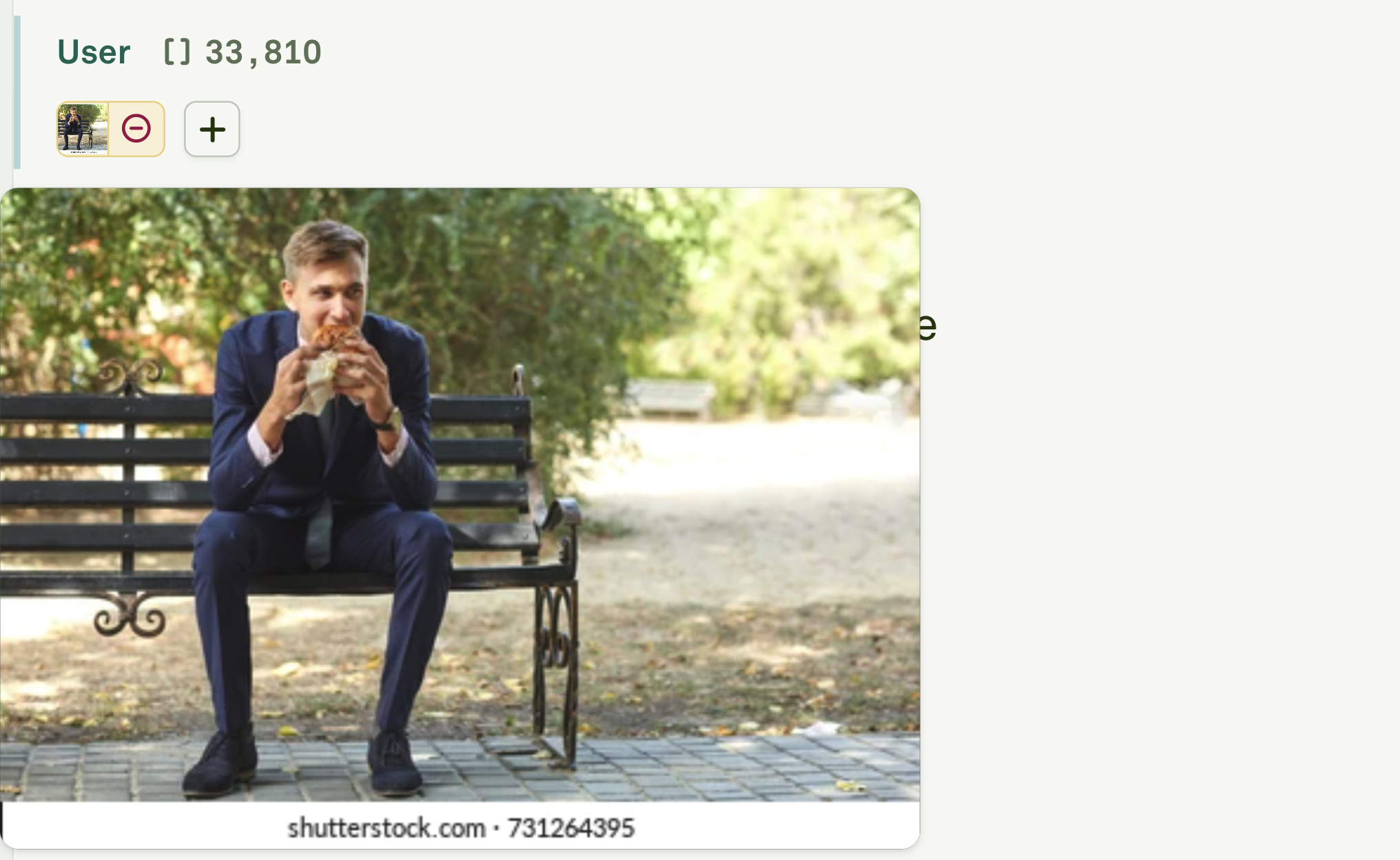
Once attached, the system shows the image’s preview:
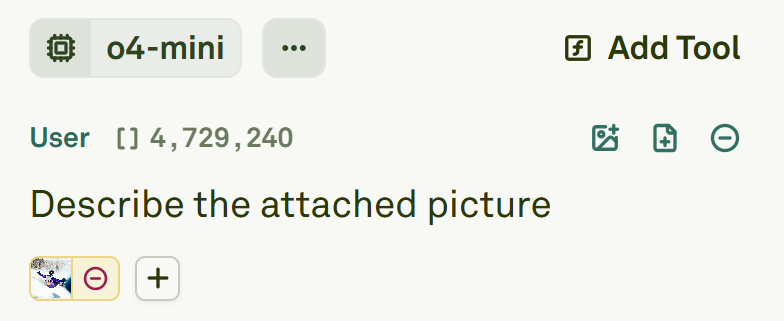
- To add multiple images, click on the plus button and repeat the previous steps.
Adding PDFs
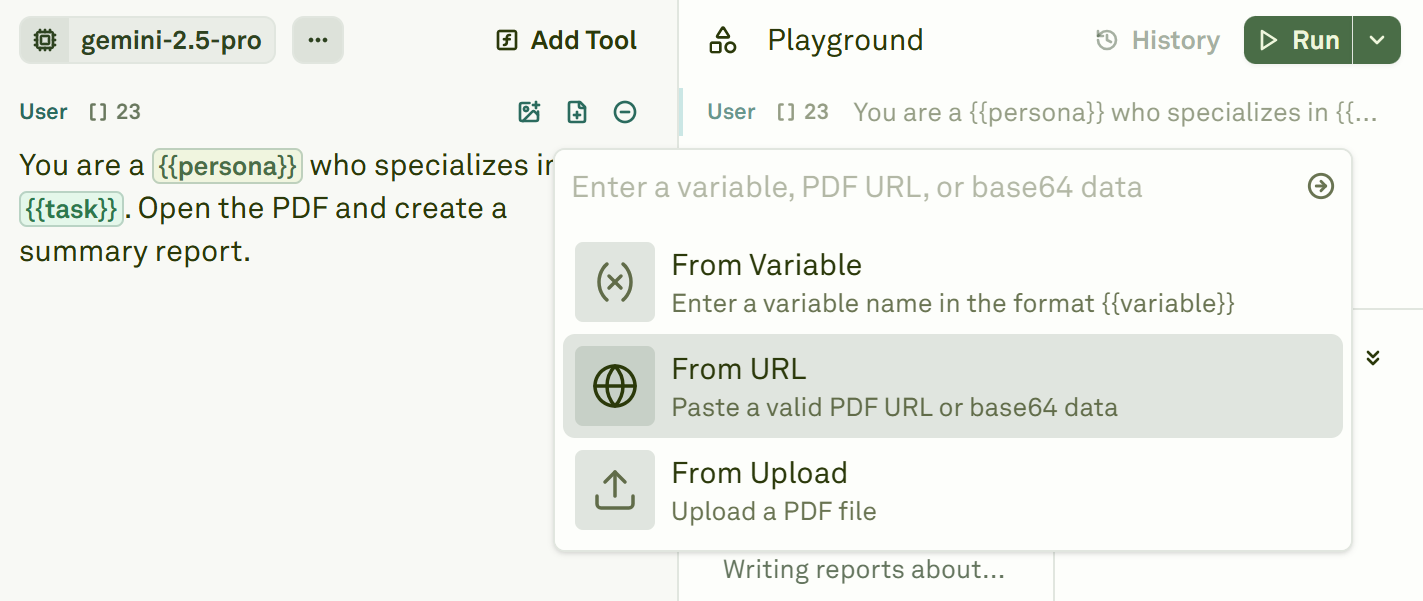
You can add PDFs to your prompts and ask LLMs to perform actions on them. Follow the steps below to embed PDFs in your messages:-
Navigate to the message block and click on the add PDF button . You can either retrieve the PDF from a variable, paste the URL of the image, or upload it from your computer:
-
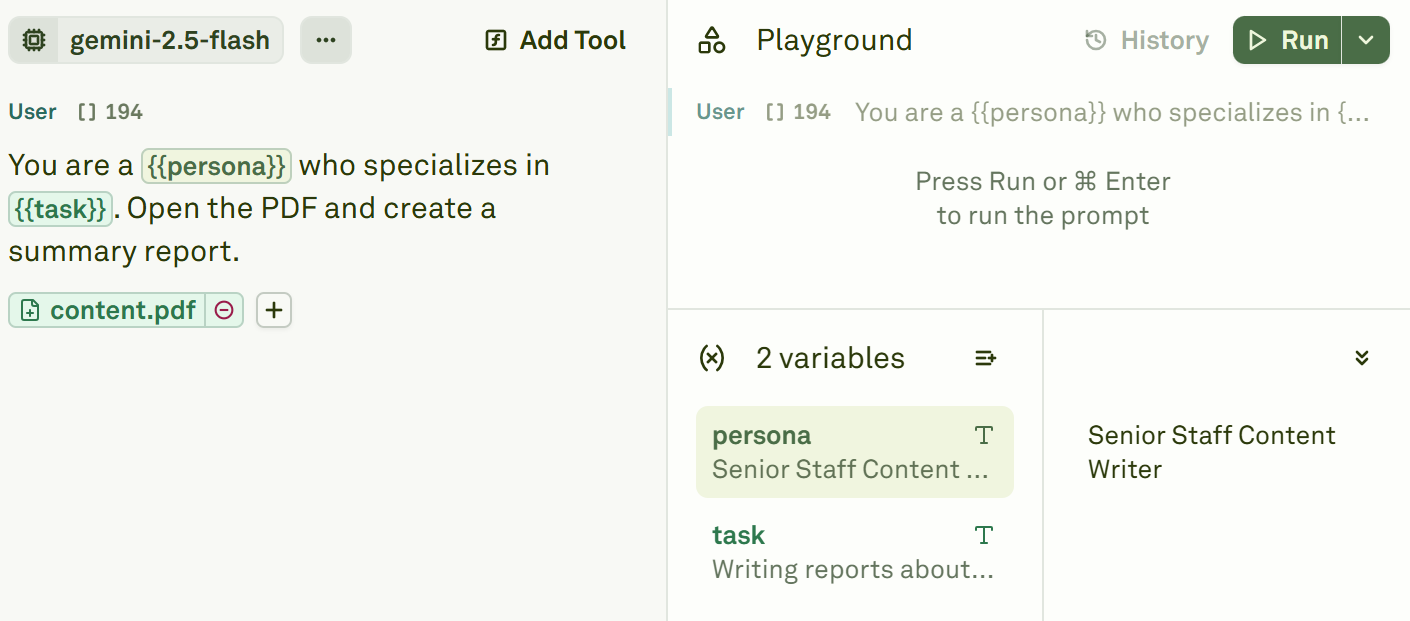
Once attached, you can run your prompt:
Adding Variables
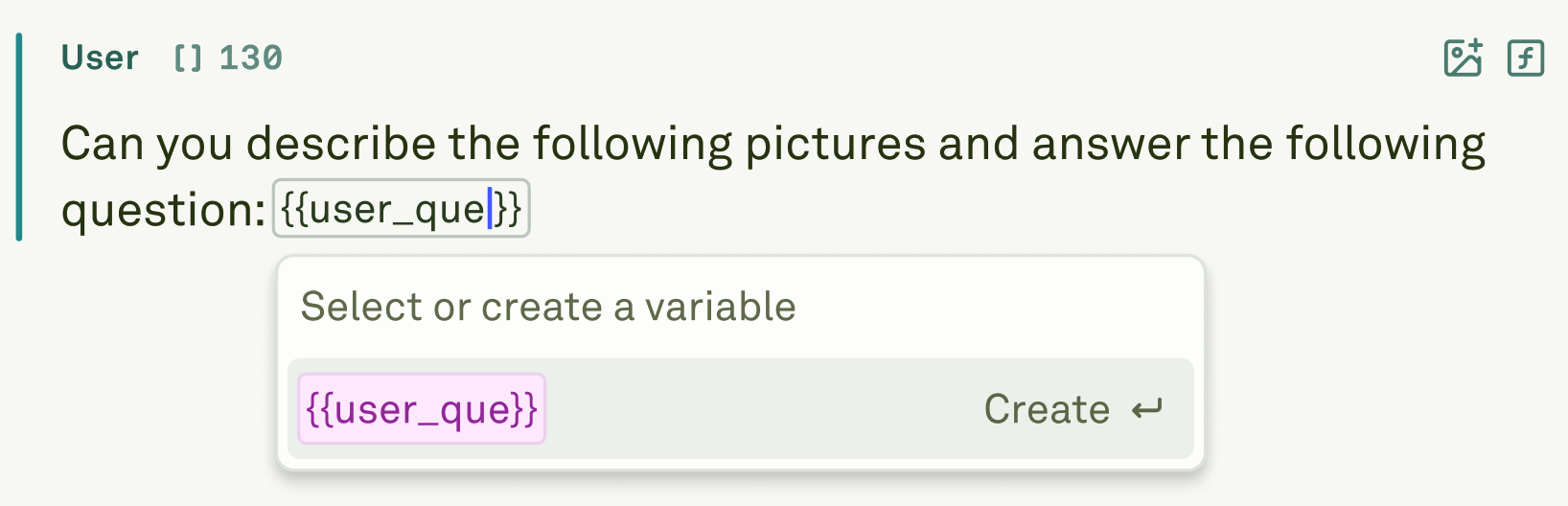
Variables are an integral part of prompts in Adaline. They let you adapt one template to countless situations without rewriting the same content, but customized for specific situations. For example, instead of creating separate prompts for each customer, you can build one powerful template that automatically personalizes based on the variable inputs. This saves you time, ensuring consistency across all interactions.Variable names must follow specific naming rules. See Variable Name Constraints for detailed information about allowed characters and naming conventions.
Dynamic Sources in Variables
Dynamic sources are a key feature that transform static prompts into modular, data-driven workflows. When you use API or prompt in your variables:- API Variables allow your prompts to interact with external systems in real-time. You can configure the HTTP method, headers, body, and use placeholders from your dataset columns that are resolved at runtime.
- Prompt Variables enable prompt chaining, where the output of one prompt serves as input for another. The system automatically handles dependency management and parallel execution.
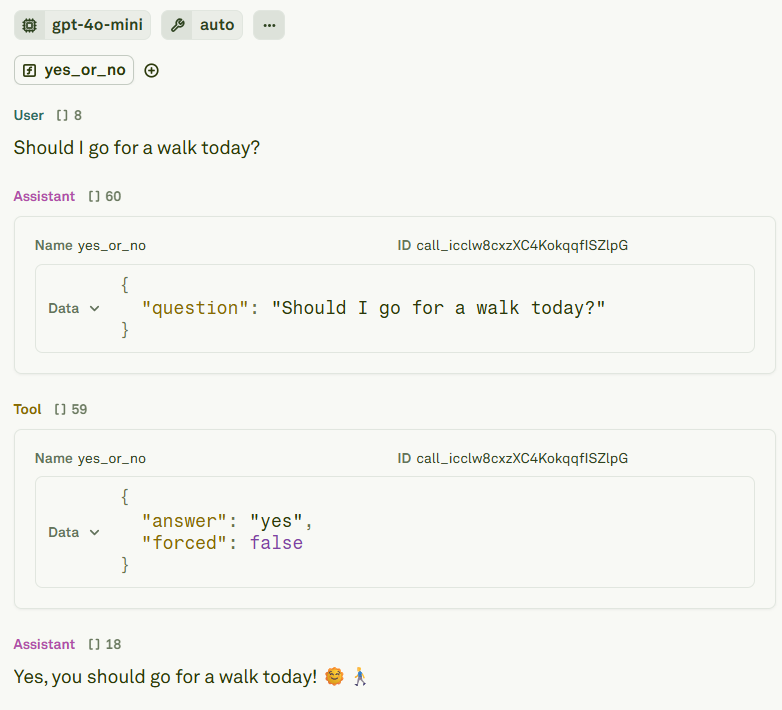
Adding Tool Calls and Responses
There are cases when an LLM can not respond precisely to a prompt for several reasons. Typical reasons are having fresh or specific data. For example, if you ask an LLM what is the weather like in San Francisco right now it will either:- Hallucinate the response.
- Respond, telling it has no access to current data on the weather.
Creating Role-Based Prompts
Role-based prompting helps your LLM adopt specific personas or expertise. This makes responses more relevant without complex technical setups. Below is a procedure to create effective role-based prompts using a multi-shot prompt:

Add an Assistant message
Add an assistant message to teach the LLM how you would expect it to respond when describing the image.
Add another Assistant message
Add another assistant message to teach the LLM how you would expect it to respond when describing the image.