

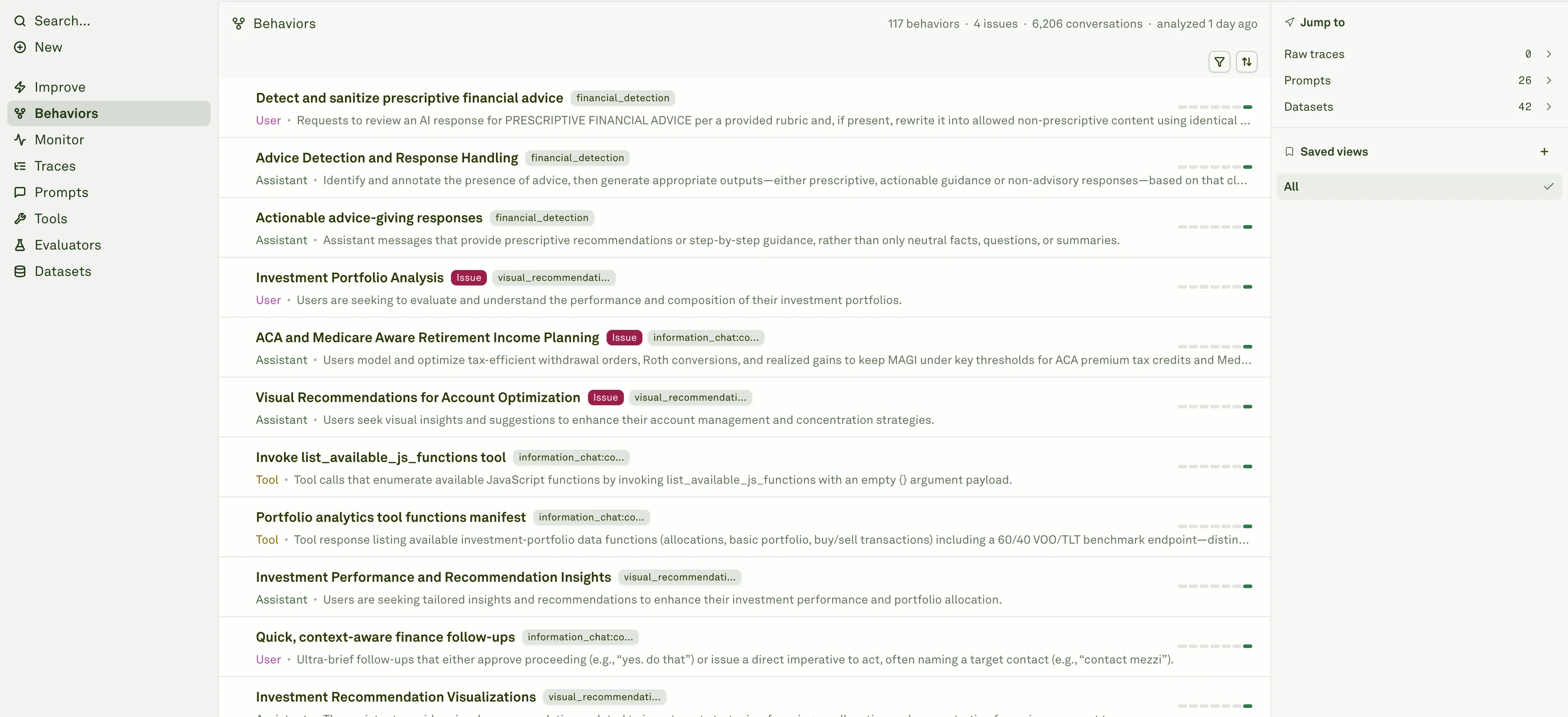
Confirm the summary
The top of the detail page shows the Behavior name, role, status, subject context, snapshot context, and grounded metrics such as conversation count, error rate, first seen time, latency, and cost when available. Use this section to confirm:- The Behavior is in the role you expected.
- The issue status matches the evidence.
- The volume is large enough to justify action.
- The Behavior is recent or persistent enough to matter.
- The subject context matches the prompt, agent, or tool you intend to inspect.
Inspect trend and lifecycle
The detail page can show time series, heatmap, and lifecycle context. Use these sections to answer:- Did the Behavior start after a deployment or traffic change?
- Is the issue concentrated in one time window or consistently present?
- Is the Behavior growing, shrinking, dormant, or reactivated?
- Did the Behavior split into sub-behaviors or absorb related patterns?
Read representative conversations
Representative conversations show the pattern in context. The app resolves representative spans from production data when possible and falls back to stored snippets for older behavior snapshots. Look for examples that make the failure mode obvious and examples that show the desired behavior is still possible. When a conversation looks important, open the related trace to inspect the full request, spans, tags, attributes, model settings, tools, and evaluator results.Use the word cloud and related sections
Behavior detail can include token aggregates, related behaviors, co-occurrence, handled-by context, and trace anatomy. These sections help distinguish:- The user language that triggers the Behavior.
- Whether the issue appears with a particular tool or model step.
- Whether the Behavior is part of a larger topic.
- Which spans belong to the Behavior when you open Traces from the detail page.
Connect the evidence
A Behavior can point you to the next object in the workflow:| Destination | Use it when |
|---|---|
| Traces | You need the exact production request and span details. |
| Prompts | You need to inspect or edit the prompt that produced the behavior. |
| Datasets | You want to turn the behavior into regression or evaluation cases. |
| Improve | You want Adaline to propose a candidate prompt fix. |
Start Improve from a Behavior
If the Behavior is tied to a prompt, use Improve from the Behavior action area. Adaline pre-fills the target prompt and behavior context when enough information is available. After the Improve cycle finishes, return to the Behavior and Monitor views to confirm:- The issue rate decreases.
- Representative traces show the desired behavior.
- Eval score does not regress.
- Cost and latency remain acceptable.
- No new high-volume Behavior replaces the old failure mode.