

1. Sign up
If you don’t have an Adaline account yet, create one by signing up at app.adaline.ai. After you sign up and log in, Adaline creates a sample project calledGet Started. Open the project picker dropdown and select Get Started to follow these quickstarts. The project includes starter resources you can use to run a prompt and try evaluations.
2. Set up your workspace API key
Create a workspace API key that your application, SDK, integration, or proxy setup will use to authenticate with Adaline. For the full walkthrough, see Create API keys.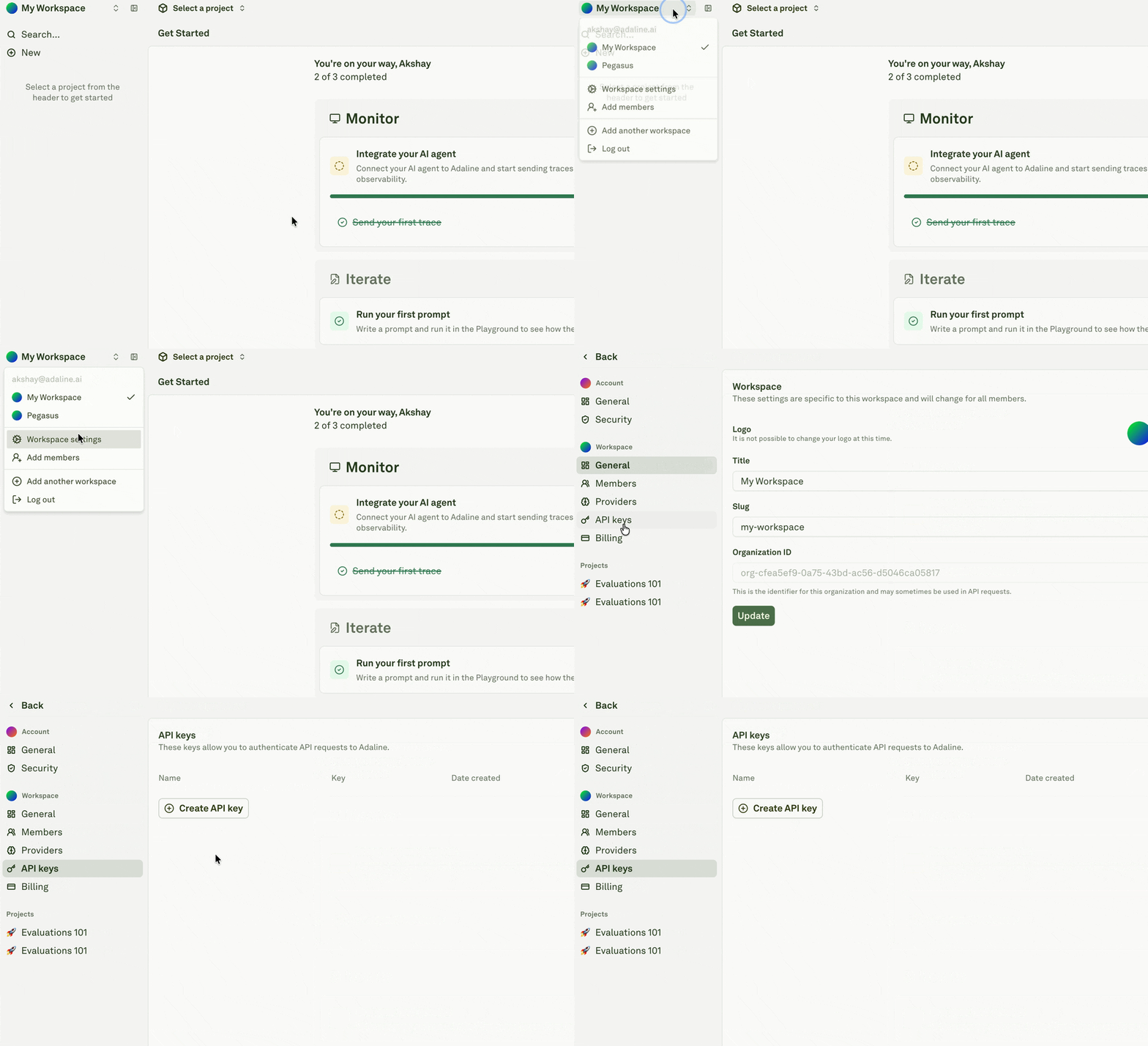
3. Integrate your AI Agent
Choose the integration method that best fits your workflow.- Using coding agents
- Integrations
- Adaline Proxy
- SDK or API
Let an AI coding agent do it for you
If you use an AI coding agent such as Cursor, Windsurf, Cline, or any other agent that accepts context — you can hand it all the information it needs to integrate Adaline into your codebase automatically.Open the full integration context document below, then use the Copy page button (top-right of the page) or the ChatGPT / Claude buttons to send it directly to your AI agent.TypeScript SDK Integration Context
Python SDK Integration Context
REST API Integration Context


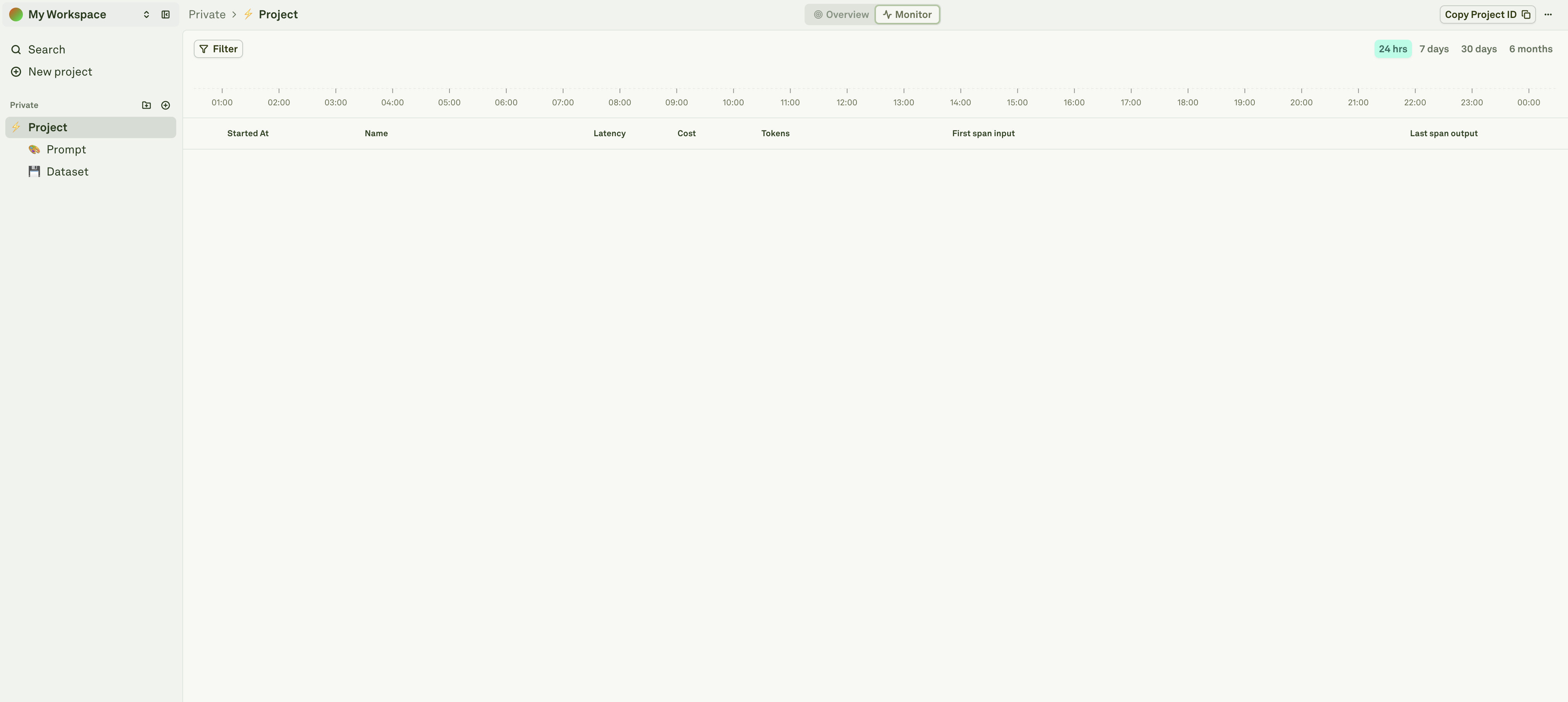
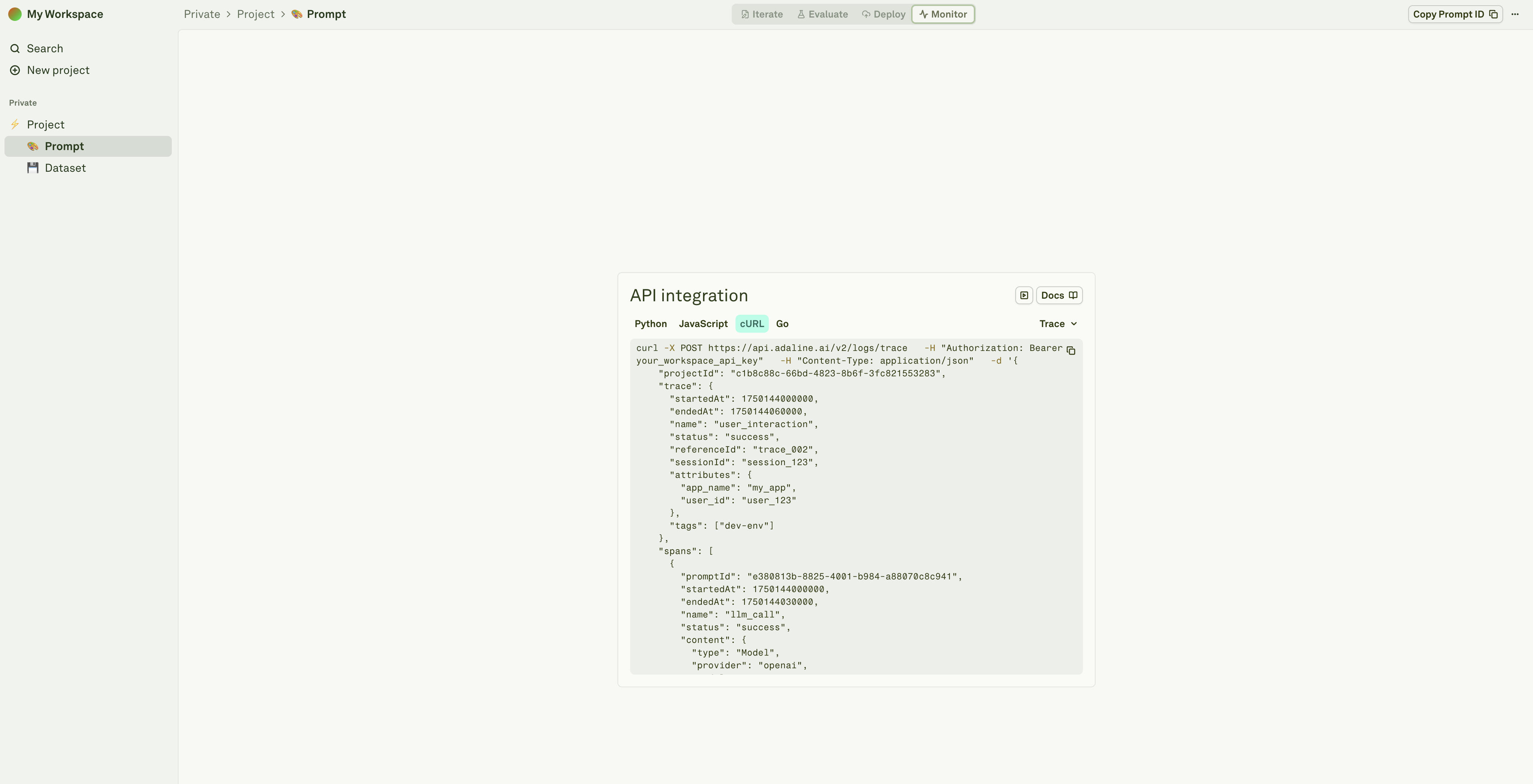
4. View your Traces and Spans
Regardless of which integration method you chose, the dashboard experience is the same.1
Select your Project, then click Traces in the sidebar. You will see a list of traces — one for each request your application made.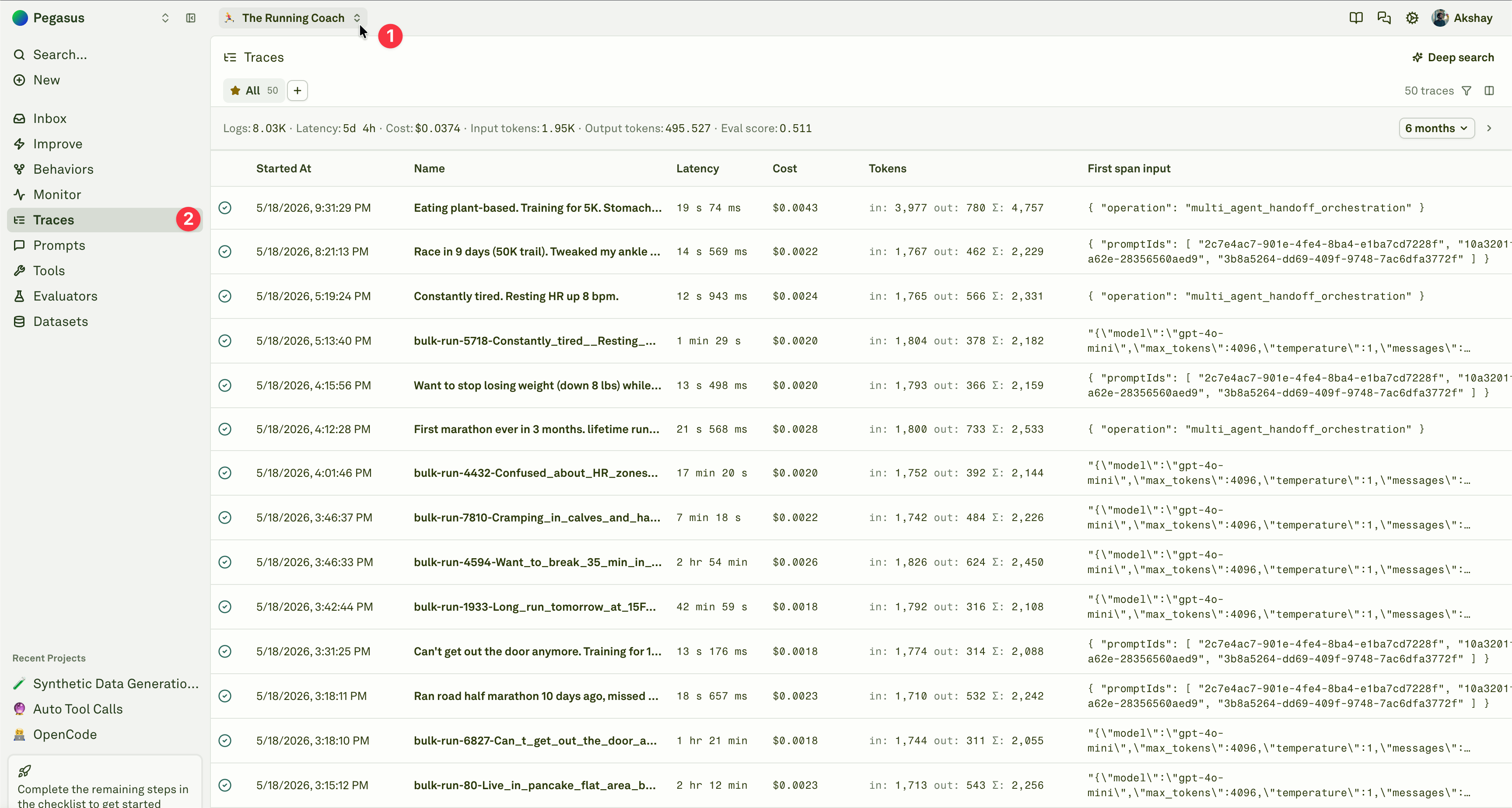
2
Click on any trace to open the trace side sheet. Each trace contains one or more spans representing individual operations, such as an LLM call, tool invocation, retrieval step, embedding call, or custom workflow step.Select a span inside the trace to inspect its status, timing, model/provider details, request content, response content, tokens, cost, attributes, and any metadata your integration sent.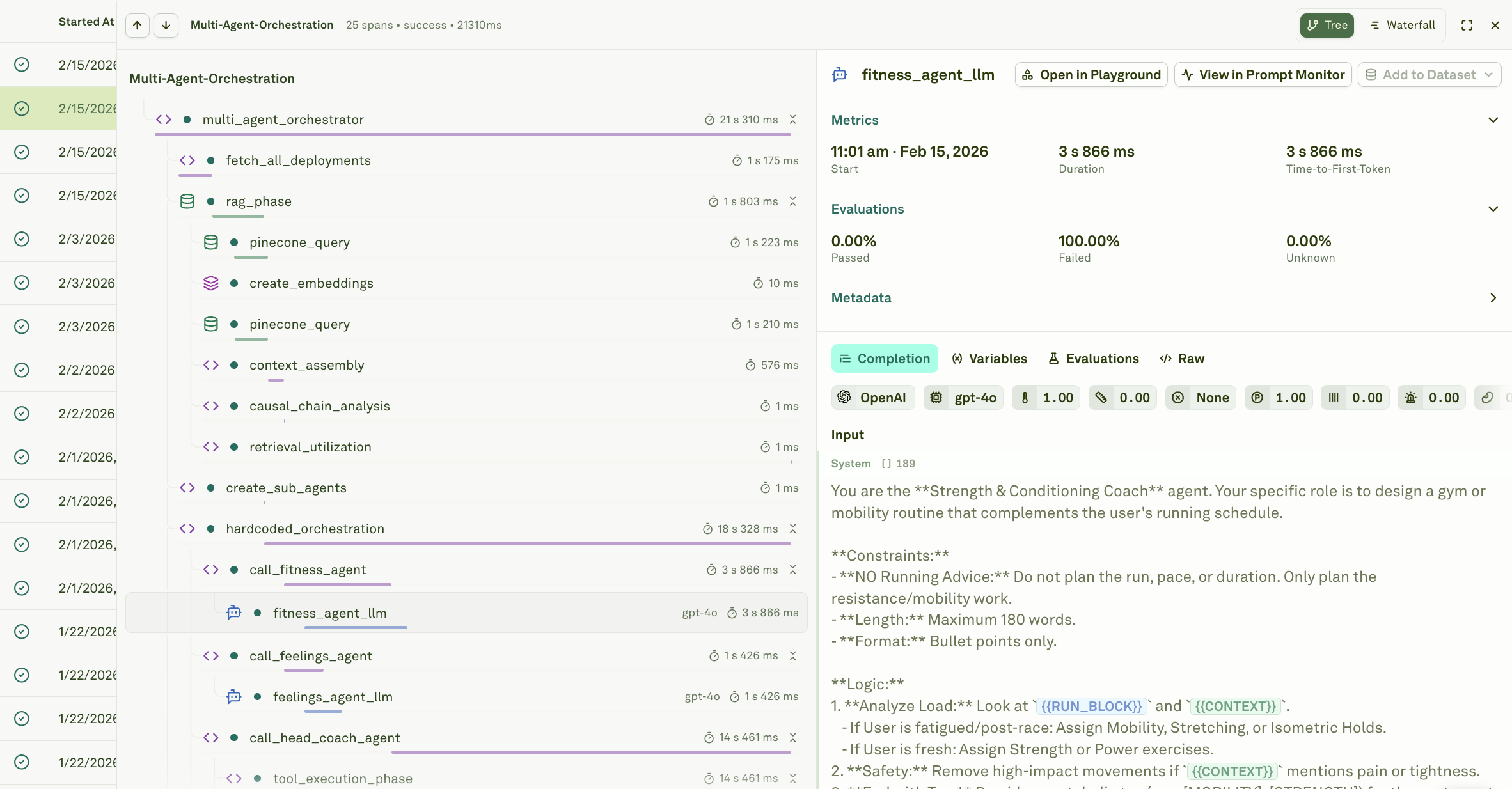
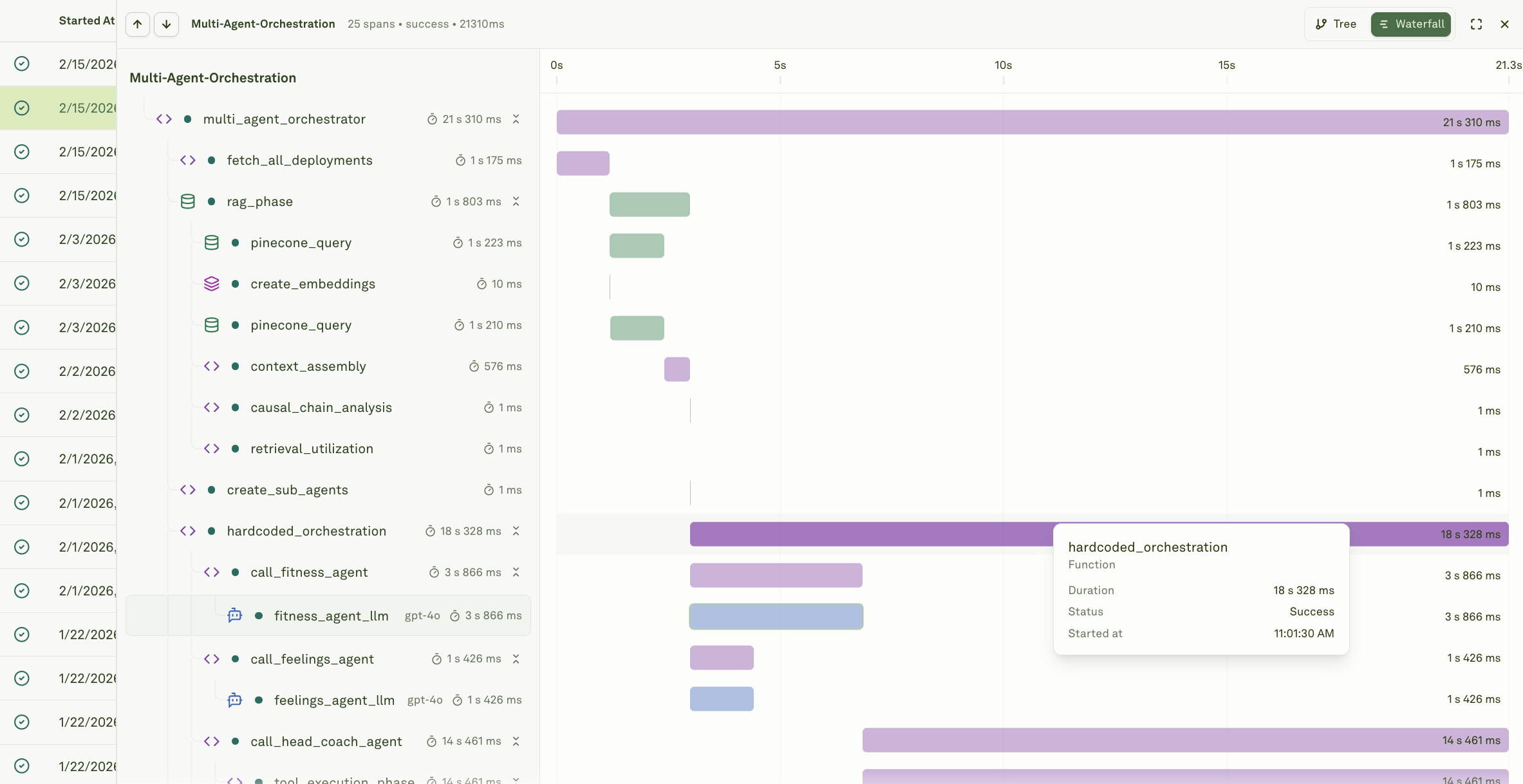
- Trace volume roughly matches the requests you just ran.
- Trace names are readable enough for a teammate to recognize the workflow.
- Span names describe the operation that happened, not just the library that emitted it.
- Model, tool, retrieval, or custom spans include the input and output content needed for debugging.
- Status, latency, tokens, cost, model, provider, tags, and attributes are populated wherever your integration can provide them.
- Sensitive values such as API keys, secrets, raw identifiers, and unnecessary private data are not being attached to traces or spans.
5. View Charts
Charts provide aggregated, time-series views of your AI agent’s performance. They are automatically generated from the traces and spans flowing into Adaline, giving you a high-level operational dashboard without any additional configuration. Use charts to spot trends, detect anomalies, and then drill down into the underlying traces and spans for root cause analysis. Click Monitor in the sidebar.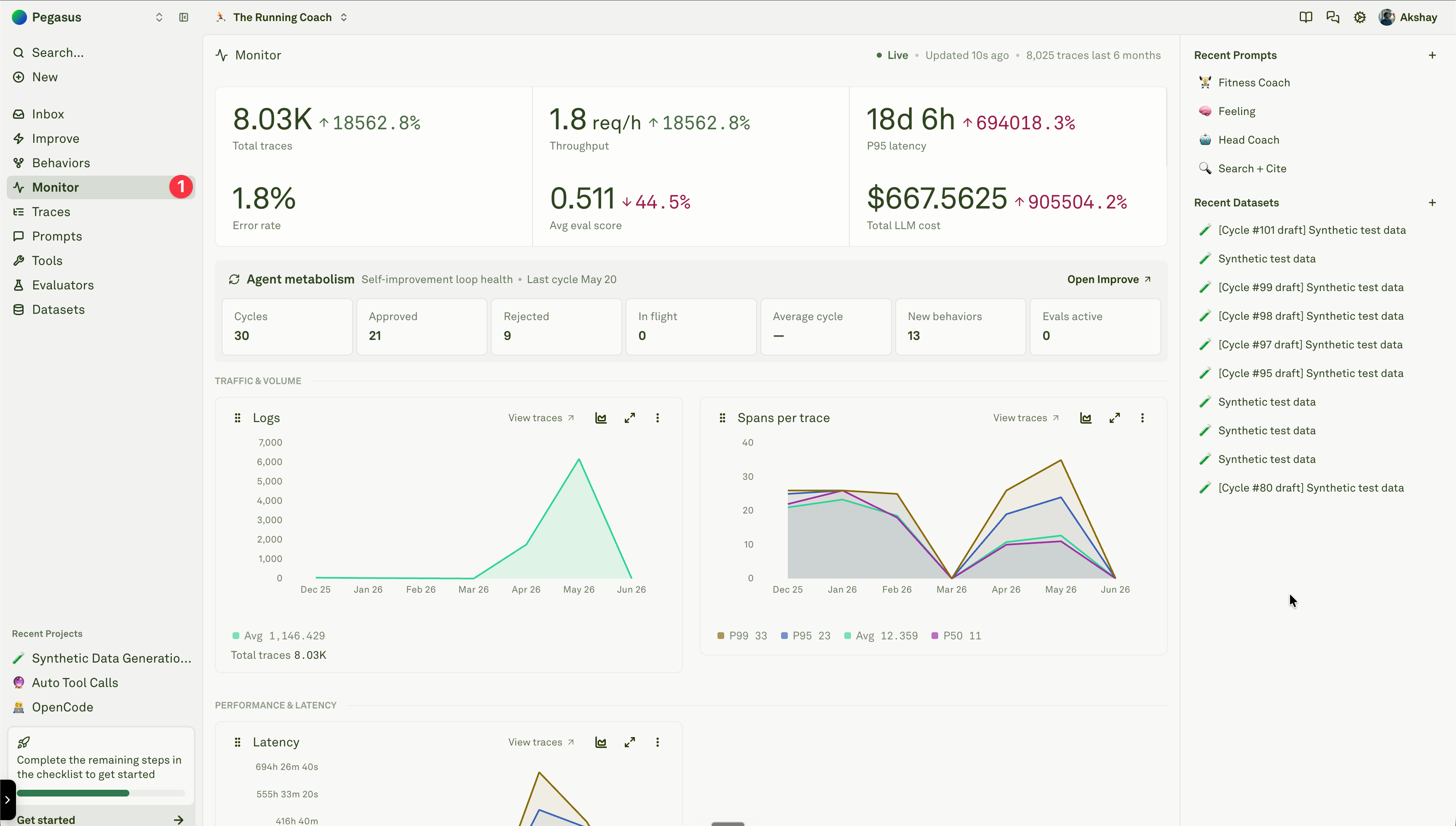
- Model breakdown shows cost, token usage, latency, token efficiency, and cost per 1K tokens by model.
- Environment breakdown shows cost by environment, so you can separate staging, production, canaries, and other deployment paths when those values are sent.
- Quality breakdown shows evaluation score by evaluator and errors by status.
- Performance breakdown highlights slow prompts when prompt-level latency data is available.
- Tool usage shows function, tool, and retrieval span counts by name.
6. View Behaviors
After logs start flowing, Adaline begins grouping repeated patterns into Behaviors. Behaviors are not created from the very first log. In practice, expect them to appear after Adaline has both enough evidence and enough time to analyze it: roughly 15 minutes and about 100 logs for the project. Both matter. A small trickle of logs may take longer, and higher-volume projects will usually reveal more Behavior patterns. Click Behaviors in the sidebar.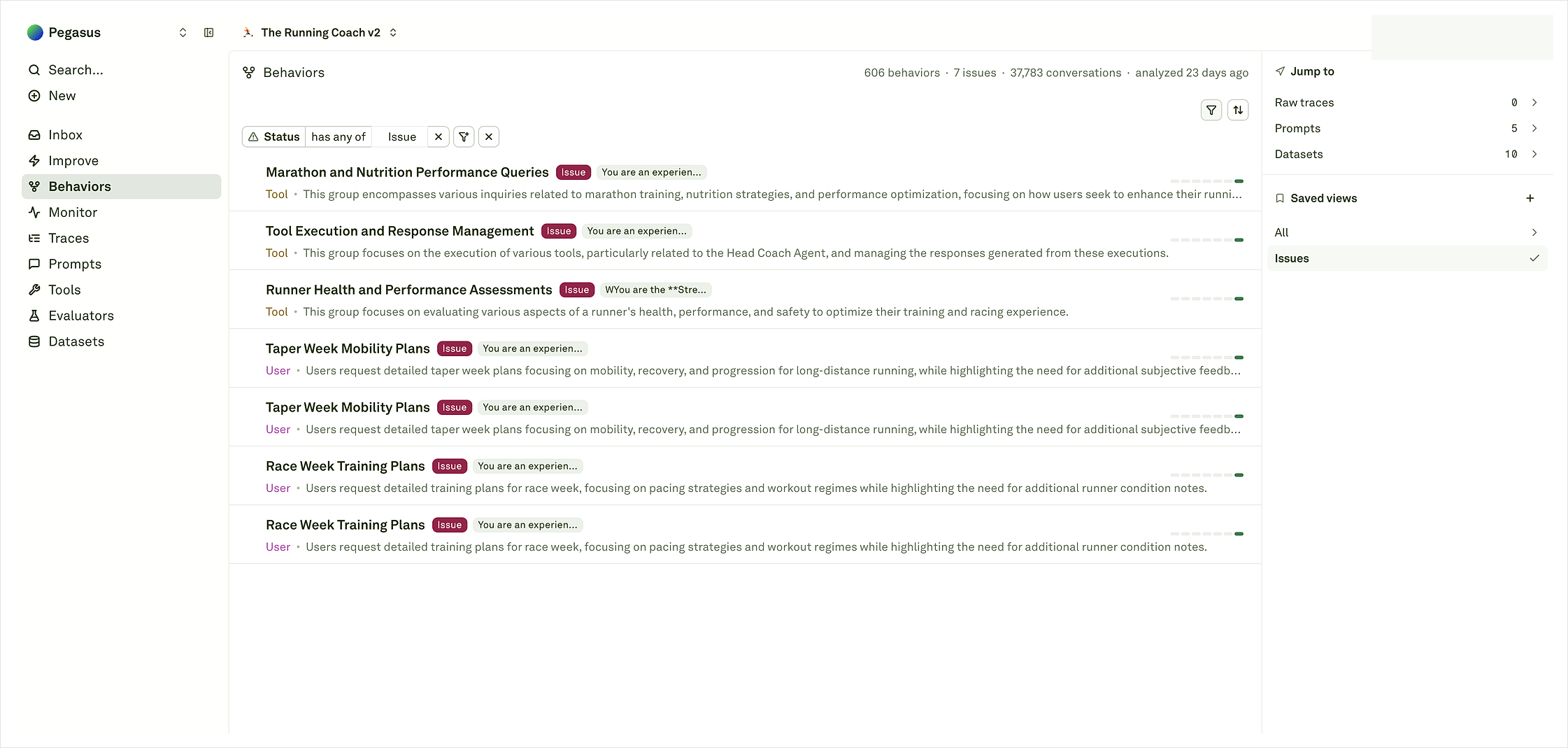
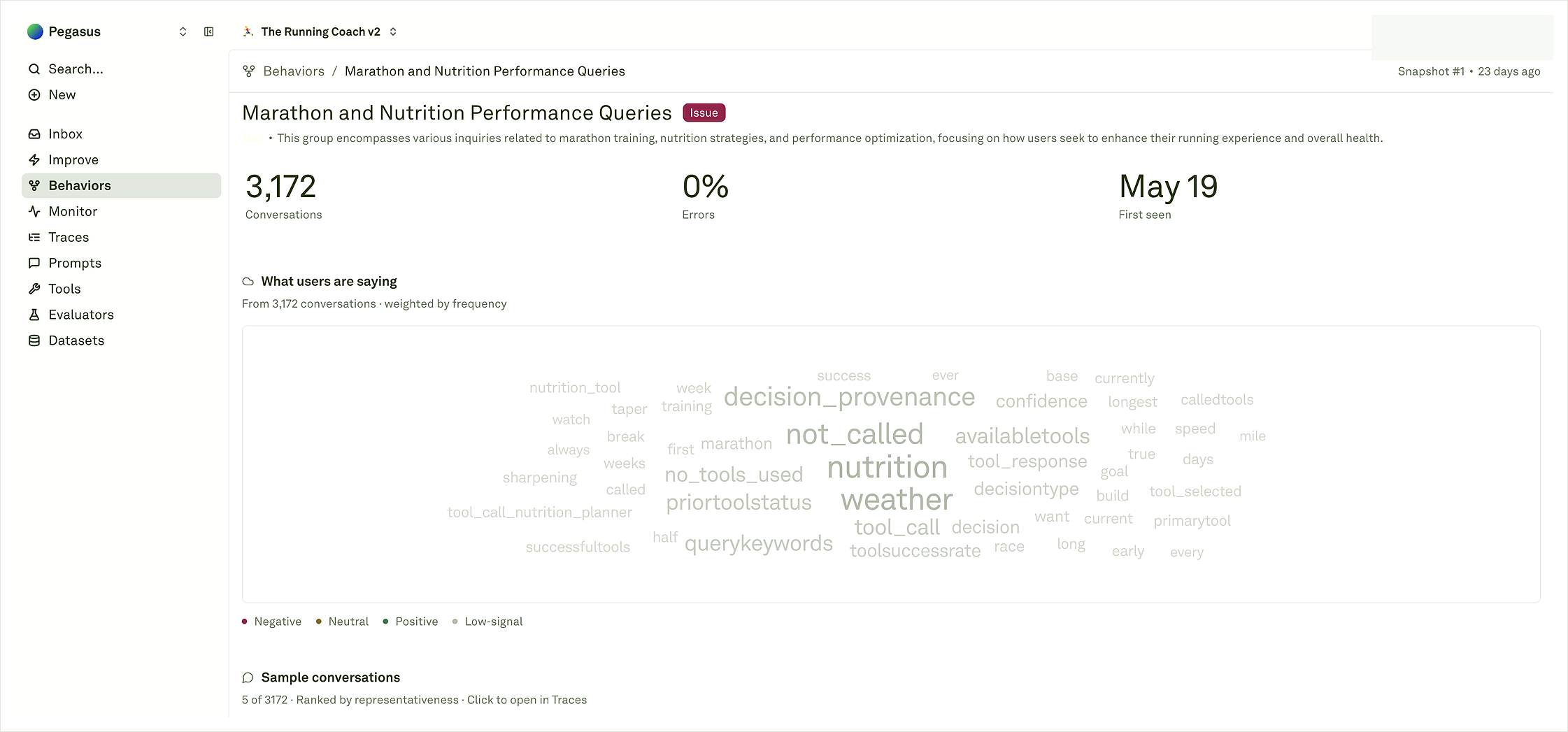
- Watch high-volume healthy workflows so future releases do not regress them.
- Add repeated edge cases to datasets when they should become regression coverage.
- Start an Improve cycle when the pattern is prompt-level and has representative evidence.
- Debug tools, retrieval, or backend logic when the source spans show the fix belongs outside the prompt.