

How it works
- A prompt is deployed and receiving logged model spans.
- Evaluators are attached to the prompt or evaluation workflow.
- Adaline scores sampled production spans.
- Results appear in span details and Monitor charts.
- Failing or important spans can become dataset rows, Behavior evidence, or Improve context.
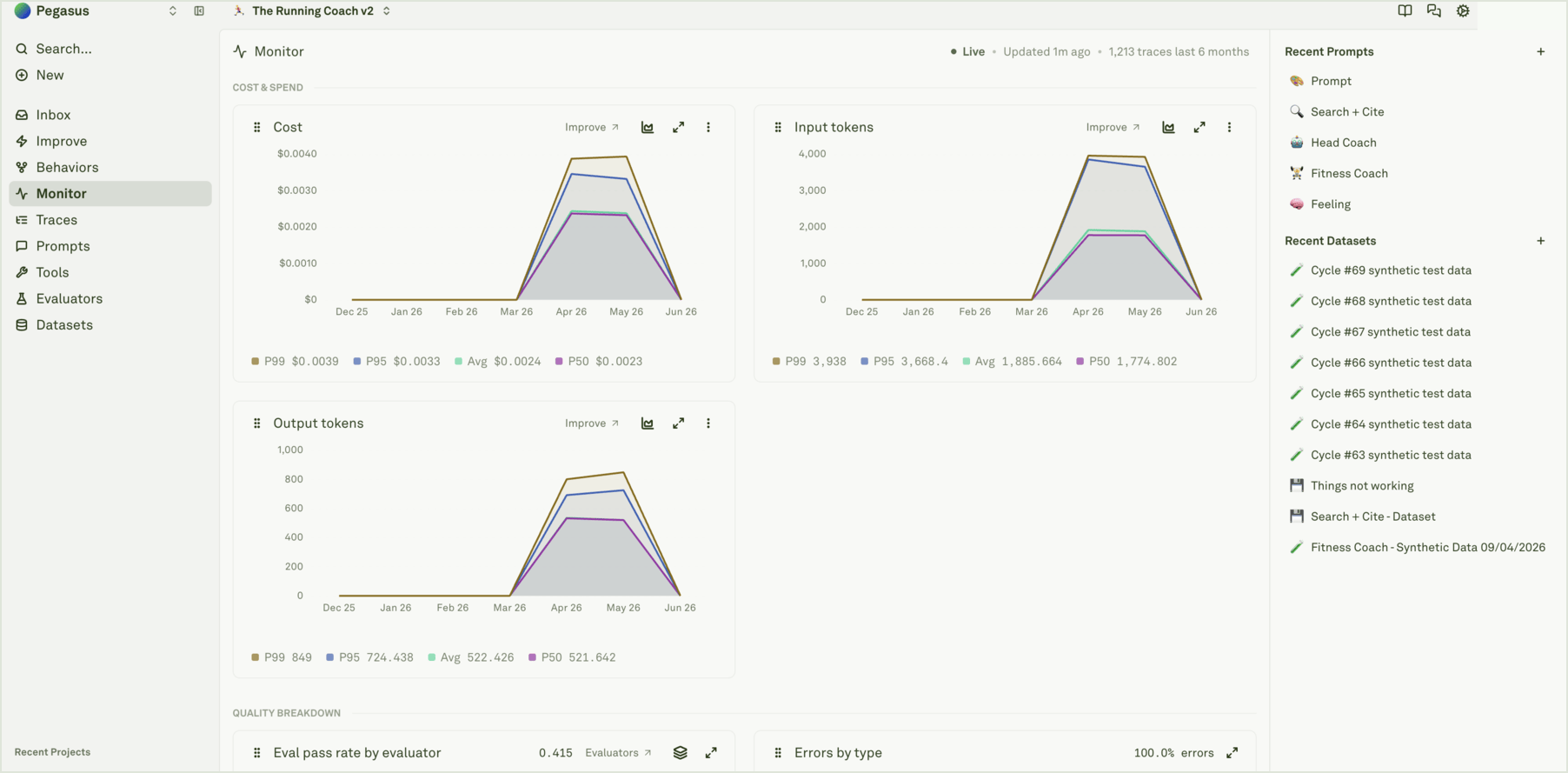
What to monitor
If quality drops, open the traces behind the chart before changing the prompt. The failure could be a prompt issue, missing retrieval context, tool behavior, evaluator criteria, or bad instrumentation.
Good evaluator coverage
Use continuous evaluations for checks that are meaningful on live traffic:- Safety or policy compliance.
- Format or schema correctness.
- Tool-use correctness.
- Domain-specific answer quality.
- Cost, latency, or response length thresholds.
- Regression checks from important dataset rows.
Use results in the improvement loop
When a production span fails an evaluator:- Open the trace and read the model span, tool context, and evaluator reason.
- Add the span to a dataset if it should become regression coverage.
- Update the evaluator if the score is wrong or too broad.
- Start or review an Improve cycle when the fix belongs in the prompt.
- Watch the eval score chart after release.
Evaluate prompts
Run evaluation checks across prompts and datasets.
Evaluators overview
Understand production scoring and pre-release checks.
Analyze log spans
Read evaluator results on a selected span.
Use logs to improve prompts
Turn failing production evidence into improvements.