

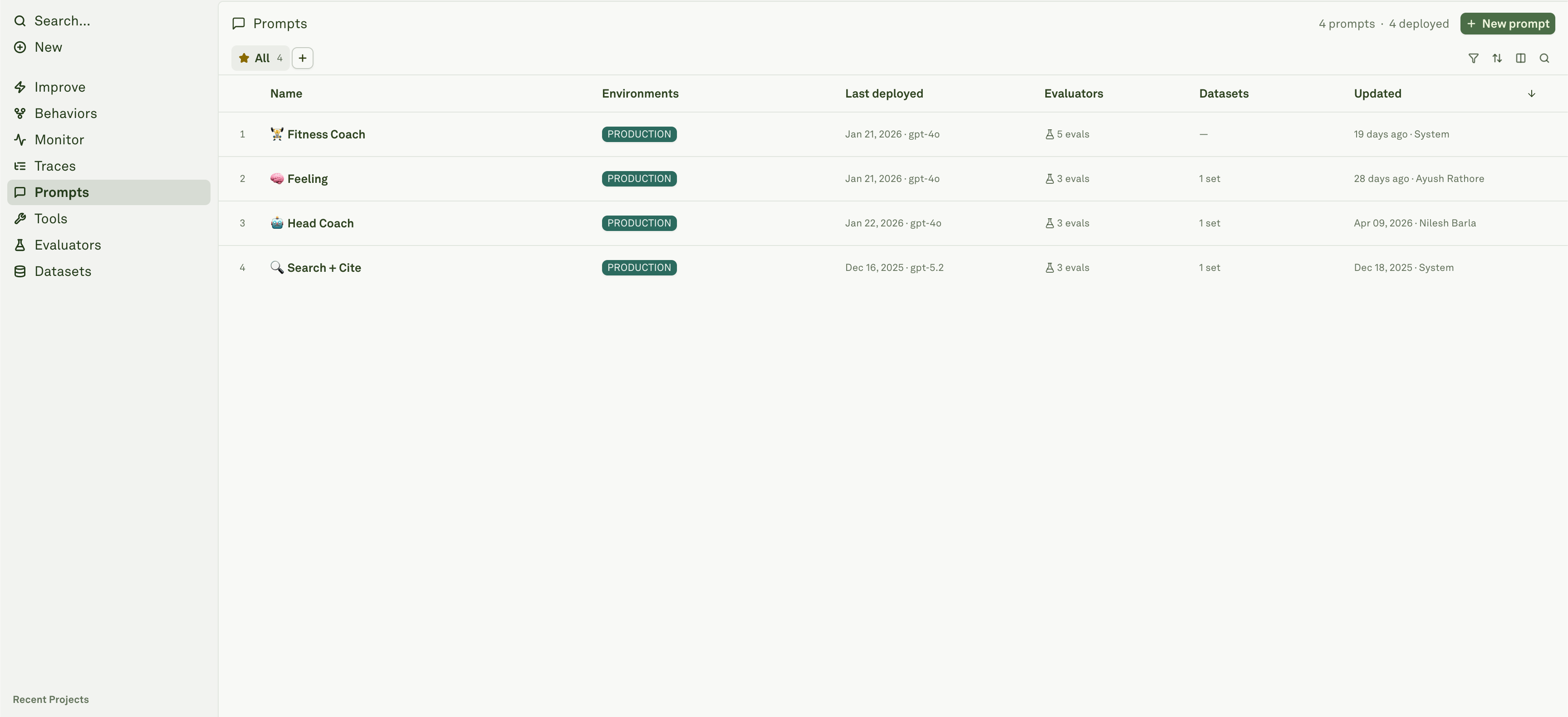
What a prompt contains
Build and test
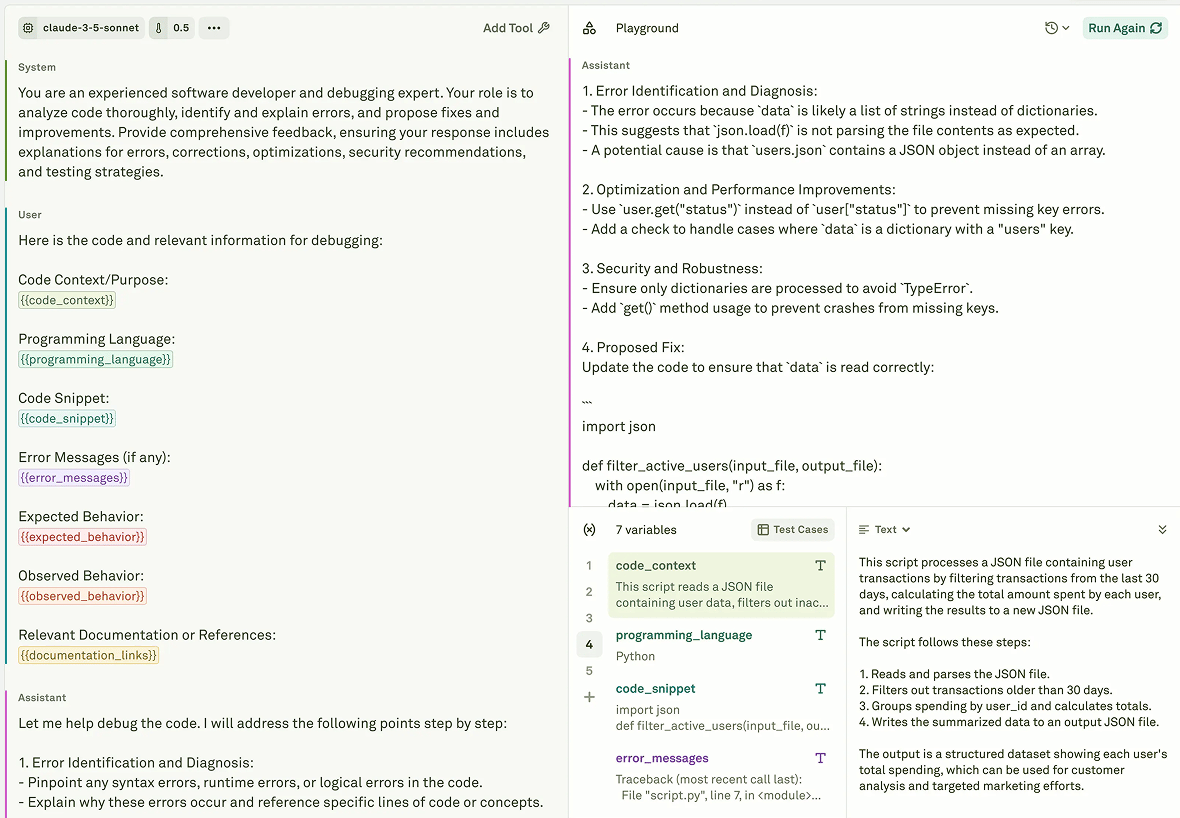
- Choose a model and configure generation parameters.
- Compose messages with roles and content.
- Add variables for runtime inputs.
- Attach tools when the model needs external actions or data.
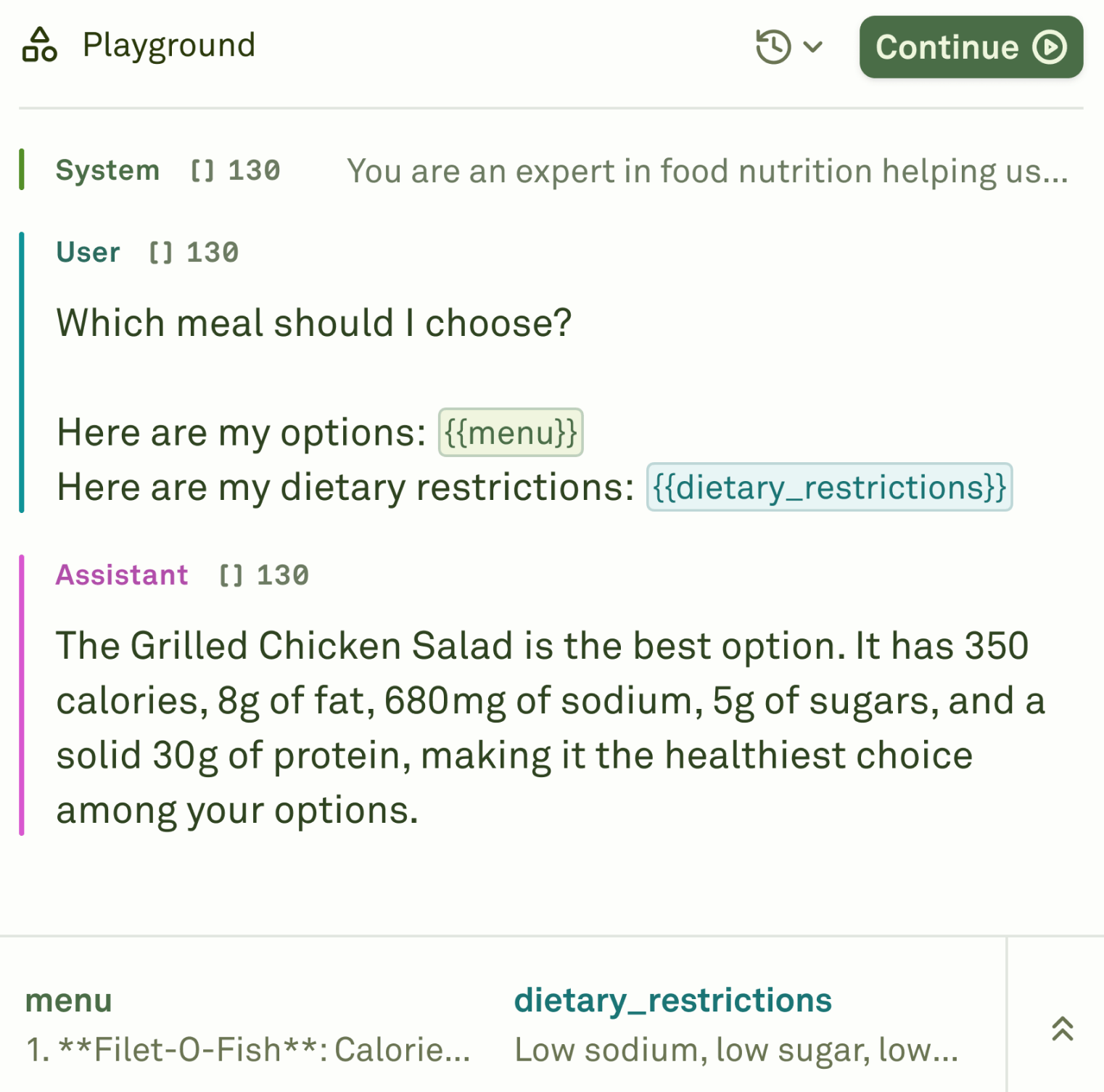
- Run the prompt in the playground with representative inputs.
- Link datasets and evaluators before deployment.
Messages, variables, and tools
Older prompt docs called this the Iterate workflow. In the current Platform sidebar, the same authoring concepts live under Prompts.
Keep variable names stable. Datasets, dynamic columns, API integrations, and chained prompts depend on them resolving consistently.
Playground
Versioning and deployment
Editing a prompt changes the draft. Deployment creates a snapshot for an environment. Your application should read from the deployment environment it expects, not from an arbitrary draft.
Use prompt versions and deployment snapshots as the release model for production changes.
Prompts in the Platform workflow
- Tools define callable functions or HTTP-backed actions.
- Evaluators define success criteria.
- Datasets provide test cases.
- Logs show deployed prompt behavior in production.
- Behaviors cluster recurring outcomes.
- Improve proposes prompt changes from those signals.
- Deploy ships a prompt version to an environment.
Build and test prompts
Configure messages, variables, model settings, tools, datasets, and playground runs.
Version and deploy
Understand drafts, snapshots, deployment environments, approval, and rollback.
Tools
Define reusable tool schemas and HTTP-backed actions.
Evaluators
Define pass/fail, scoring, cost, latency, and formatting criteria.