Datasets are the foundation of evaluation in Adaline. A dataset is a structured table of test cases — rows and columns where each column maps to a prompt variable and each row represents a unique set of inputs your prompt will be tested against. When you run an evaluation, the system executes your prompt once for every row in the dataset and scores each response using your configured evaluators. Every evaluator you configure must be linked to a dataset. The dataset provides the variable values that are injected into your prompt during the evaluation run.

Create a dataset

There are two ways to create a dataset:
  1. From the sidebar — every project has a Dataset section in the sidebar. Click on it and create a new dataset manually.
  2. From a prompt — open any prompt, navigate to the Variable Editor, and click Link Dataset. This creates a new dataset pre-populated with columns matching all the variables in your prompt, so you don’t have to set up the column-to-variable mapping yourself.
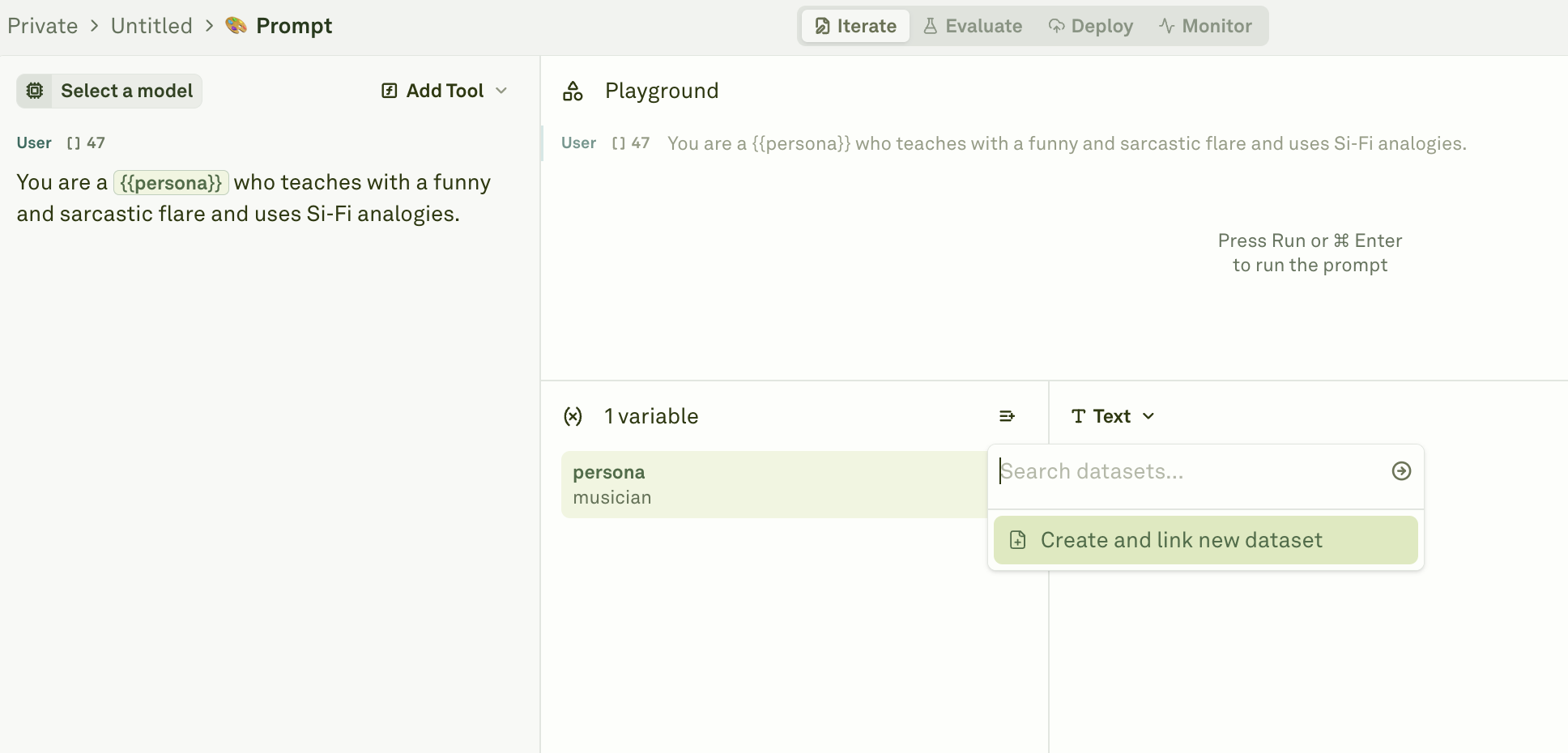
Creating a dataset in Adaline From here you can start building your dataset by adding columns and rows.

Column-to-variable mapping

The most critical rule when setting up a dataset for evaluation is that column names must match your prompt’s variable names exactly. If your prompt contains {{persona}} and {{does_something}}, your dataset must have columns named persona and does_something:
RuleDescription
Column names must match variable namesEach column name must correspond exactly to a variable in your prompt (e.g., a {{user_question}} variable requires a user_question column).
Each column needs at least one rowEvery variable must have at least one test case value. Empty columns will cause the evaluation to fail.
Extra columns are ignoredA dataset can have more columns than your prompt has variables. The extra columns are skipped during evaluation, so you can include metadata or context columns without affecting results.
If a column name does not match any variable in the prompt, that column is silently ignored during evaluation. If a prompt variable has no matching column, the evaluation will fail. Always verify that your column names match your prompt variables before running an evaluation.

Populate your dataset

There are several ways to add test case data to your dataset.

Manual entry

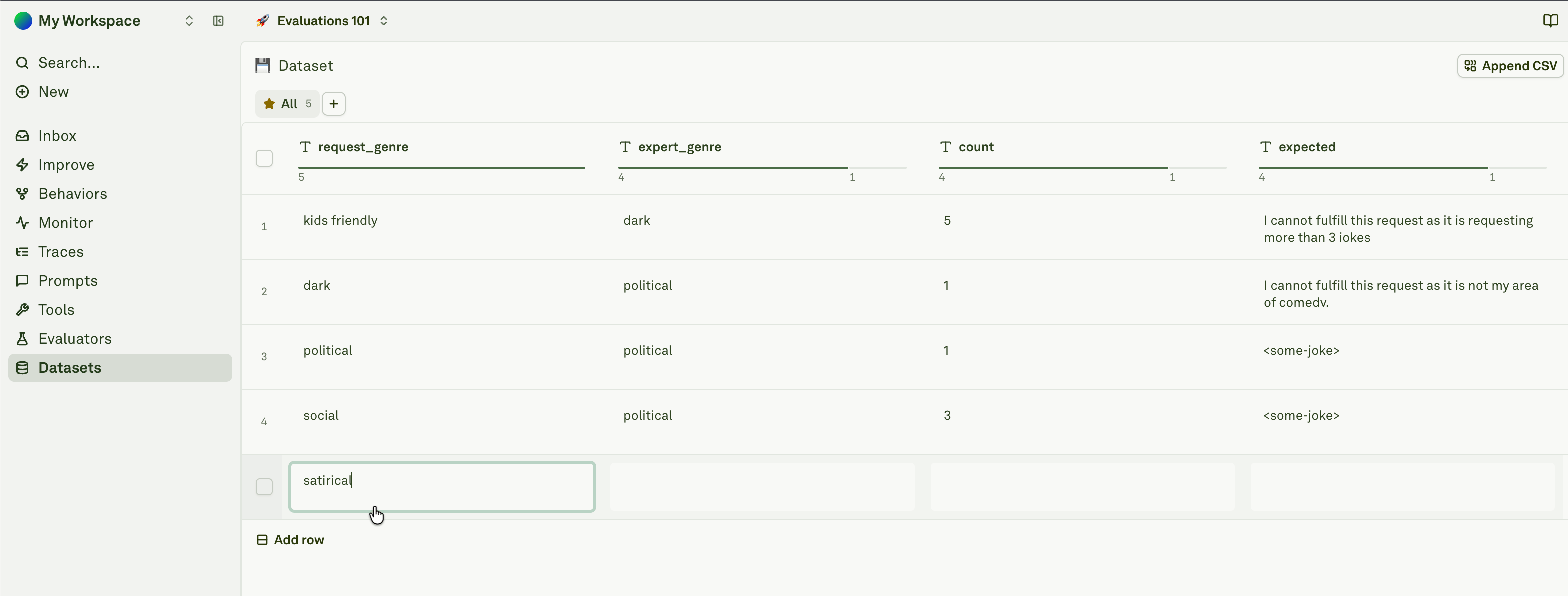
Manual entry into a dataset Type values directly into cells. This gives you precise control and is best for small datasets or when you need to craft specific edge cases. Each cell can hold text, images, or PDFs independently — see Different Modalities in Dataset for how to work with multimodal data.

Import from CSV

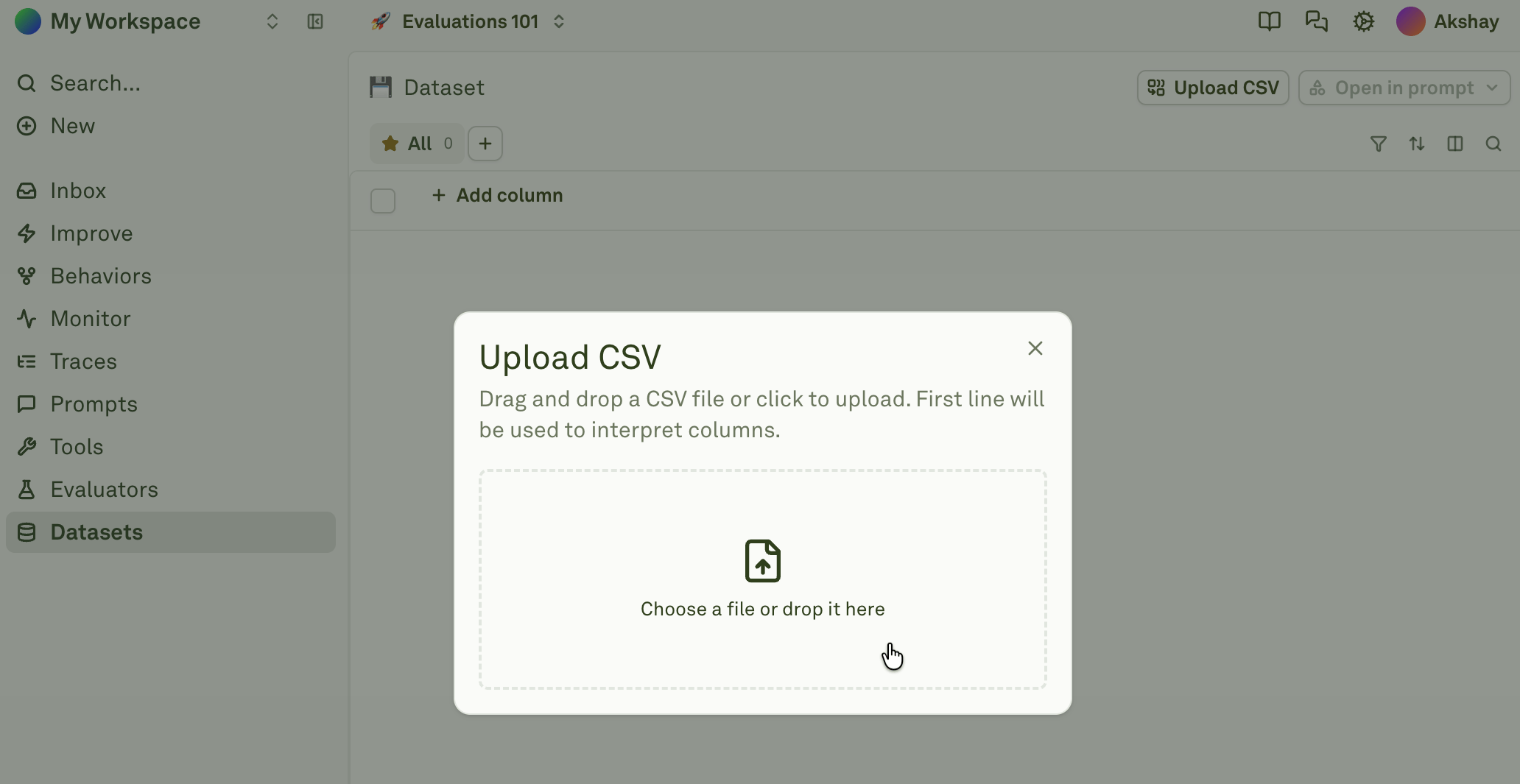
Importing a CSV file into a dataset If you have test data in a spreadsheet or CSV file, you can bulk-import it into a dataset instead of adding rows manually. This is the fastest way to populate large datasets, and it supports multimodal data like image URLs and PDFs. See Import CSV into Dataset for the complete guide.

Build from logs

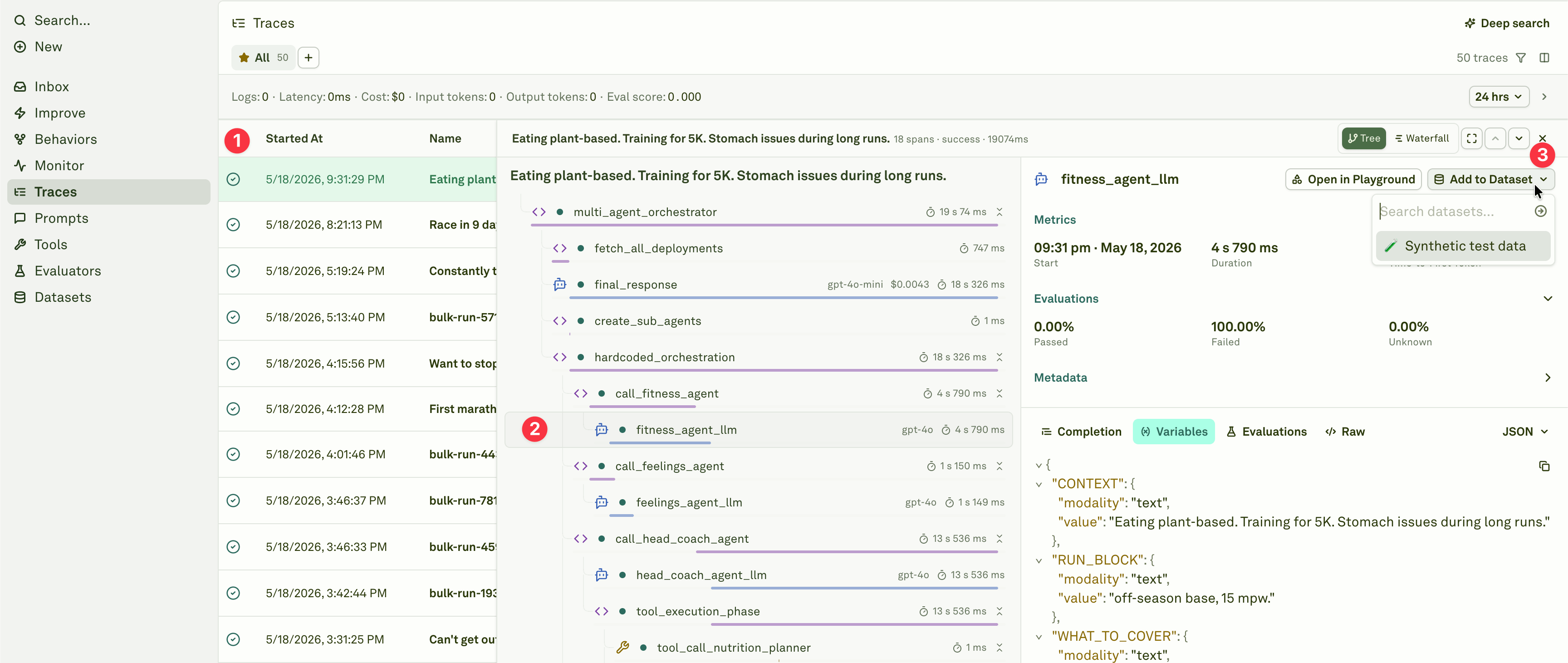
Adding a span to a dataset in Adaline You can also build datasets directly from real production traffic captured by the Monitor pillar. This turns actual user interactions into test cases, creating a feedback loop that strengthens your evaluation suite over time. See Build from Logs for details.

Column types

Every column in a dataset is either static or dynamic:
  • Static columns hold values exactly as they appear in the UI — you type or paste a value into a cell and it stays as-is. All the population methods described above (manual entry, CSV import, build from logs) create static columns.
  • Dynamic columns fetch their values automatically from external sources at runtime — either from an HTTP API endpoint or by executing another prompt in your project. This transforms your dataset into a live data source that can pull fresh data on demand.
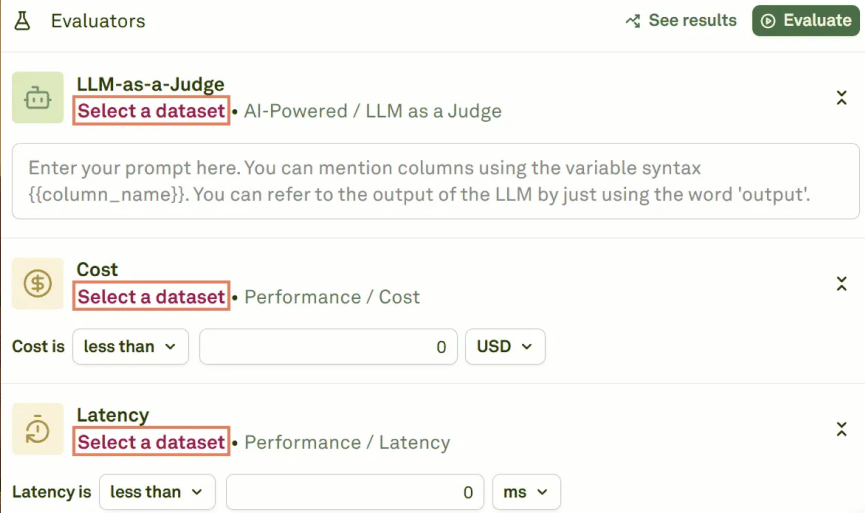
When you run an evaluation, dynamic columns are automatically resolved with fresh values before scoring begins, so you don’t need to manually populate them beforehand. See Dynamic Columns in Dataset for the full configuration guide. Each evaluator must be linked to a dataset Each evaluator must be linked to a dataset before you can run evaluations. When configuring an evaluator (e.g., LLM-as-a-Judge, JavaScript, Cost), you’ll see a Select a dataset dropdown where you choose which dataset provides the test cases. Multiple evaluators can share the same dataset, or you can use different datasets for different evaluators depending on your testing needs.

Best practices

  • Start small — Begin with 5–10 diverse test cases covering your key scenarios, then expand as you discover edge cases during evaluation.
  • Cover edge cases — Include test cases for unusual inputs, boundary conditions, empty values, long inputs, and common failure modes.
  • Use descriptive column names — Match your prompt variable names exactly and keep names readable (e.g., user_question rather than uq).
  • Keep datasets focused — Each dataset should target a specific evaluation scenario. Use multiple datasets rather than one massive dataset that tries to cover everything.
  • Test dynamic columns first — Use “Run for First Row” to verify API and prompt configurations before populating all rows.

Next steps

Import CSV into Dataset

Bulk-import test cases from CSV files.

Dynamic Columns

Configure columns that fetch live data at runtime.

Evaluate Prompts

Run your first evaluation with your dataset.