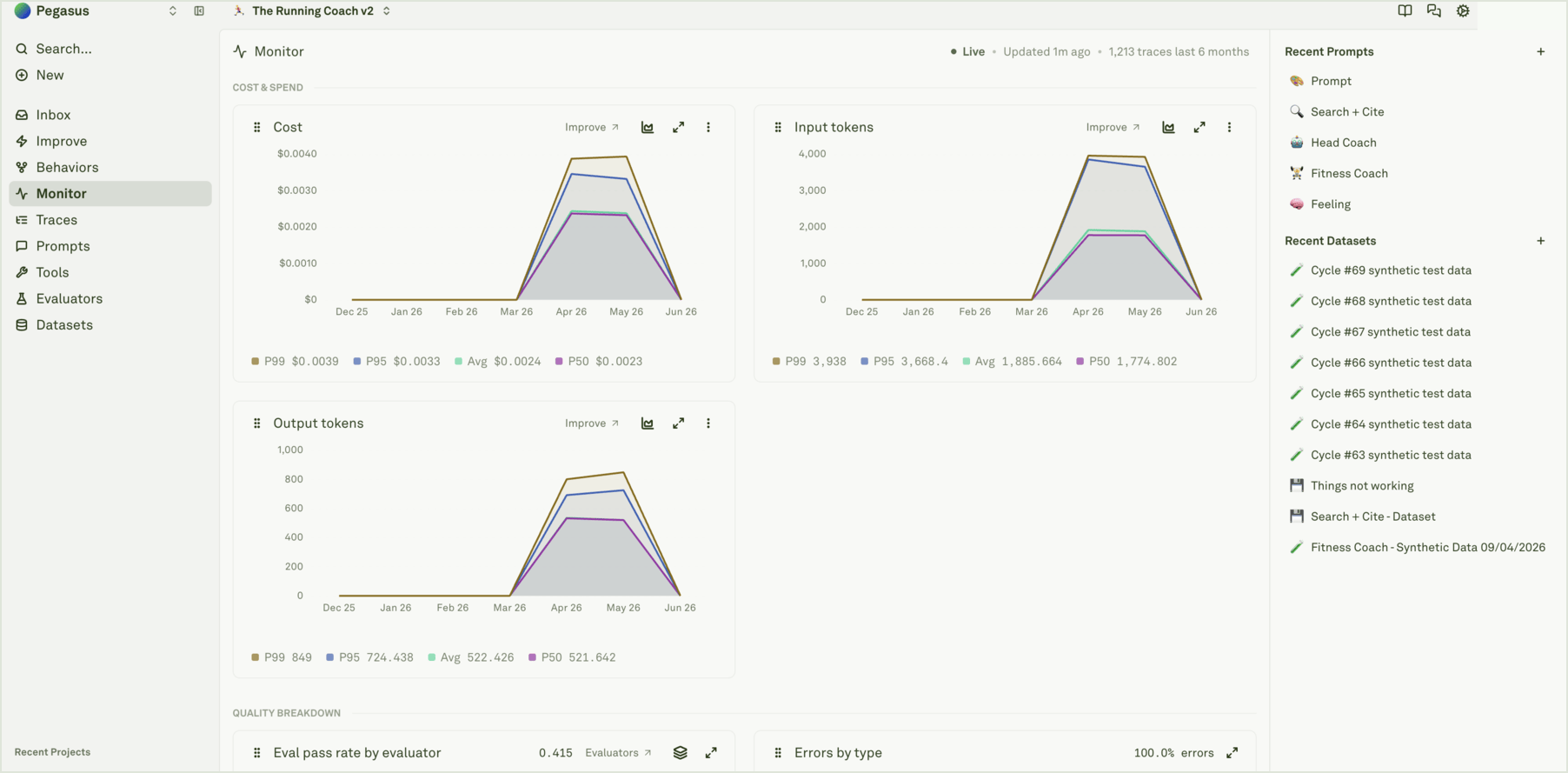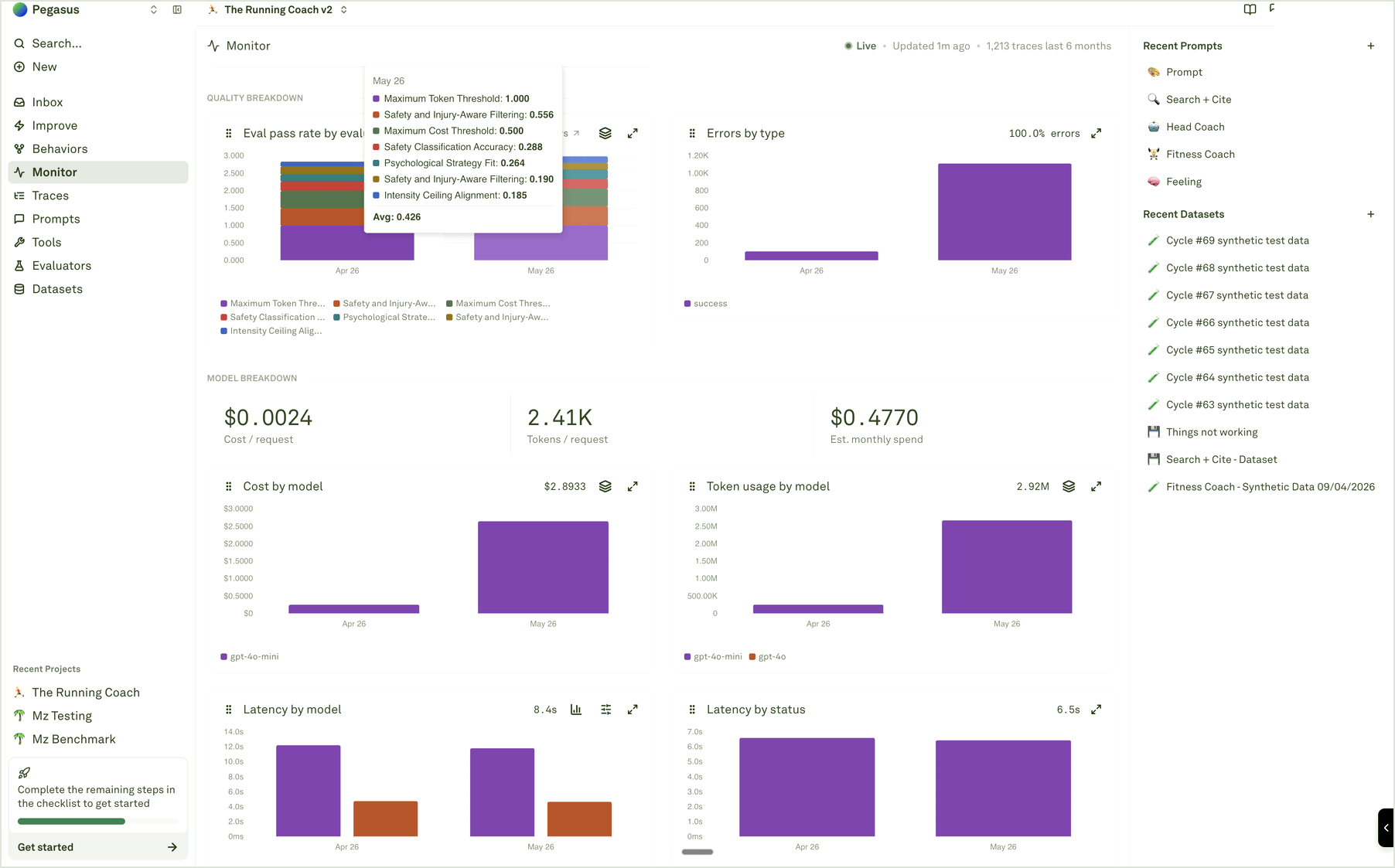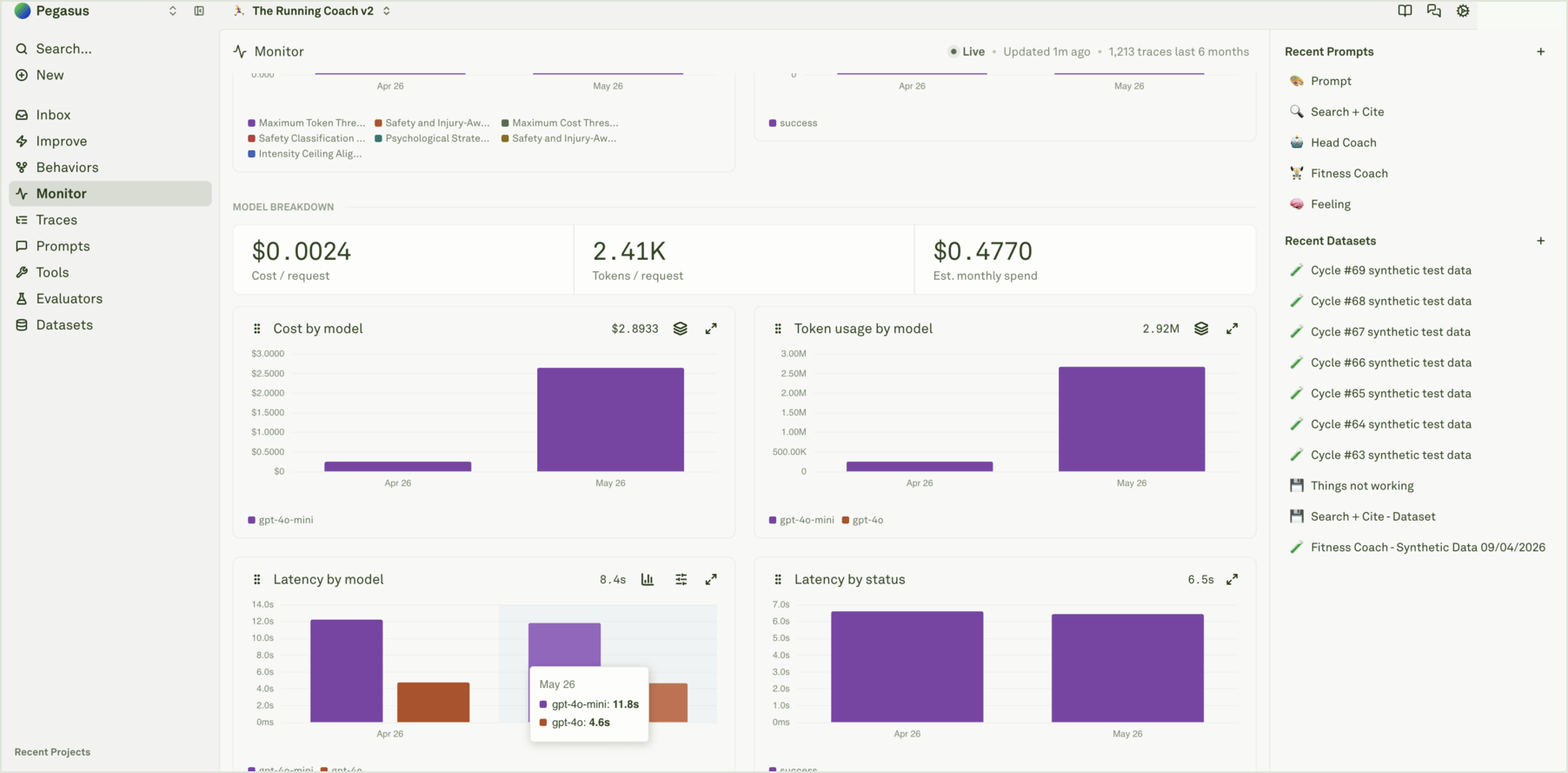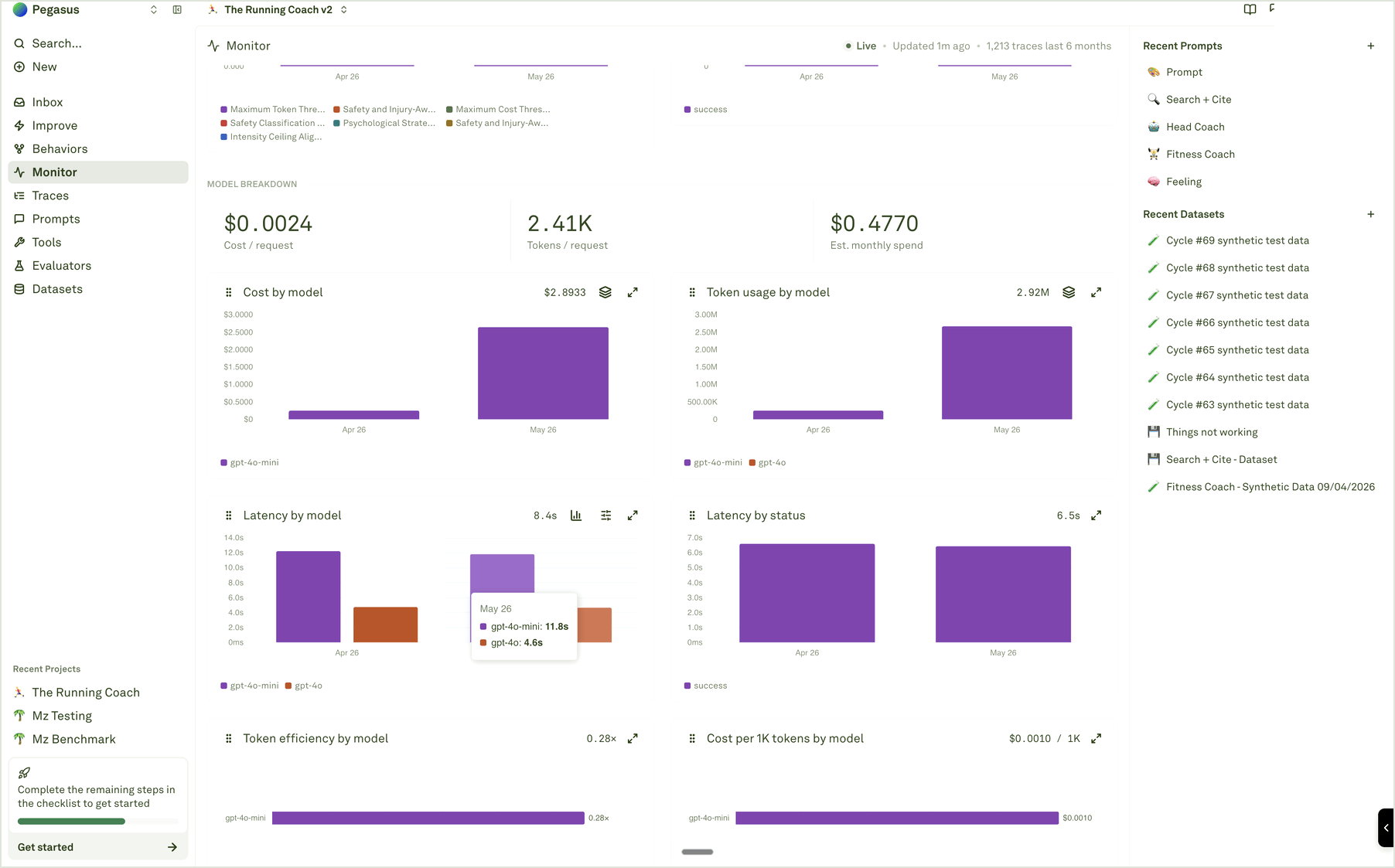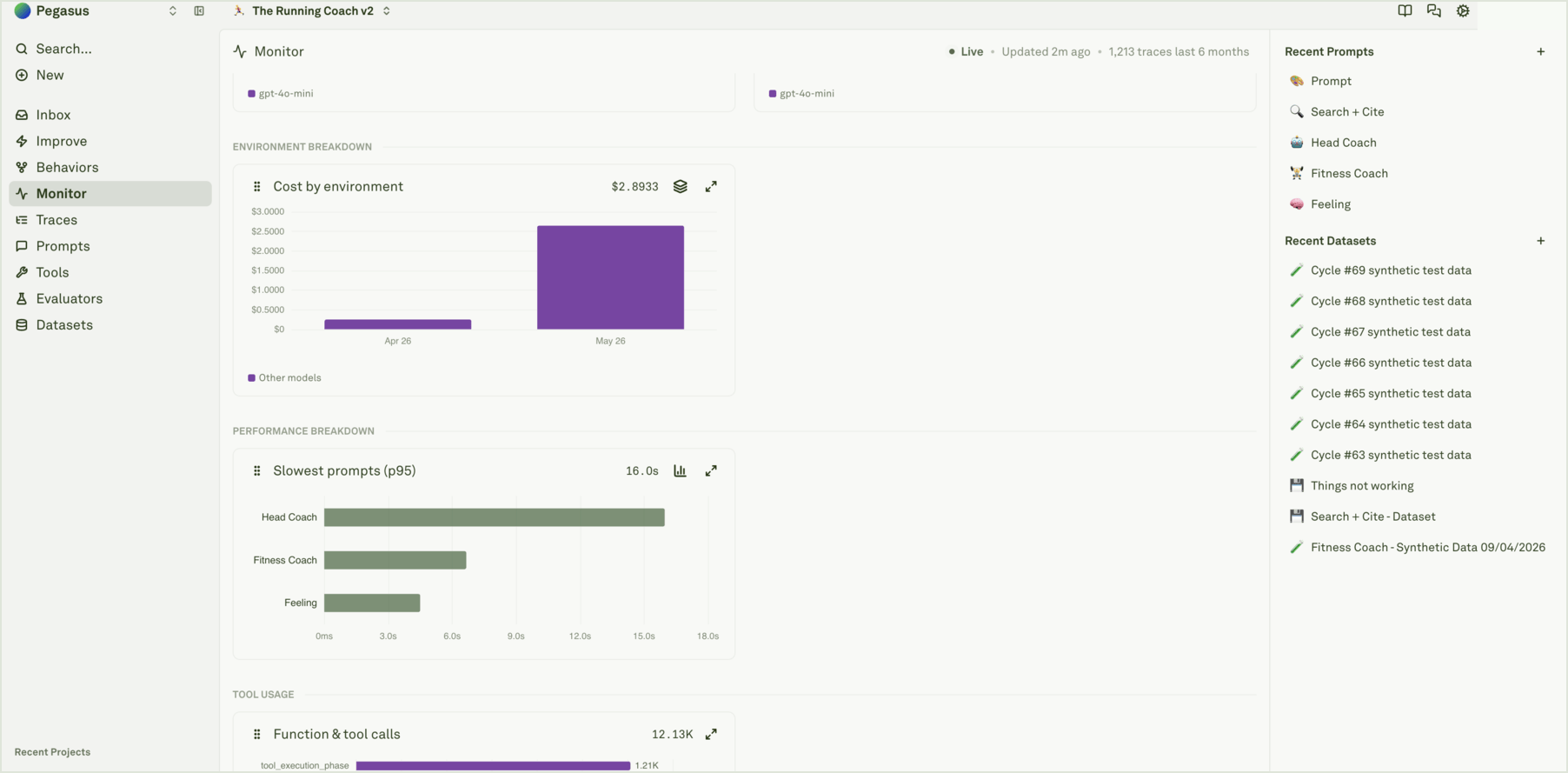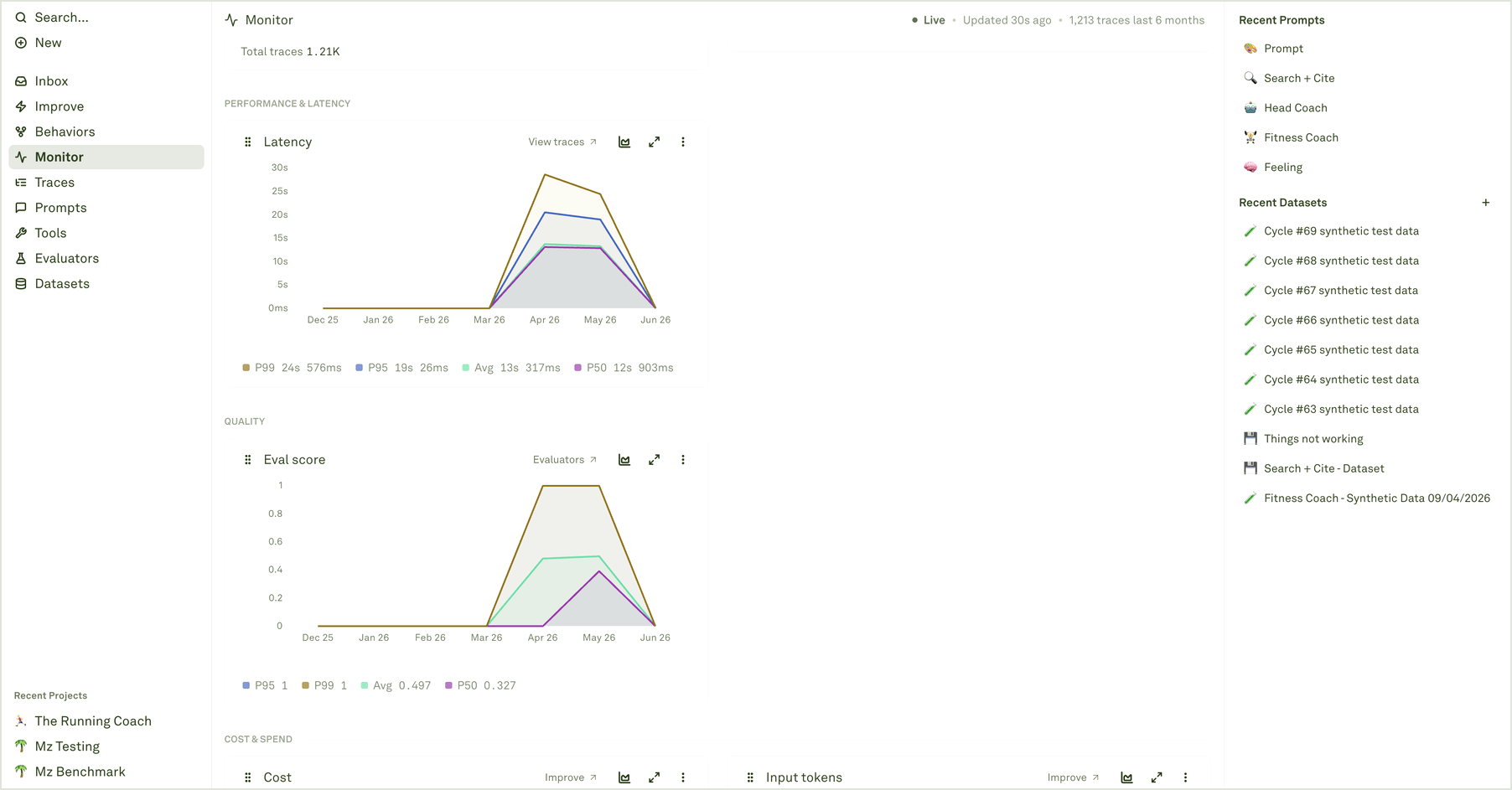
Charts provide aggregated, time-series views of your AI agent’s performance. They are automatically generated from the traces and spans being sent to Adaline, giving you a high-level operational dashboard without any additional configuration. Use charts to spot trends, detect anomalies, and then drill down into the underlying traces and spans for root cause analysis.

View trace charts

Navigate to your project, then open the Overview tab. Adaline displays a dashboard of metric charts, each showing a time-series view of a specific performance dimension aggregated per trace: Viewing trace charts in the Monitor pillar

View span charts

Navigate to your prompt, then open the Monitor tab. You will see all the spans logged for that prompt. In the top right, click the chart view toggle to switch from the span list to aggregated charts for that prompt’s spans. Viewing span charts in the Monitor pillar

Available metrics

The following metrics are automatically computed from your logged data, aggregated per trace:
MetricWhat it measures
LogsTotal number of traces per unit of time.
LatencyEnd-to-end trace duration.
Input tokensInput tokens across all Model spans in each trace.
Output tokensOutput tokens across all Model spans in each trace.
CostCost (in USD) across all Model spans in each trace.
Eval scoreContinuous evaluation score. Failed evaluations score 0, passed score 1.

Percentile and average aggregations

The Logs chart shows total count. For all other metrics (latency, input tokens, output tokens, cost, and eval score), Adaline provides multiple aggregation modes so you can analyze both typical and tail-end behavior: Zoomed in view of a chart in the Monitor pillar
AggregationWhat it shows
AvgThe mean value across all traces in the time bucket. Best for tracking overall trends.
P50The median — 50% of requests are at or below this value. Represents the typical user experience.
P95The 95th percentile — only 5% of requests exceed this value. Surfaces latency or cost issues affecting a meaningful minority of users.
P99The 99th percentile — only 1% of requests exceed this value. Catches the worst-case outliers that SLA commitments often target.

Select a time window

Charts support multiple time granularities. Choose the window that matches your analysis needs — from last hour for real-time debugging to last month for trend analysis: Available windows include last hour, last day, last week, last month, or a custom date range. The chart automatically adjusts its data point density to match the selected window. Selecting a time window in the Monitor pillar

Inspect data points

Hover over any data point to see the precise value at that specific time: Inspecting a chart data point in the Monitor pillar Each tooltip shows the exact metric value and timestamp, making it easy to pinpoint when a change occurred — for example, identifying the exact hour a latency spike began or when cost started trending upward.

What to look for

Use charts to identify operational patterns and anomalies. Here are common signals and how to act on them:
PatternWhat it meansAction
Latency spikeA sudden increase in response times.Check for model rate limiting, increased prompt complexity, or provider outages. Drill into the affected traces to find the slowest spans.
Cost increaseSpending is growing beyond expected levels.Review token usage charts — prompts may be getting longer, or a more expensive model was deployed. Filter spans by cost to find the most expensive requests.
Eval score dropQuality is declining on live traffic.Investigate recent prompt or model changes. Filter logs by evaluation results to find failing cases.
Traffic surgeRequest volume increased significantly.Verify capacity and rate limits. Check for unexpected bot traffic, viral usage, or a new feature launch driving volume.
Token usage growthAverage token consumption is trending up.Review prompt length and context windows. Multi-turn chats accumulate tokens over time — consider summarization or context pruning strategies.
Flat eval score at 0All evaluated requests are failing.Your evaluator configuration may be too strict, or a recent change broke the prompt. Review continuous evaluation settings and spot-check a few spans.

Next steps

Analyze Log Traces

Drill down into individual request flows.

Analyze Log Spans

Inspect individual operations within traces.

Setup Continuous Evaluations

Add quality scores to your charts.

Filter and Search Logs

Find specific traces with filters and metadata search.