

Keep in mind that large PDFs consume significant context window tokens. For best results, use concise documents or extract the relevant sections before attaching. The model processes the full document content, so multi-hundred-page PDFs may impact latency and cost.
Add a PDF to a message
1
Open the PDF picker
Navigate to the message block and click the PDF button . You can upload a PDF from your computer, paste a URL, or retrieve it from a variable.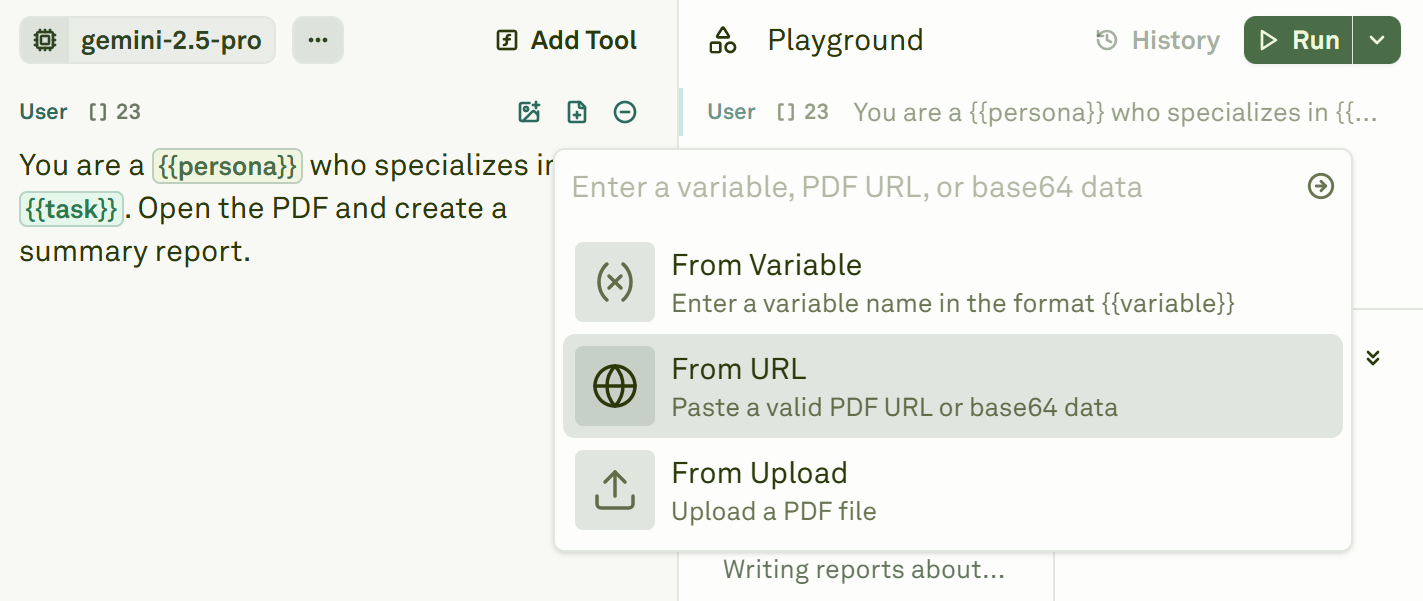
2
Run the prompt
Once the PDF is attached, run the prompt in the Playground. The model will process the document content alongside your text instructions.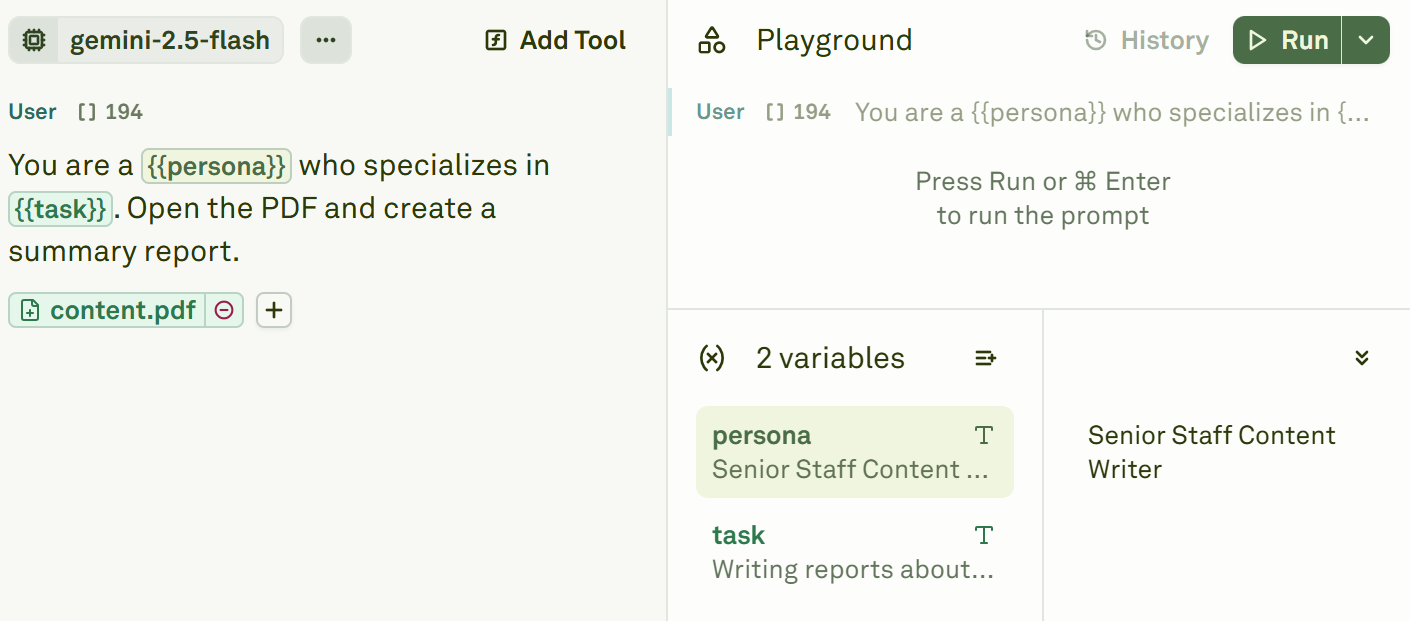
Use PDF variables
PDF variables let you dynamically swap documents at runtime, which is essential for document processing workflows where you need to run the same analysis across many files.1
Create a PDF variable
Click the PDF button in the message block and select From Variable.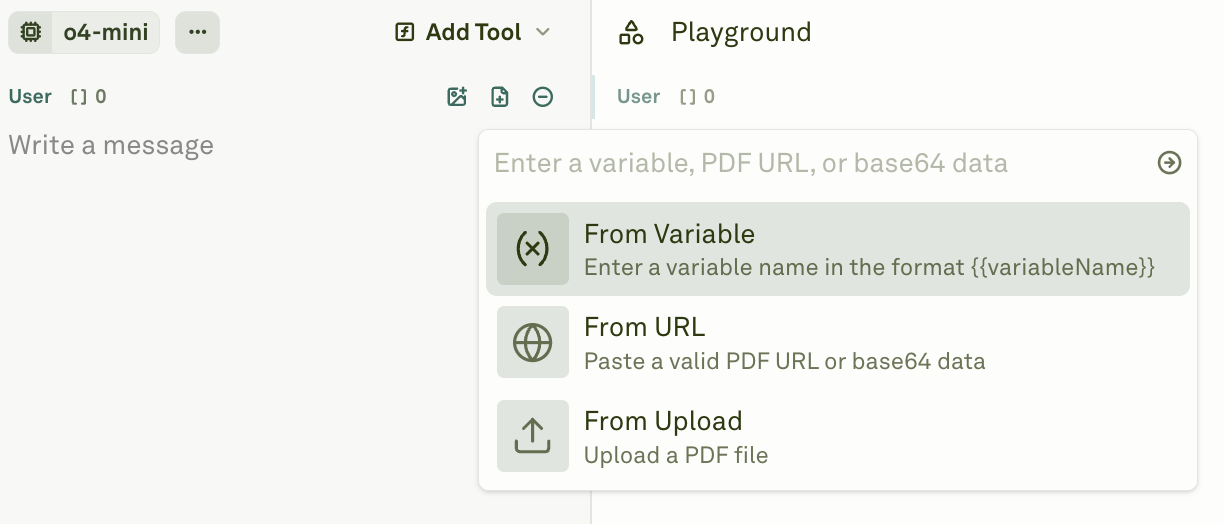
2
Name and attach the variable
Define a descriptive name for the PDF variable and attach it to the message.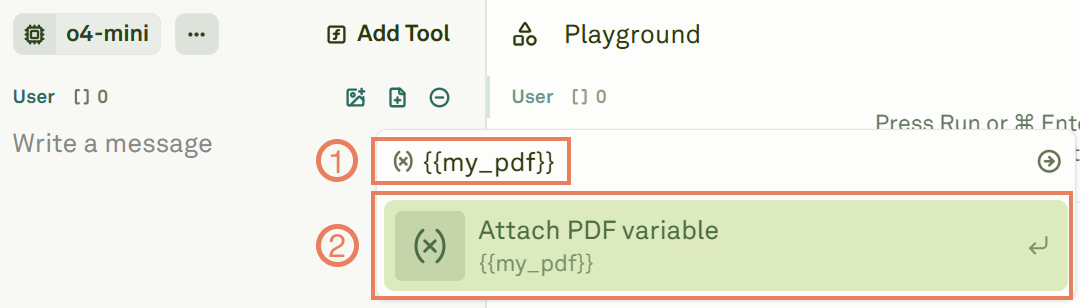
3
Set the variable value
In the Variable Editor, attach the actual PDF to the variable. You can paste a URL, provide a base64-encoded string, or upload a file from your computer.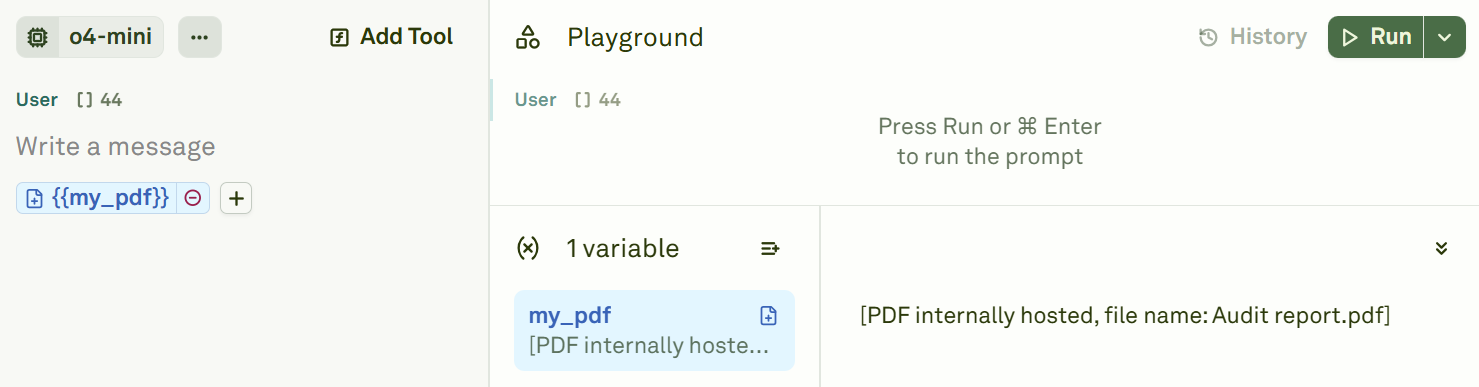
Use cases
- Document summarization — Extract key points and generate concise summaries from lengthy reports.
- Information extraction — Pull specific data points, dates, or figures from structured documents.
- Contract analysis — Review legal documents and flag key terms, obligations, or risks.
- Report generation — Process raw data reports and generate formatted insights.
- Compliance review — Check documents against a set of rules or guidelines.
Next steps
Use Images in Prompts
Add image inputs for multi-modal prompts.
Use Variables in Prompts
Learn about all variable types, including PDF variables.