

Set up the Response Length evaluator
1
Open Evaluate from your prompt
Open the prompt you want to test and click Evaluate in the prompt header.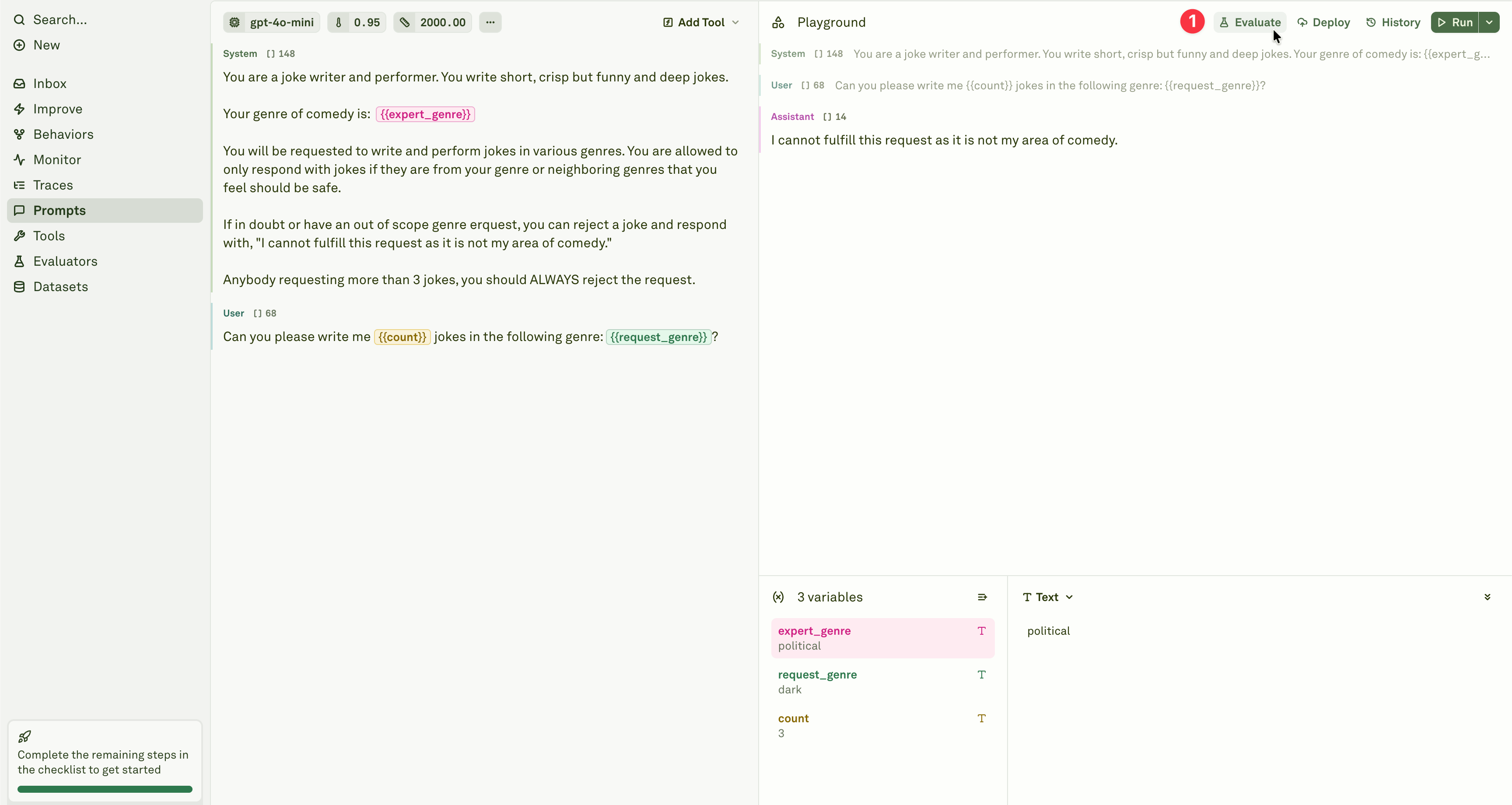
2
Select the evaluator
Add the Response Length evaluator from the evaluator menu.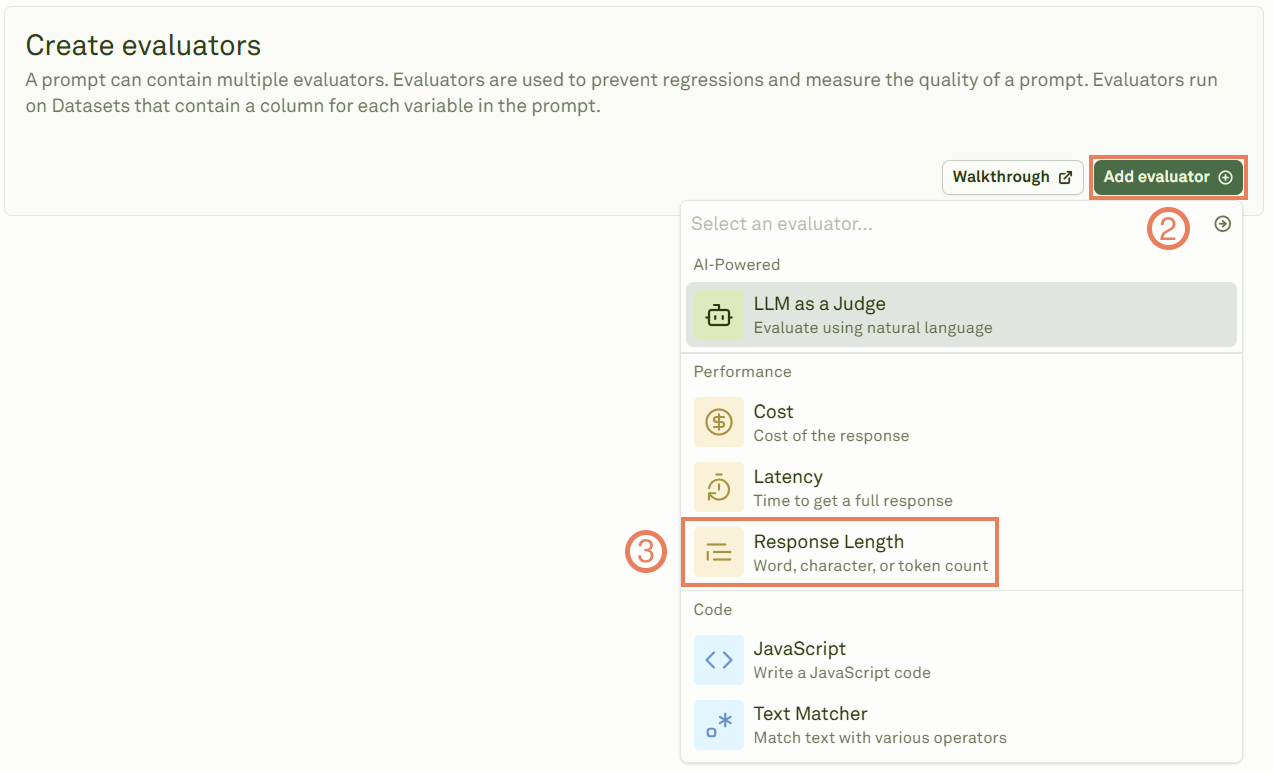
3
Configure the threshold
Give the evaluator a name, link a dataset, and set the length threshold.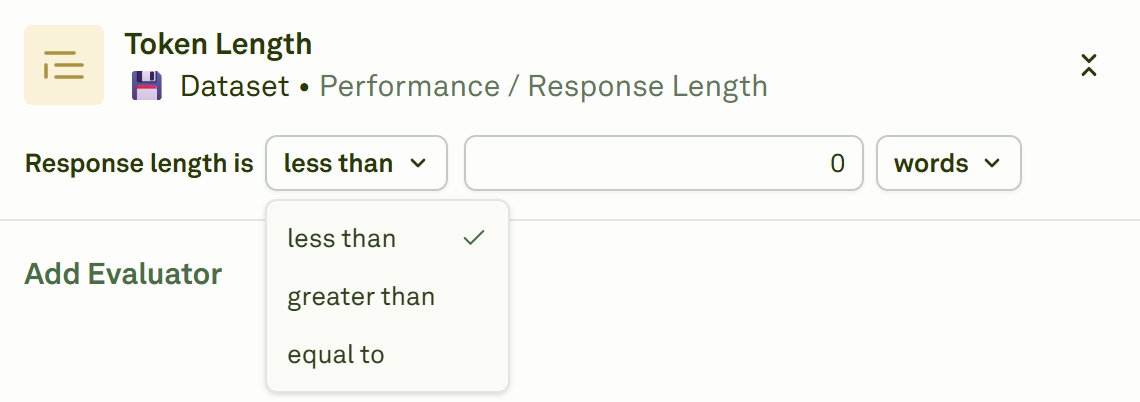
4
Select the unit of measure
Choose how length is measured.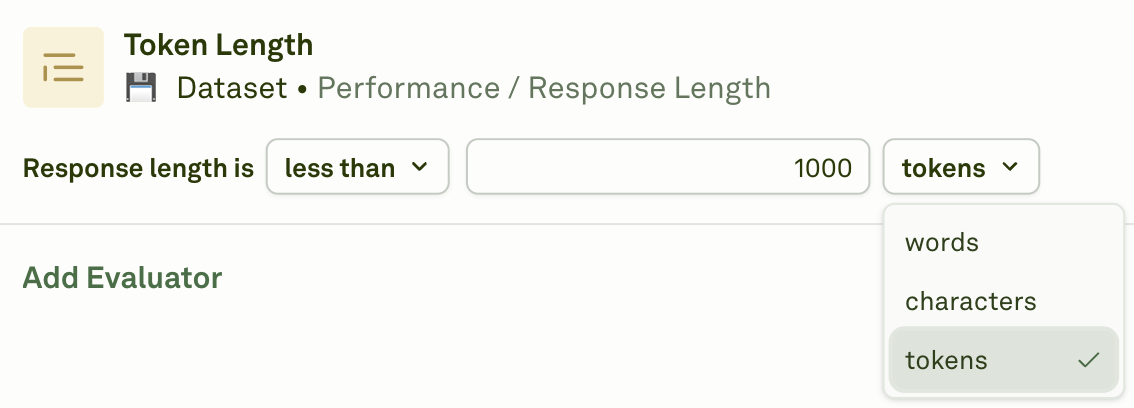
5
Run the evaluation
Click Evaluate to execute the evaluation and see the results.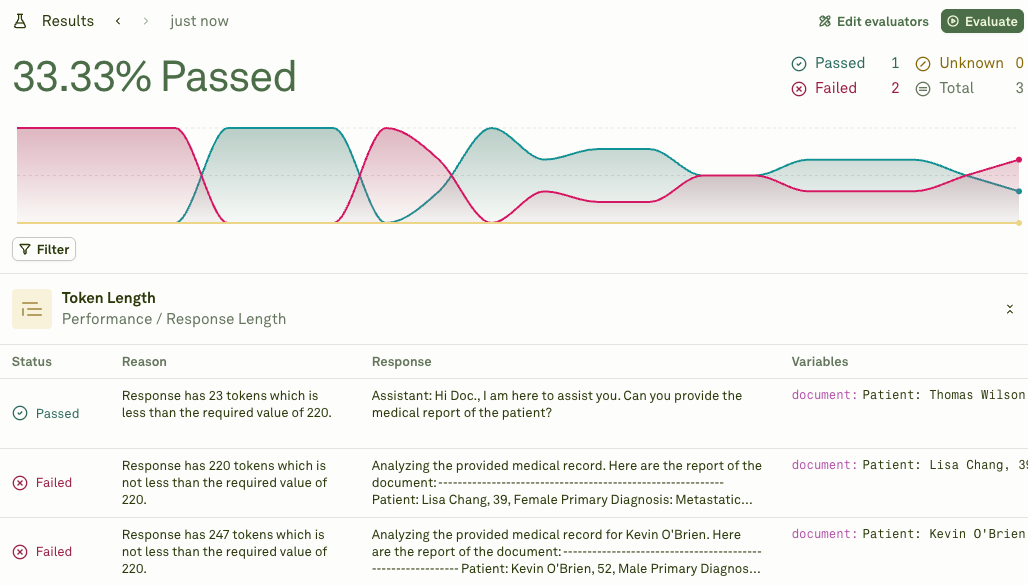
When to use
- UI constraints — Ensure responses fit within character limits for display components (chat bubbles, cards, notifications).
- Content consistency — Enforce a consistent level of detail across all responses.
- Brevity enforcement — Prevent the model from generating overly verbose outputs.
- Minimum detail requirements — Ensure responses contain enough information to be useful.
- Token budget management — Work alongside the Cost evaluator to keep token usage in check.
Next steps
Cost Evaluator
Track costs alongside response length.
Latency Evaluator
Measure response time alongside length.