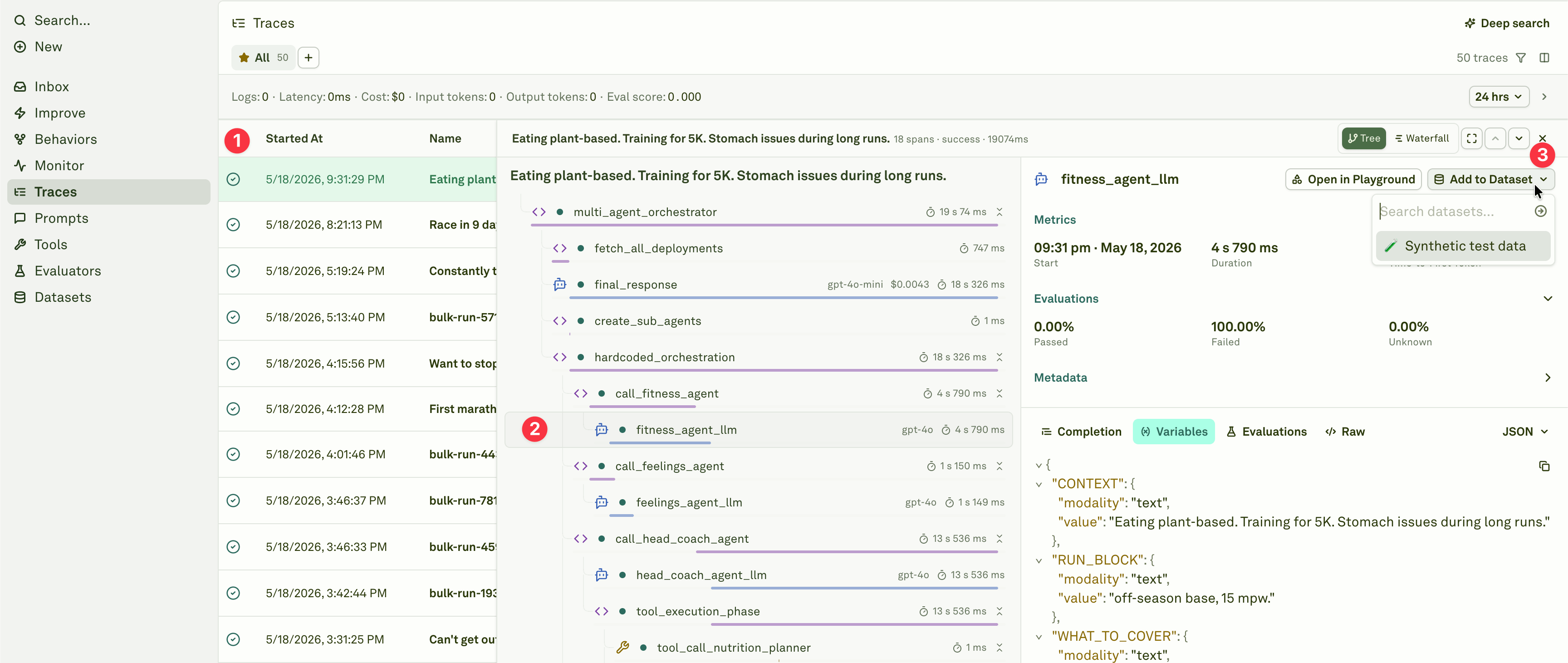
Production logs are the most valuable source of test cases for your prompts. They capture the real inputs your users send, the actual model responses, and the edge cases that synthetic datasets miss. The Monitor pillar lets you filter down to the exact logs you care about and add them directly to datasets — building evaluation suites from real-world scenarios your prompts actually encounter.
Deep Search is coming soon. Adaline is building semantic search across all log data, letting you find relevant logs by meaning rather than exact filters. Contact support@adaline.ai for a private preview.

Find the right logs

Before adding logs to a dataset, you need to narrow down to the specific spans that matter. Use filters and search to target the logs you want to work with — by status, cost, evaluation score, user feedback, environment, session ID, or any combination. For example:
  • Filter by status: failure to find broken responses for regression testing.
  • Filter by eval score to find high-quality responses worth preserving as benchmarks.
  • Filter by tags: thumbs-down to surface cases where users were dissatisfied.
  • Filter by cost > threshold to find expensive requests that need optimization.
  • Filter by environment: production to focus on real user traffic rather than test data.
Once your filters are applied, you see a list of traces or spans matching your criteria — these are the candidates for your dataset. Filtered spans for dataset in Adaline

Add a span to a dataset

Each span in the log list has an Add to Dataset button. This button appears when you have at least one dataset whose columns match the variables in the span — ensuring the log data maps cleanly to your dataset structure. Adding a span to a dataset in Adaline When you click Add to Dataset:
  1. Select a dataset — Choose from existing datasets whose columns match the span’s variables, or create a new one.
  2. Review the mapping — Adaline automatically extracts the span’s input variables and output into the corresponding dataset columns.
  3. Confirm — The span is added as a new row in the dataset, ready for evaluation.
Column names in your dataset must match your prompt’s variable names. If your prompt uses {{user_question}} and {{context}}, your dataset needs columns named user_question and context. See Setup Dataset for column-to-variable mapping rules.

Types of datasets you can build

The filters you choose determine the type of dataset you build. By deliberately selecting different subsets of logs, you can create purpose-built datasets for different stages of your evaluation workflow:

Golden dataset

Filter for your best responses — high evaluation scores, positive user feedback, or manually verified outputs. These become your benchmark: the standard your prompt should consistently meet. Golden datasets are ideal for regression testing after prompt changes, ensuring that quality never drops below an established baseline.

Regression dataset

Filter for fixed issues — logs from cases that previously failed but have since been resolved. Every time you fix a prompt issue, add the original failing case to this dataset. Over time, it grows into a comprehensive safety net that prevents old bugs from reappearing.

Edge case dataset

Filter for unusual or difficult inputs — long messages, multi-language queries, ambiguous requests, or inputs that triggered unexpected behavior. These are the cases that synthetic test data rarely covers. Capturing them ensures your prompt handles the full diversity of production traffic.

Failure analysis dataset

Filter for current failures — low evaluation scores, error statuses, or negative user feedback. Use this dataset to systematically study what is going wrong, identify patterns across failures, and measure the impact of fixes.

Cost optimization dataset

Filter for expensive requests — high token usage or cost above a threshold. Analyze these cases to find opportunities for prompt trimming, context pruning, or model switching without sacrificing quality.
You do not need to create separate dataset entities for each type — these are strategies for what you filter on and add. A single dataset can serve multiple purposes, or you can maintain dedicated datasets for each category depending on your workflow.

Add annotation columns

Datasets support additional columns beyond your prompt’s variables. Add columns for human annotations and internal feedback so your team’s judgments live alongside the data:
Column typePurpose
AnnotationFree-text notes from reviewers explaining why a response is good, bad, or needs attention.
Feedback categoryStructured labels like correct, incorrect, partially-correct, off-topic for systematic analysis.
PriorityFlag high-priority cases that need immediate prompt fixes.
Expected outputThe ideal response a reviewer writes by hand, used as a reference for LLM-as-a-Judge evaluations.
These extra columns turn a raw log dump into a curated, annotated dataset that your team can collaboratively review and refine. See Annotate Logs for how to build a review queue from these columns and ensure every row gets human feedback.

The feedback loop

Building datasets from logs creates a continuous improvement cycle:
  1. Deploy your prompt to production.
  2. Monitor incoming logs and charts for anomalies.
  3. Filter to the logs that matter — failures, edge cases, successes.
  4. Build datasets by adding selected spans to targeted datasets.
  5. Annotate with human feedback and expected outputs.
  6. Evaluate your prompt against the enriched dataset.
  7. Iterate on the prompt using insights from evaluation reports.
  8. Redeploy and repeat.
Each cycle strengthens your test suite and prompt quality. The dataset grows organically from real production traffic, making your evaluations increasingly representative of what users actually experience.

Next steps

Annotate Logs

Build a review queue so every row gets human feedback.

Filter and Search Logs

Find the right logs to add to your datasets.

Setup Dataset

Create and configure datasets for evaluation.

Use Logs to Improve Prompts

Debug and fix issues found in production logs.