1. Sign up
If you don’t have an Adaline account yet, create one by signing up at app.adaline.ai. After you sign up and log in, Adaline creates a sample project calledGet Started. Open the project picker dropdown and select Get Started to follow these quickstarts. The project includes starter resources you can use to run a prompt and try evaluations.
2. Setup an AI provider (optional)
New Adaline accounts include up to three free Playground and evaluation runs, so you can try the product before adding provider credentials. This step is optional for the first few runs, but highly recommended if you plan to keep using Playground, run evaluations, or enable continuous evaluations. After the free runs are used, add your own AI provider credentials so Adaline can call the models you choose. Open workspace settings, choose Providers, and add the provider credentials you want Adaline to use. For the full walkthrough, see Configure AI provider.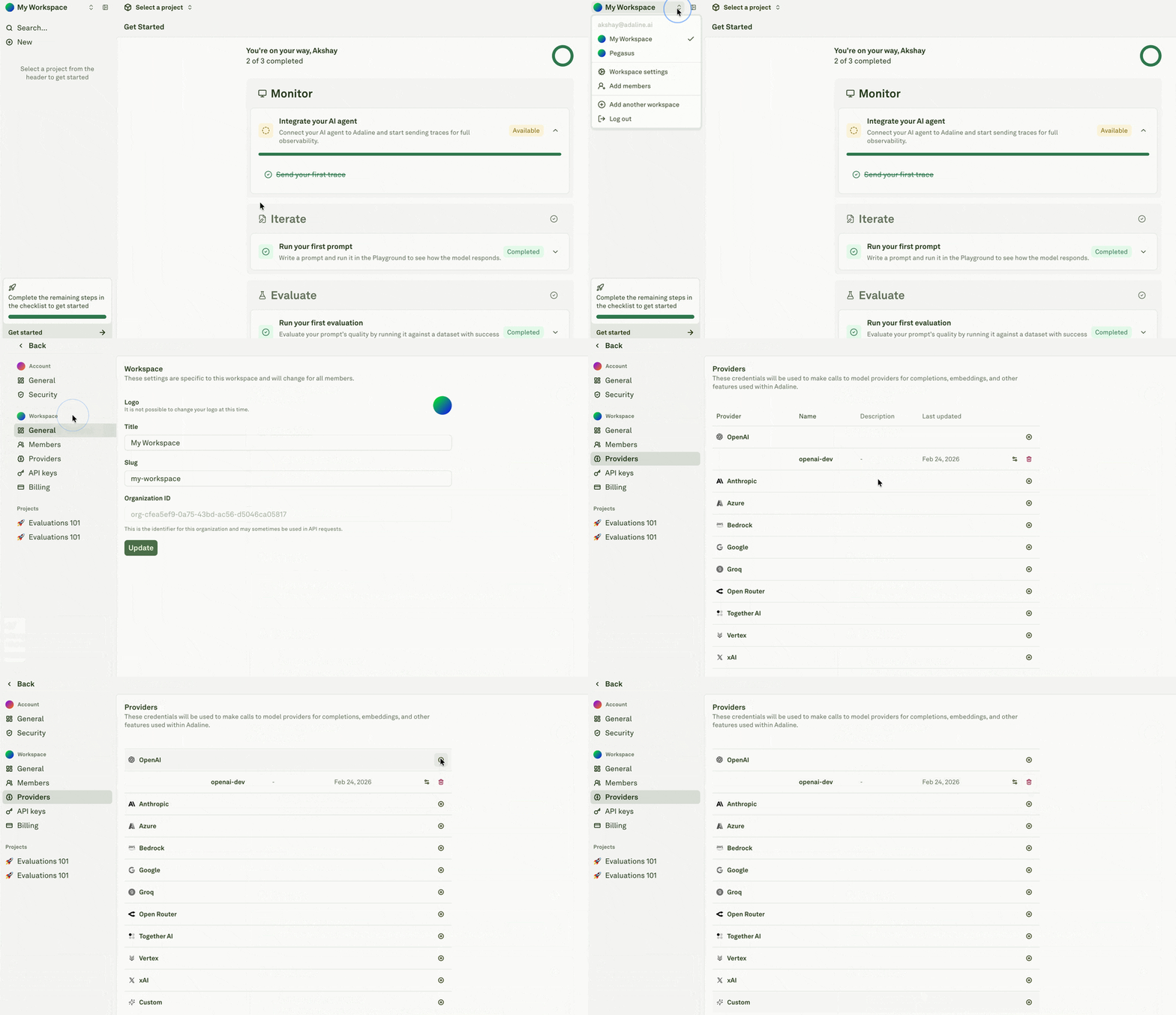
3. Explore the Evaluators
Evaluators are the scoring functions that assess your prompt’s output. Each evaluator measures a different dimension of quality, giving you a quantified view of how your prompt is performing. Open the sample prompt, then review its evaluators. You can also use the project-level Evaluators library to see evaluator definitions across prompts.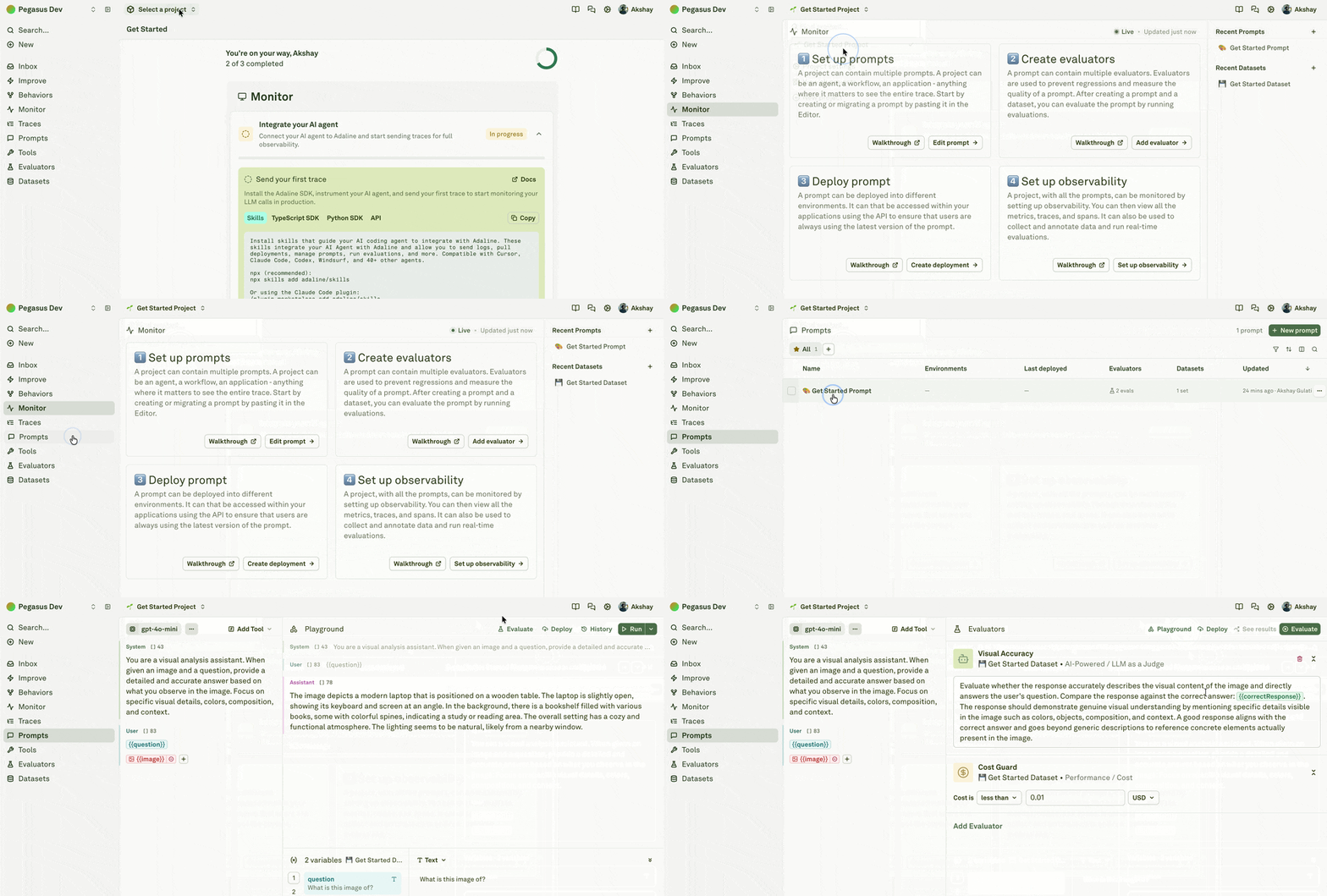
4. Explore the Dataset
A dataset is a collection of test cases. Each row in the dataset represents one test case, and each column maps to a variable in your prompt or evaluator. Click on the sample Dataset in the sidebar.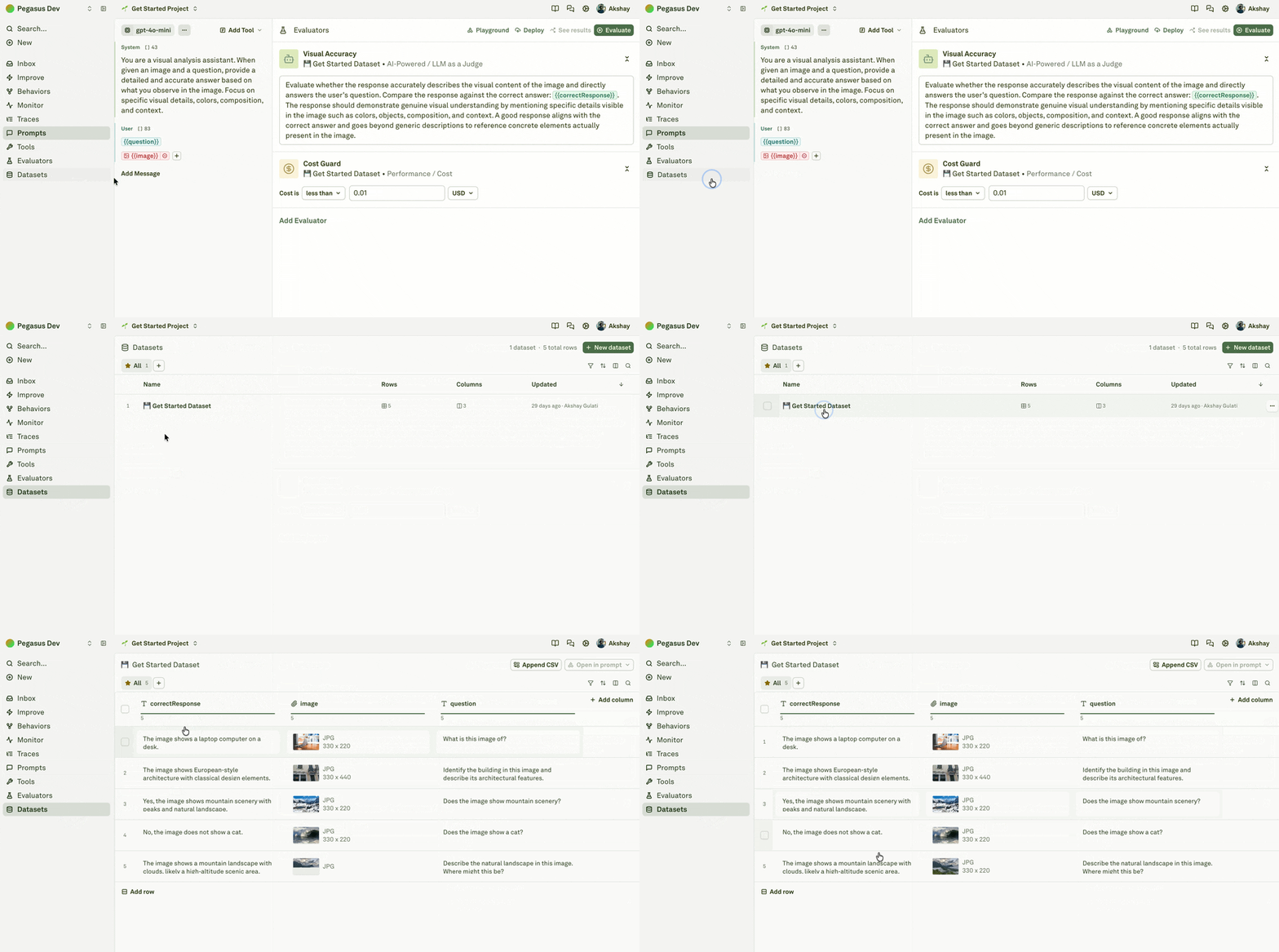
correctResponse which is used to store the expected output for the evaluator to compare against, not directly used in the prompt.
5. Run your Evaluation
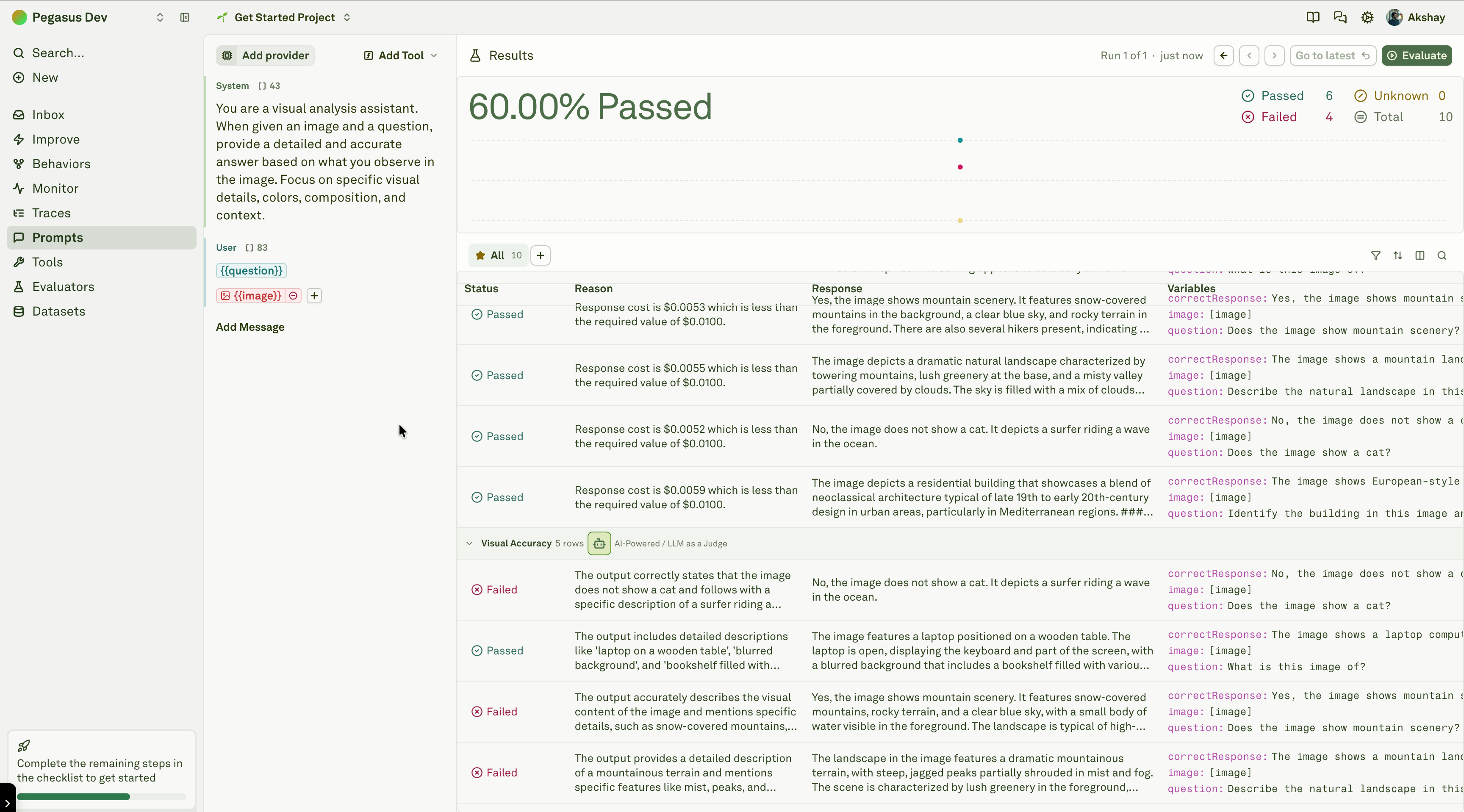
Now that you understand the building blocks — a prompt, a dataset, and evaluators — here is how they all come together when you run an evaluation.1
Open the prompt’s evaluation workflow and click Evaluate.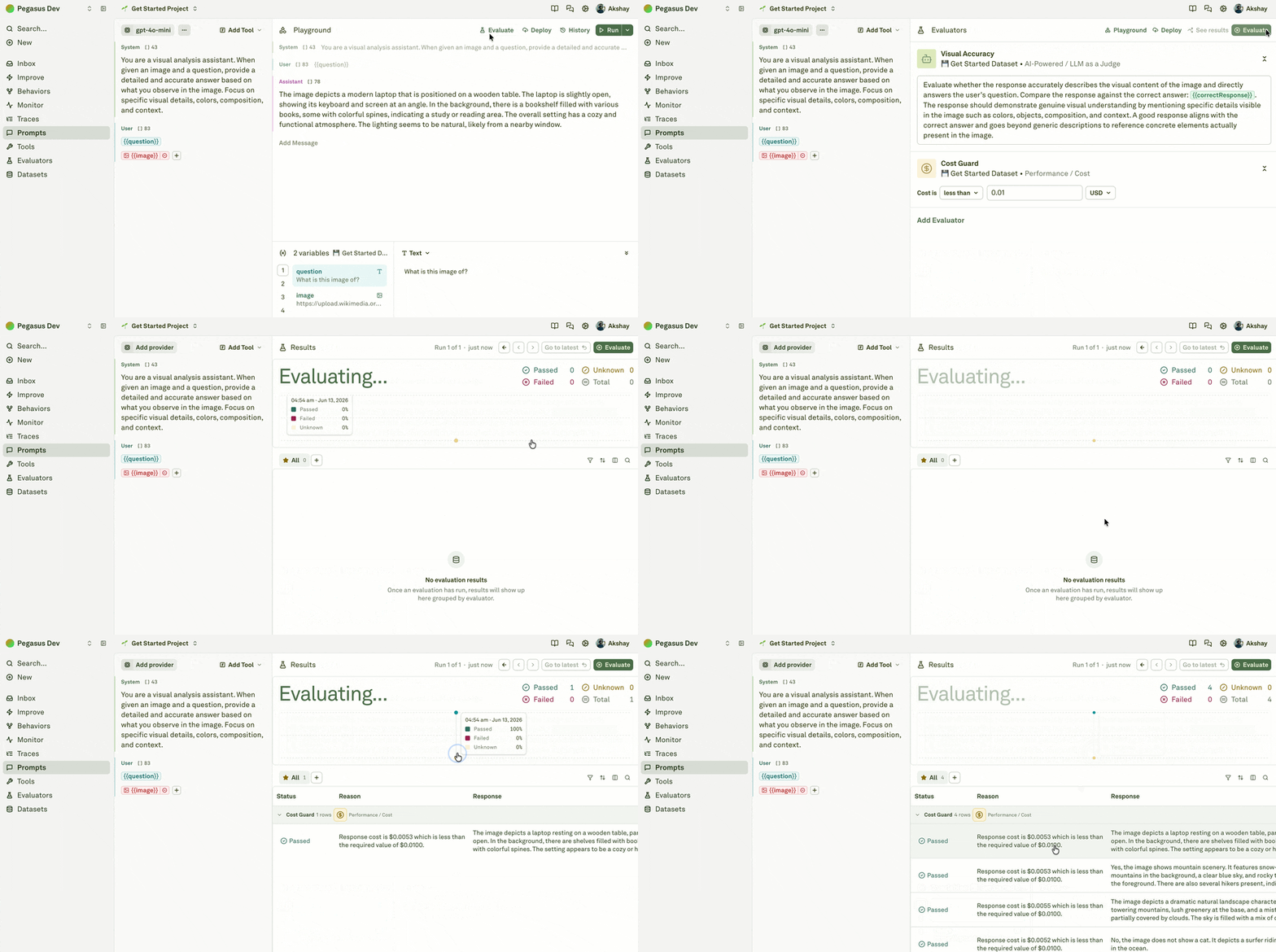
2
When an evaluation runs, Adaline takes each row in your dataset and uses it as a test case:
- The variable values from the row are substituted into the prompt’s placeholders.
- The prompt is sent to the configured model, and the model generates a response.
- The response is then passed through every evaluator attached to the prompt.
- Each evaluator produces a quantified score for that test case.
3
Once the run completes, review the results table. Each row shows the test case inputs, the model’s output, and the score from each evaluator.