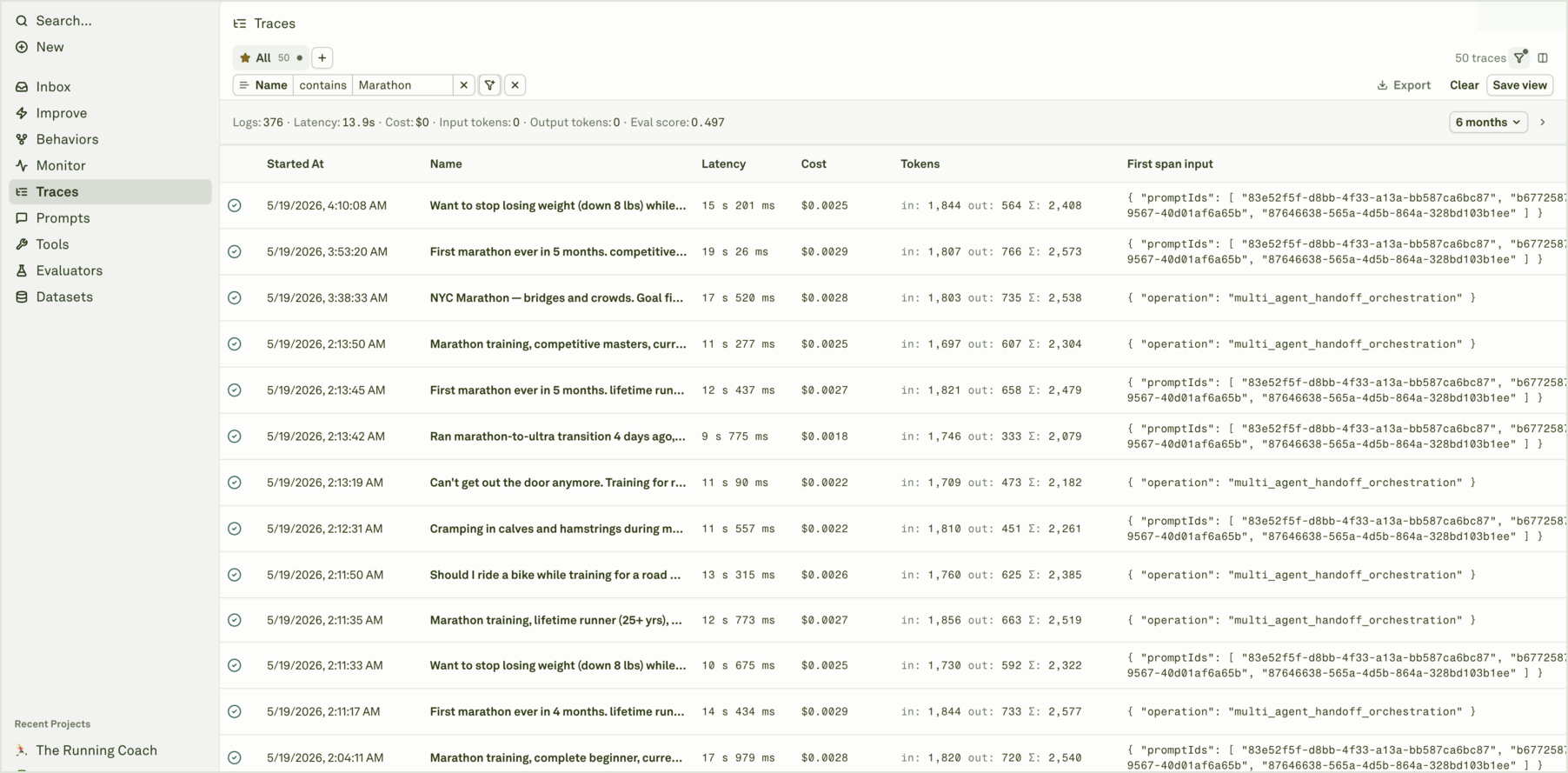
Deep Search is coming soon. Adaline is building full-text semantic search across all log data — inputs, outputs, metadata, and evaluation results. Contact support@adaline.ai for a private preview.
Common use cases
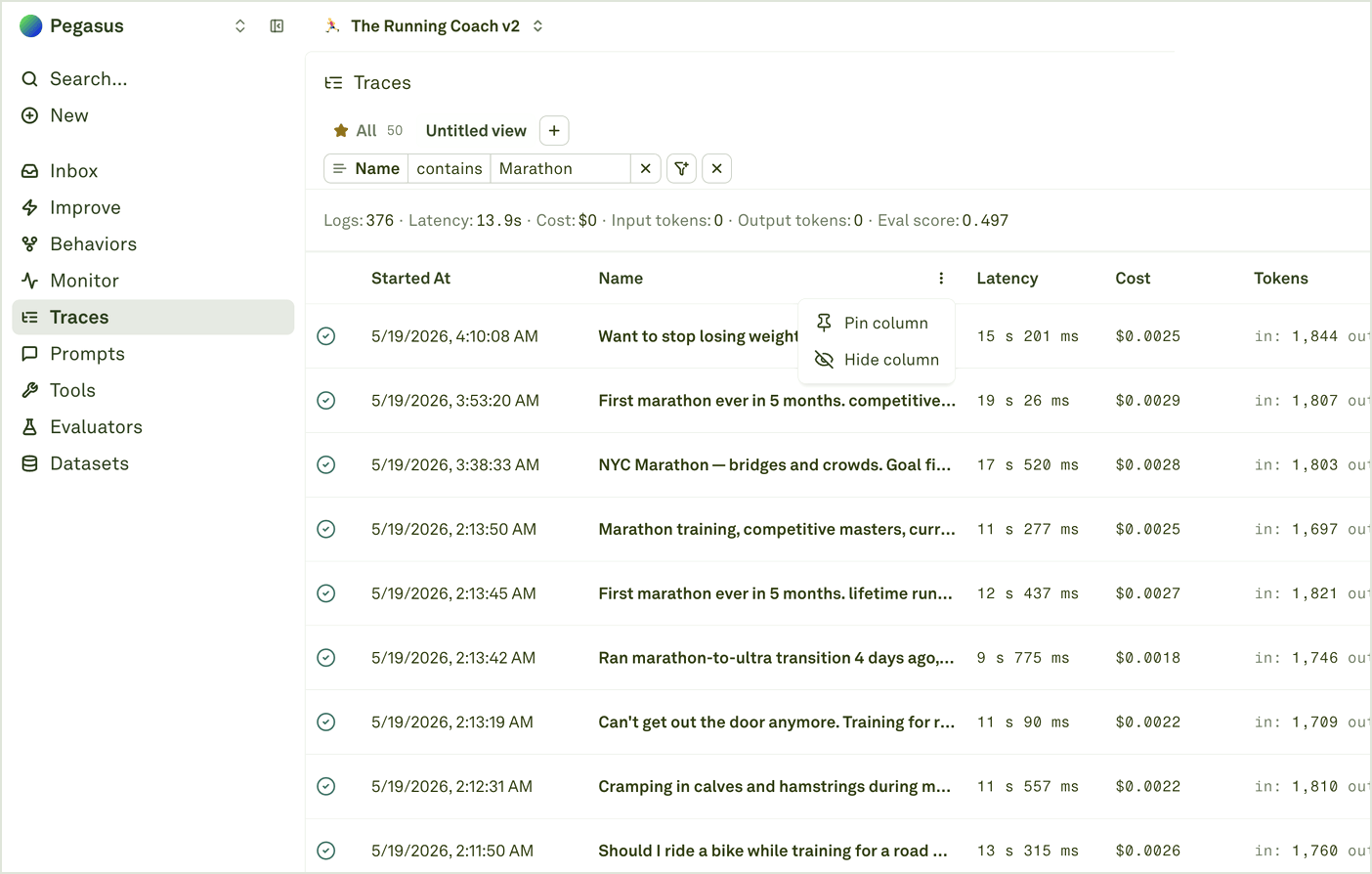
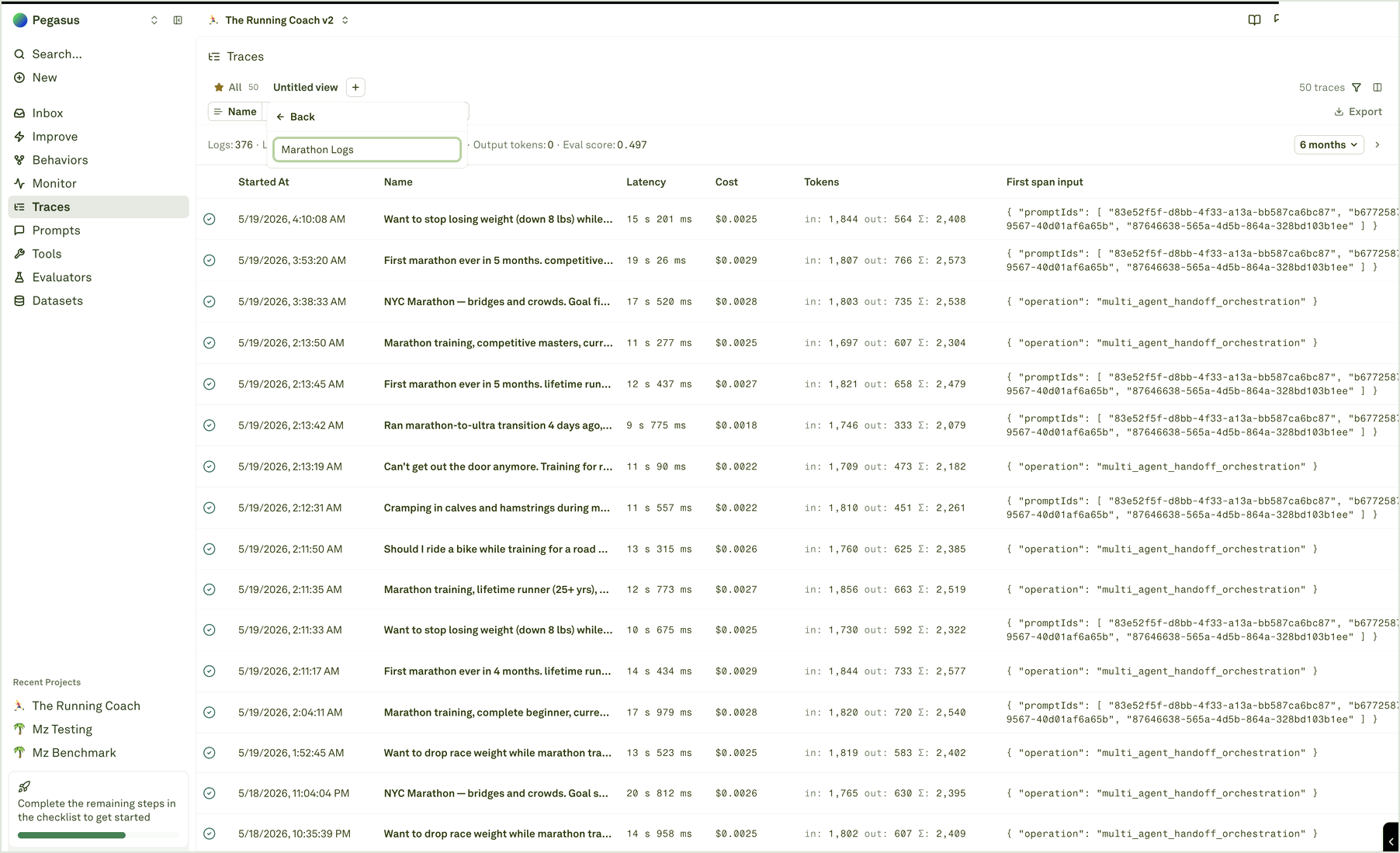
Before diving into filter mechanics, here are the scenarios teams use most often:| Use case | How to do it |
|---|---|
| Debug a specific user’s conversation | Filter by user_id attribute or session ID to pull up all traces for that user. |
| Find a specific chat or session | Filter by session ID to see every trace in a conversation thread. |
| Review user feedback | Filter by tags like thumbs-down or attributes like user_feedback: negative to surface dissatisfied users. See Log User Feedback for setup. |
| Find expensive requests | Use the cost filter with a “greater than” operator to surface traces above a spending threshold. |
| Catch quality regressions | Filter spans with low continuous evaluation scores to find responses that failed quality checks. |
| Audit a deployment environment | Filter by environment attribute (e.g., production, staging) to isolate traffic from a specific stage. |
| Investigate latency spikes | Use the duration filter to find traces that exceeded your SLA threshold. |
| Track model behavior after a switch | Filter by model name attribute to compare output quality before and after a model change. |
| Find failed requests | Filter by failure status to surface errors, timeouts, and rejected requests. |
| Isolate traffic by feature or endpoint | Filter by custom tags set during instrumentation to narrow down to a specific feature area. |
Available filters

Time range
Restrict results to a specific window — last hour, last 24 hours, last 7 days, or a custom date range. This is typically the first filter you set to bound your search.
Status
Show only traces or spans with a specific outcome:
Duration
Find slow requests by filtering on execution time. Enter a threshold value and select a comparison operator (greater than, less than, equal to).
Cost
Surface expensive requests by filtering on the total cost of LLM calls within a trace or span. This uses the same numeric filter pattern as duration.
Tags
Tags are string labels attached to traces and spans during instrumentation. They are designed for quick categorical filtering — for example,thumbs-up, thumbs-down, premium-user, beta-feature, or rag-pipeline.
Filter by one or more tags to isolate traffic from a specific category.

Attributes
Attributes are key-value pairs attached to traces and spans. They carry richer metadata than tags and support arbitrary values — user IDs, session IDs, environment names, feature flags, model versions, and any other context your application sends.
| Attribute key | Example value | Purpose |
|---|---|---|
user_id | usr_abc123 | Identify which user triggered the request. |
session_id | sess_xyz789 | Group requests within a conversation or session. |
environment | production, staging | Isolate traffic by deployment environment. |
user_feedback | positive, negative | Track user satisfaction. See Log User Feedback. |
model_name | gpt-4o, claude-3.5-sonnet | Track which model served the request. |
feature | chat, search, summarize | Identify which product feature generated the request. |
prompt_version | v12, v13 | Track which prompt version was active. |
customer_tier | free, pro, enterprise | Segment by customer plan. |
Combine filters
Filters are additive — each one narrows the result set further. Combine them to answer specific questions:| Question | Filters to combine |
|---|---|
| ”Why did user X have a bad experience yesterday?” | user_id attribute + time range + status failure |
| ”Are production costs trending up this week?” | environment: production + time range: 7 days + cost > $0.05 |
| ”Which requests failed quality checks on the new model?” | model_name: gpt-4o + evaluation score filter |
| ”Show all negative feedback from enterprise customers” | customer_tier: enterprise + tag thumbs-down |
| ”Find slow RAG pipeline calls in staging” | environment: staging + tag rag-pipeline + duration > 5s |
Best practices
- Instrument consistently — The power of filtering depends entirely on the metadata you send. Define a standard set of attributes and tags during instrumentation and apply them across your entire application.
- Use tags for categories, attributes for values — Tags are best for binary or categorical labels (
premium,beta). Attributes are best for values you want to query on (user_id,session_id,cost_center). - Start broad, then narrow — Begin with a time range and status filter, then progressively add attribute and tag filters to zero in on the issue.
- Save common filter combinations — If you find yourself repeatedly applying the same filters (e.g., production + failure + last 24h), note them for your team’s runbook.
- Pair with charts — Use analytics charts to spot anomalies at a high level, then switch to the log view and apply filters to investigate the underlying traces.
Next steps
Analyze Log Traces
Inspect end-to-end request flows in detail.
Log User Feedback
Set up feedback attributes for filtering.
Analyze Log Charts
Spot trends before drilling into individual traces.
Use Logs to Improve Prompts
Debug and fix issues found through filtering.