

Enable MCP
1
Select a compatible model
Open the model selector and choose an LLM that supports MCP integration.
2
Open MCP settings
In the model settings panel, select MCP.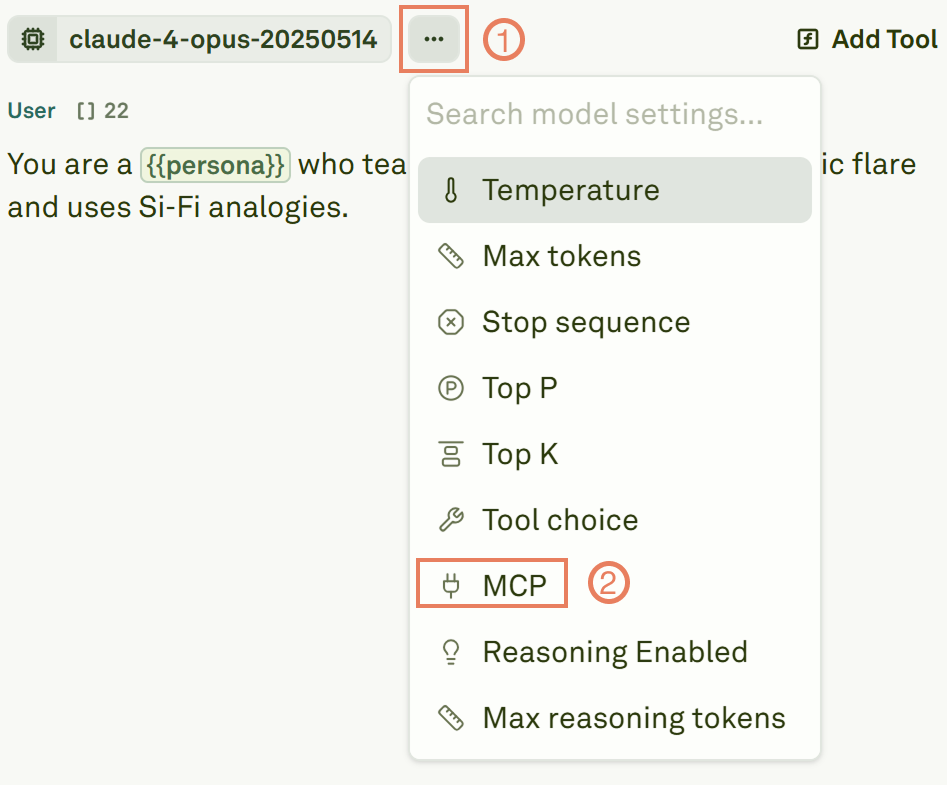
3
Toggle MCP on
Set the MCP toggle to On to enable the integration.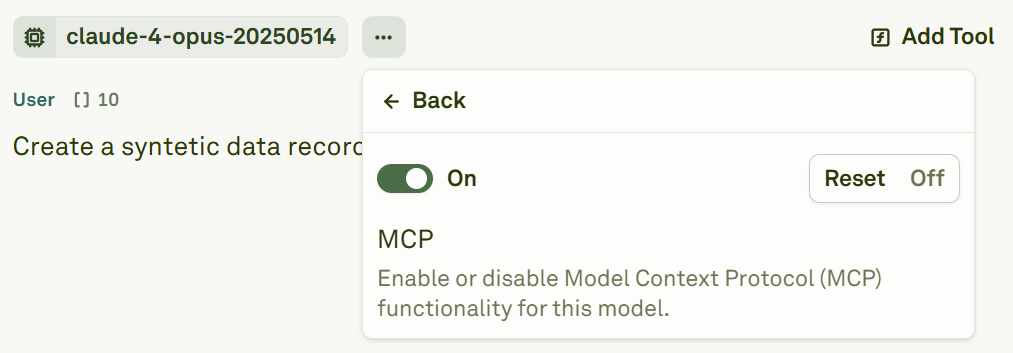
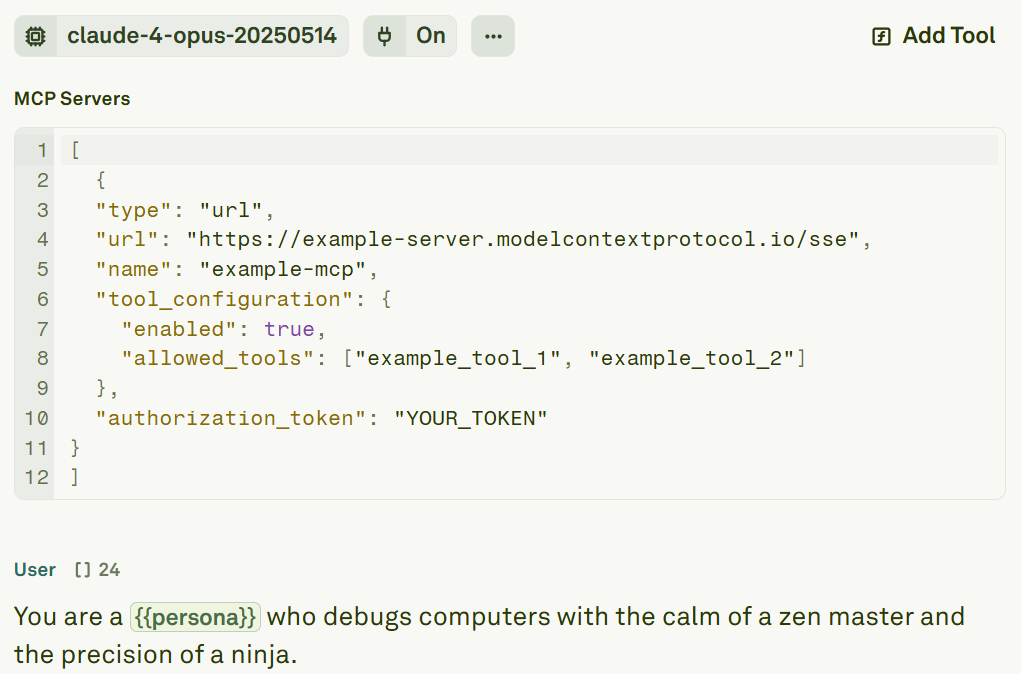
Configure an MCP server
Each MCP server requires a JSON configuration object. Here is the complete schema:Configuration reference
Connect to multiple servers
You can connect to multiple MCP servers simultaneously by providing an array of server configurations:Authentication
Many MCP servers require OAuth authentication. To obtain an access token:- Use the MCP Inspector or your server provider’s OAuth flow to generate a token.
- Paste the token into the
authorization_tokenfield in your server configuration.
Keep your authorization tokens secure. If your MCP server’s tokens have an expiry, you will need to refresh them periodically.
Next steps
Use Tools in Prompts
Define custom tools with JSON schemas and HTTP backends.
Tool Calls in Playground
Test MCP-powered and tool-powered prompts in the Playground.