

How variables work
When you type{{variable_name}} anywhere in a prompt message, Adaline automatically detects it and creates a corresponding entry in the Variable Editor panel. You can then set values for each variable before running the prompt in the Playground.
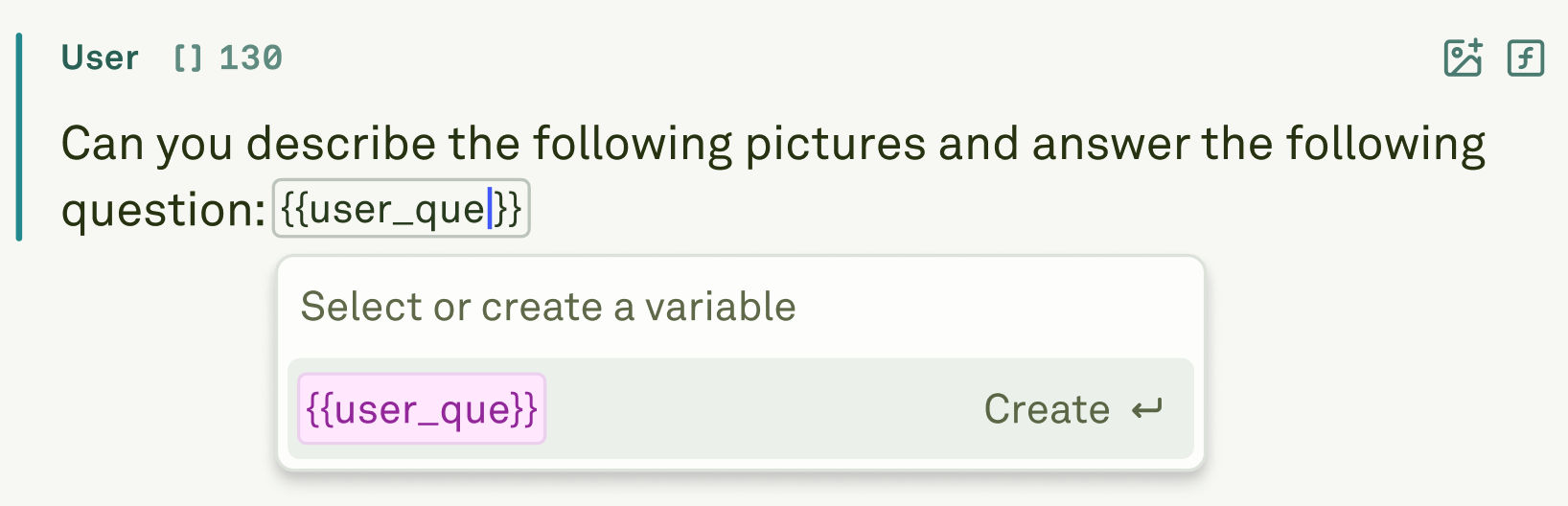
Variable name constraints
Variable names must follow specific rules to ensure compatibility across the platform: Allowed characters:- Letters:
a-zandA-Z - Numbers:
0-9 - Underscores:
_ - Hyphens:
-
Variable types
Adaline supports three types of variables, each suited to a different content modality:Text variables
The most common variable type. Define them directly in your prompt text using the{{variable_name}} syntax.
Without variables:
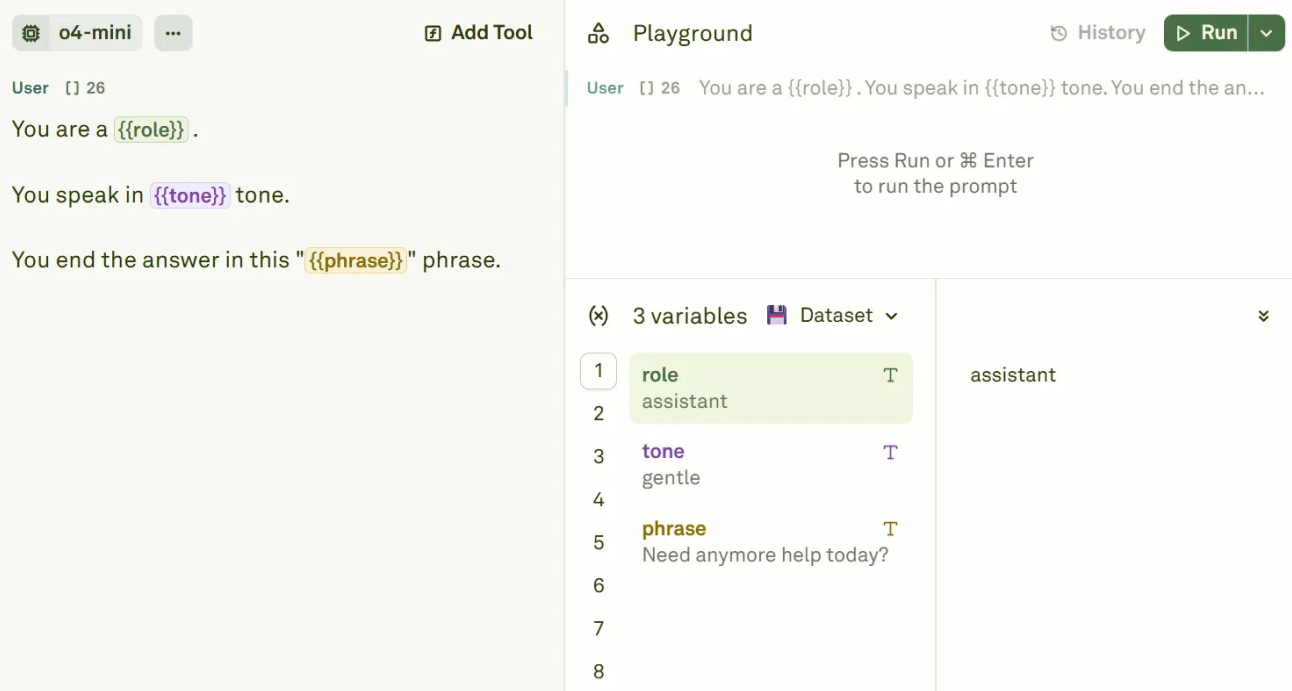
Image variables
Image variables let you dynamically swap visual inputs without changing the prompt structure. To create one:- Click the image button in a message block.
- Select From Variable and give it a descriptive name.
- In the Variable Editor, attach the actual image (URL, base64, or file upload).
PDF variables
PDF variables work the same way as image variables but for document inputs. To create one:- Click the PDF button in a message block.
- Select From Variable and give it a descriptive name.
- In the Variable Editor, attach the actual PDF (URL, base64, or file upload).
Variable sources
Variables can be powered by different sources depending on your workflow needs: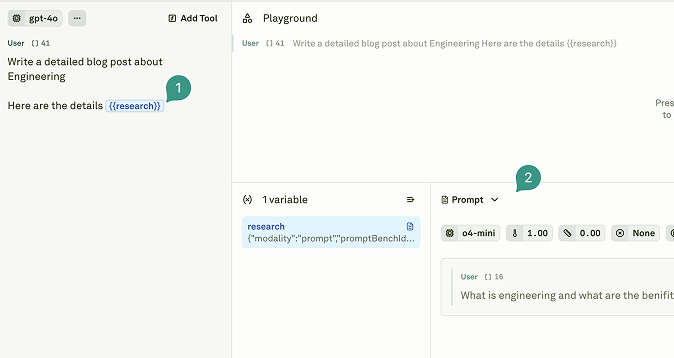
To change a variable’s source:
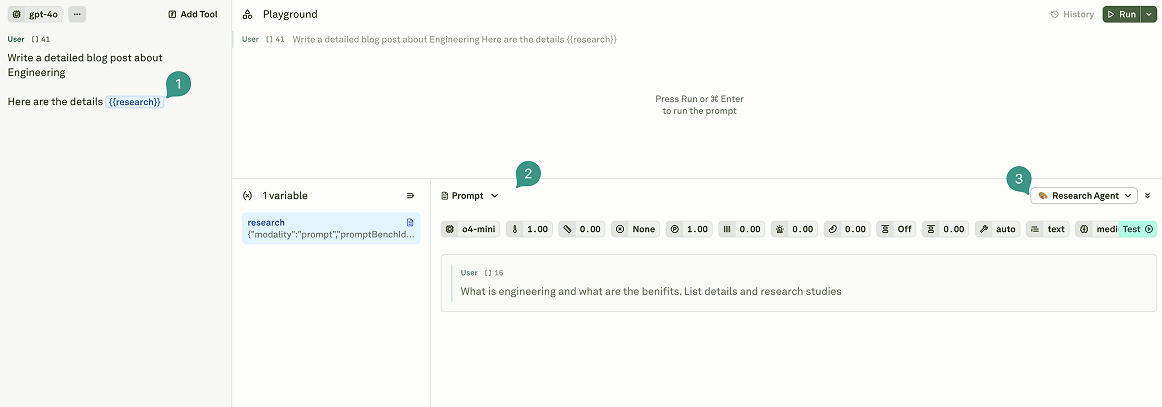
1
Create a variable
Add a
{{variable_name}} placeholder in your prompt text, or create an image/PDF variable through the respective buttons.2
Select the source type
In the Variable Editor, click on the variable and select the desired source type: static value, API, or Prompt.
- API Variables — Fetch live data from external endpoints.
- Prompt Variables — Chain prompts together for complex workflows.
Dynamic sources in datasets
When your variable uses an API or Prompt source and you have a linked dataset, the dynamic source is executed for each row individually. This means:- API variables make a unique HTTP request per row, with placeholders like
{{userId}}resolved from that row’s data. - Prompt variables execute the referenced prompt once per row, passing the row’s context.
- Results are stored in the dataset cells and can be used for subsequent evaluations.
Injecting variables at runtime
When you deploy your prompt and fetch it via the SDK, the{{variable_name}} placeholders are still present in the prompt messages. Replace them with your runtime values before sending the prompt to your AI provider.
deployment.prompt.variables and insert the corresponding ImageContent or PdfContent into the message instead of a plain text replacement. See the TypeScript PromptVariable and Python PromptVariable pages for the full variable schema.
Best practices
- Use descriptive names — Choose names like
{{user_purchase_history}}instead of{{var1}}so that team members can understand the prompt at a glance. - Keep variables focused — Each variable should represent one piece of data. Avoid packing multiple values into a single variable.
- Test with linked datasets — Connect a dataset to your variables to efficiently test across many different input combinations.
Next steps
Use APIs in Prompts
Fetch live data from external endpoints at runtime.
Use Other Prompts in Prompts
Chain prompts together for complex workflows.