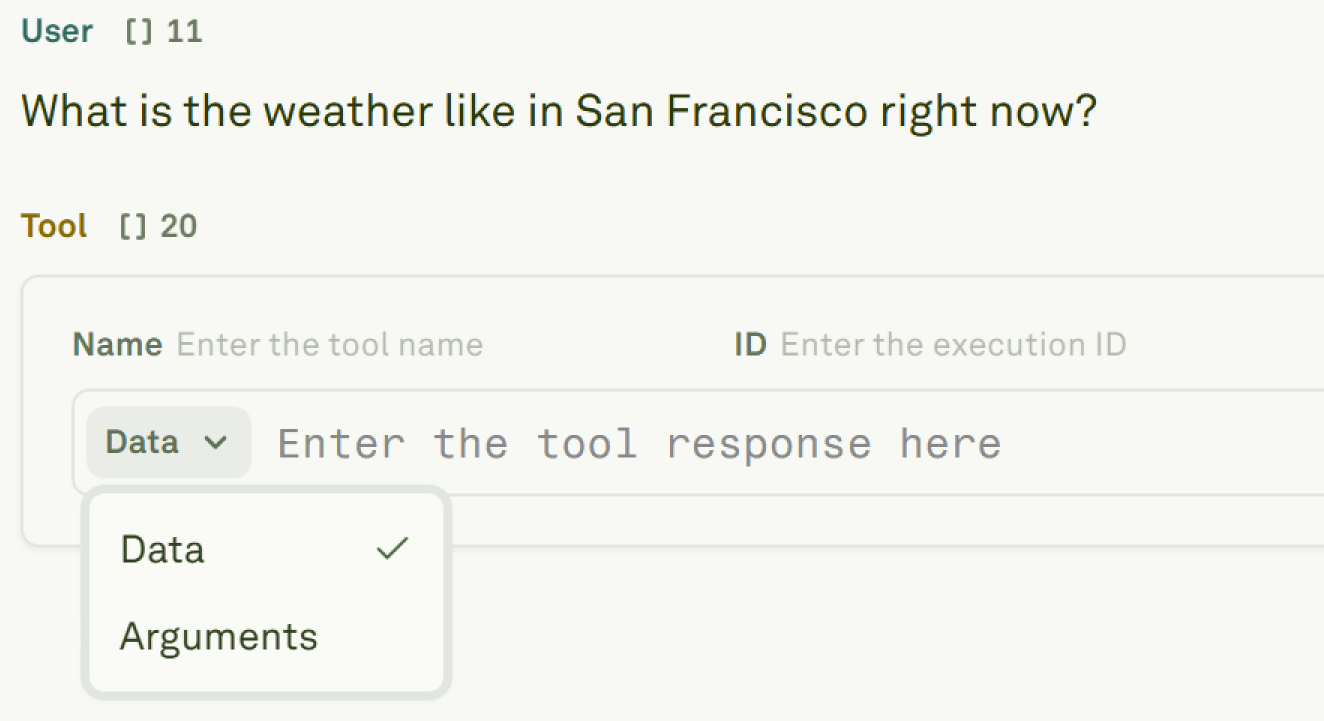
Tools let prompts call external functions, APIs, retrieval systems, or application services. Project tools live at the project level and can be linked to any prompt in the same project. The Tools library is the inventory of reusable callable behavior for a project. Use it to find tools with missing descriptions, inspect parameter schemas, see linked prompts, duplicate useful tools, and avoid breaking prompt references during cleanup.

What a tool defines

A tool includes:
  • A name and description the model can understand.
  • A parameter schema.
  • Prompt links that make the tool available during runs.
  • A title, icon, description, folder position, and project ownership metadata.
Use clear descriptions and tight parameter schemas. The model decides whether to call a tool based on the prompt instructions, conversation context, and tool description.

Tool schema guidance

Good tool definitions are boring in the best way:
  • Use stable names that describe the action, not the implementation.
  • Keep descriptions short but specific about when the tool should be called.
  • Prefer explicit parameter names and types.
  • Mark required fields carefully.
  • Avoid broad free-form objects unless your backend truly accepts them.
  • Include enum values when the allowed values are known.
The tool schema is part of the prompt surface. A vague schema can cause the model to call the right tool with the wrong arguments.

Tool workflow

1

Create a project tool

Open Tools, then create a new tool with a stable name and description.
2

Define parameters

Add a JSON schema that describes the allowed input. Keep names explicit and avoid broad free-form objects unless your backend expects them.
3

Configure execution

If Adaline should execute the tool, configure the HTTP method, URL, headers, and body mapping.
4

Link the tool to prompts

Open a prompt and attach the tool so it is available in playground, evaluation, deployment, and production runs.
5

Test tool behavior

Use the playground and traces to confirm the model calls the tool at the right time and handles the response correctly.
See Create and link tools for the full authoring workflow.

Tools and deployment

When a prompt is deployed, the deployment snapshot captures the prompt’s tool configuration. If you change a project tool later, confirm whether the deployed prompt needs a new deployment snapshot before assuming production behavior changed.

Tool evidence in Traces

When a deployed prompt calls a tool, the call and response can appear as spans in Traces. Use those spans to inspect:
  • Tool arguments.
  • Tool responses.
  • Latency and errors.
  • Whether the assistant used the returned data correctly.
If a tool pattern becomes frequent or problematic, Behaviors can surface it as a recurring pattern.

Debugging tool issues

When a tool-related trace fails, check these in order:
  1. The prompt instructions around when to call the tool.
  2. The tool description and parameter schema.
  3. The actual arguments generated by the model.
  4. The HTTP request and response, if Adaline executes the tool.
  5. The assistant response after the tool returned.
  6. Related Behaviors for repeated tool misuse.

Create and link tools

Define reusable project tools and attach them to prompts.

Test and debug tools

Verify tool calls through playground runs, traces, evaluators, and behaviors.