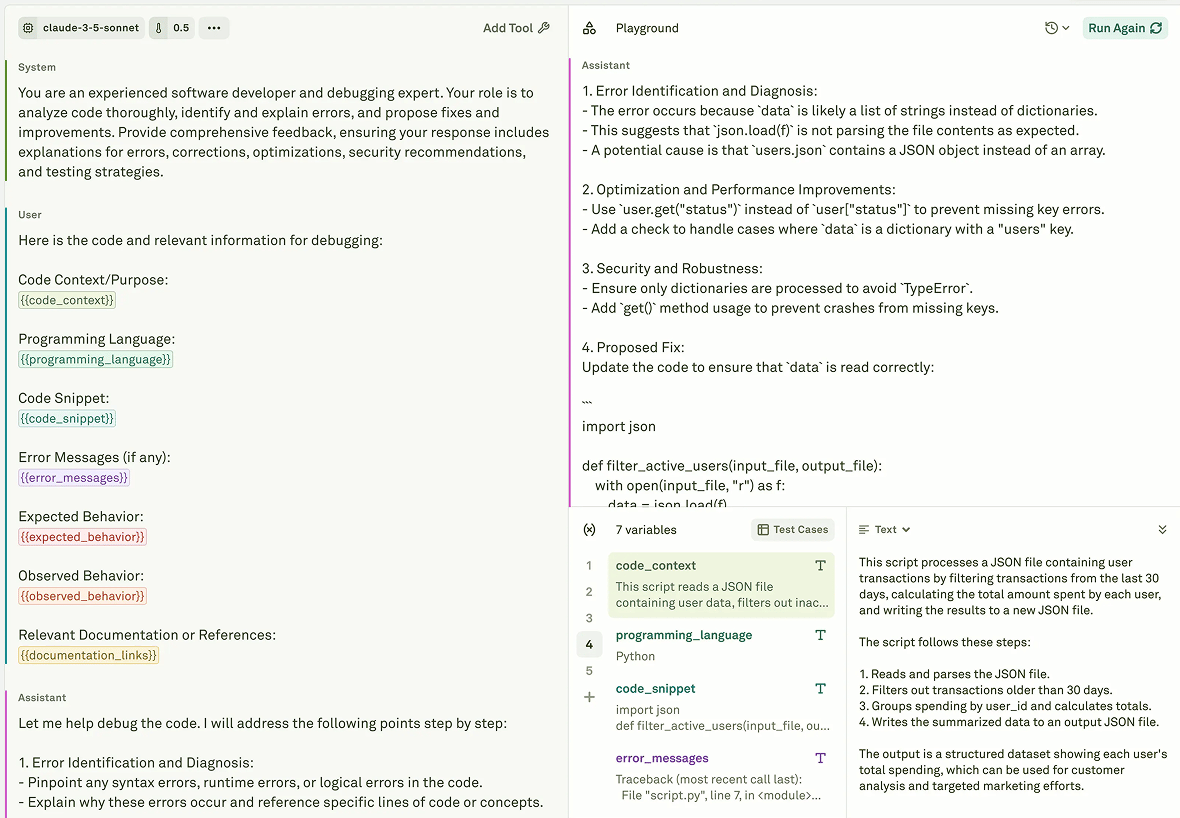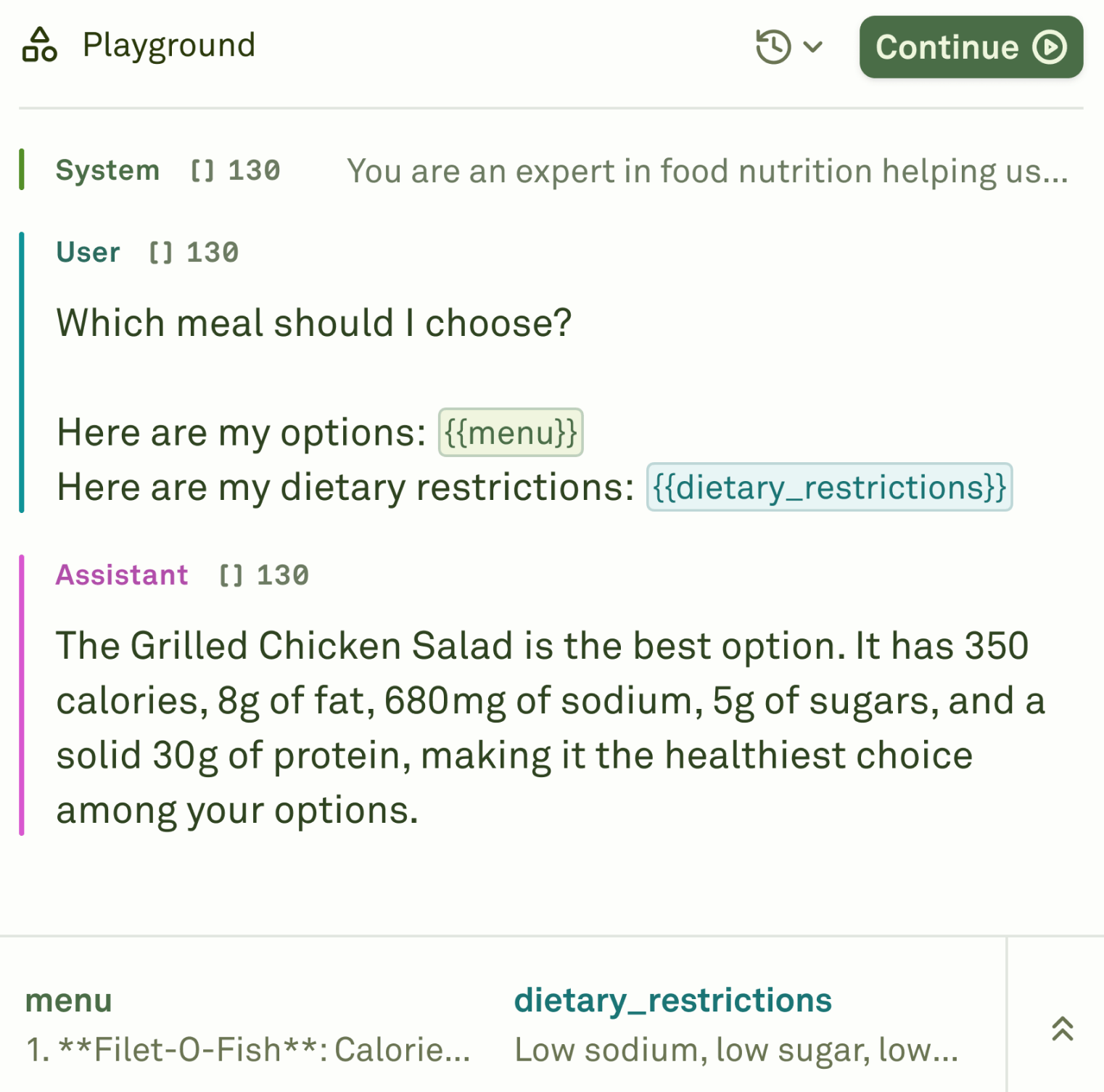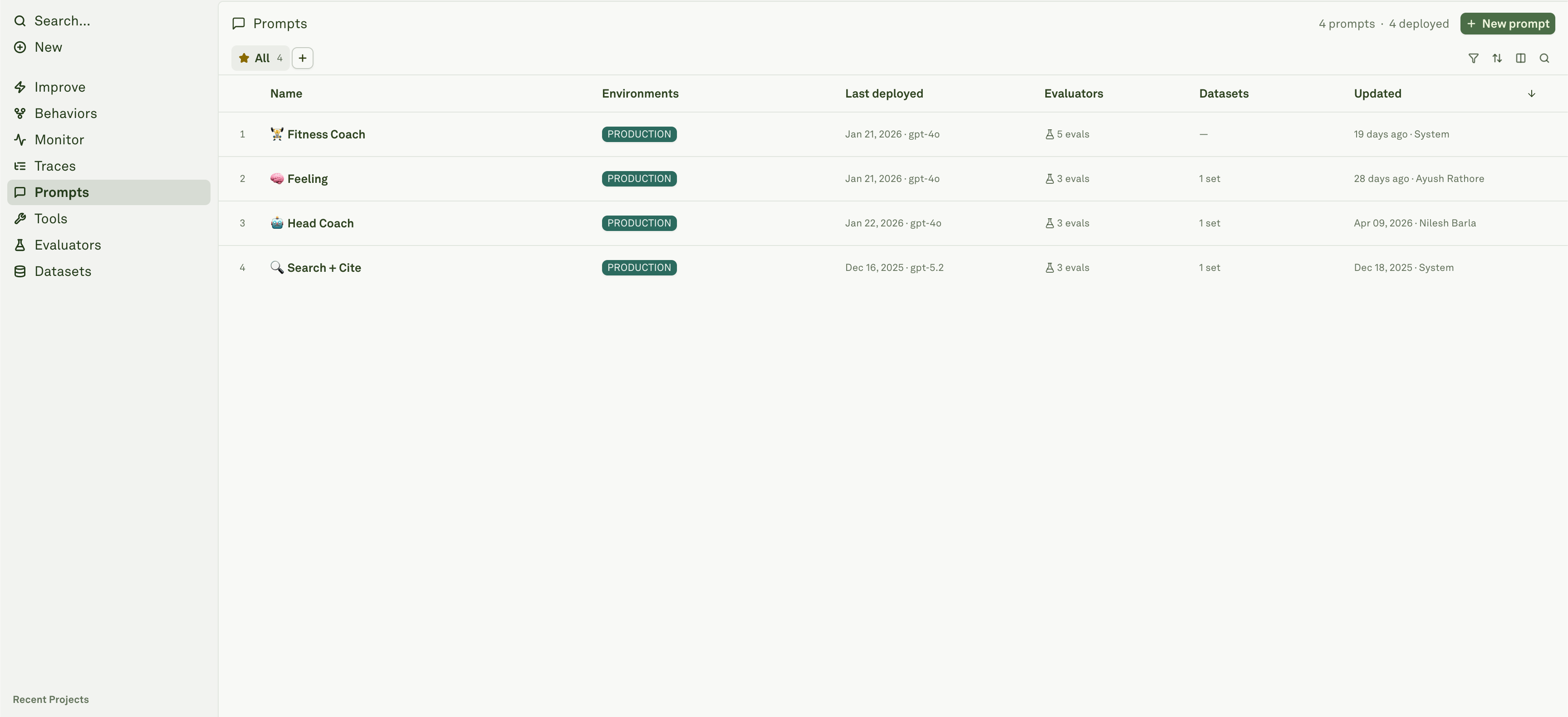
Prompts are the main levers your AI application uses at runtime. The Prompts library shows every prompt in the project, which environments it is deployed to, linked evaluators and datasets, and when it was last updated.

What a prompt contains

A prompt can include:
  • Model and provider configuration.
  • System, user, assistant, and tool messages.
  • Text, image, and PDF content.
  • Variables.
  • Project tools and optional MCP server configuration when enabled.
  • Evaluators and datasets for testing.
  • Editor snapshots, deployment history, and prompt versions.

Library columns

Use the Prompts library to answer:
ColumnUse it for
NameOpen the prompt editor or preview sheet.
EnvironmentsSee where the prompt is currently deployed.
Last deployedFind the latest deployment snapshot and model context.
EvaluatorsCheck whether the prompt has active quality gates.
DatasetsSee which datasets are connected through evaluators or dynamic columns.
UpdatedFind recently edited prompts.

Build and test a prompt

Open a prompt to use the editor and playground. The practical authoring loop is:
  1. Configure the model and generation parameters.
  2. Write messages and variables.
  3. Attach tools when the model needs external actions or data.
  4. Run the prompt in the playground with representative inputs.
  5. Link datasets to test across many cases.
  6. Run evaluations before deployment.
For the full workflow, see Build and test prompts.

Versioning and deployment

Editing a prompt changes the draft in the editor. Deployment creates a snapshot for a deployment environment. Your application should read from the deployment environment it expects, not from an arbitrary draft. Use this distinction when reviewing changes:
  • Draft/editor state is where prompt editing and playground work happen.
  • Prompt version or editor snapshot is the captured state used for review or deployment.
  • Deployment snapshot is what an application environment reads at runtime.
  • Improve approval can apply a candidate and deploy it, while Edit & approve applies the candidate without deployment.
See Version and deploy prompts for the release model.

Prompts in the Platform workflow

Prompts connect directly to the rest of Platform:
  • Tools define callable functions or HTTP-backed actions.
  • Evaluators define success criteria for a prompt.
  • Datasets provide test cases.
  • Traces show how deployed prompts behave in production.
  • Behaviors cluster recurring prompt outcomes.
  • Improve proposes prompt changes from those signals.
  • Deploy ships a prompt version to an environment.

Technical tips

  • Keep variable names stable. Datasets and dynamic columns depend on prompt variables resolving consistently.
  • Keep tool descriptions precise. The model chooses tools from the descriptions and schemas it sees.
  • Attach evaluators before running Improve so candidate reviews can prove they did not regress important behavior.
  • Use deployment comparison before shipping a prompt with large message, model, schema, or tool changes.
  • After deployment, watch Monitor, Traces, and Behaviors for runtime effects.
Project libraries showing prompts, tools, evaluators, and datasets

Build and test prompts

Configure messages, variables, model settings, tools, datasets, and playground runs.

Version and deploy

Understand drafts, snapshots, deployment environments, approval, and rollback.

Tools

Define reusable tool schemas and HTTP-backed actions.

Evaluators

Define pass/fail, scoring, cost, latency, and formatting criteria.