

View deployment history
The left panel of the deployment view shows the complete history of all deployments: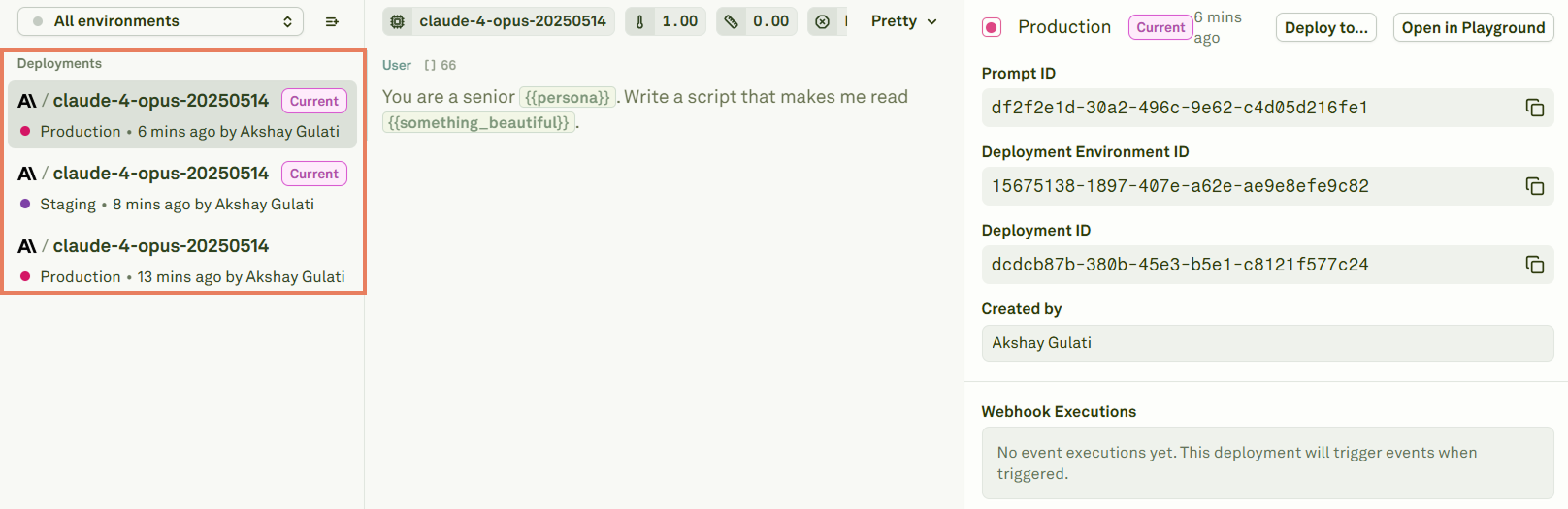
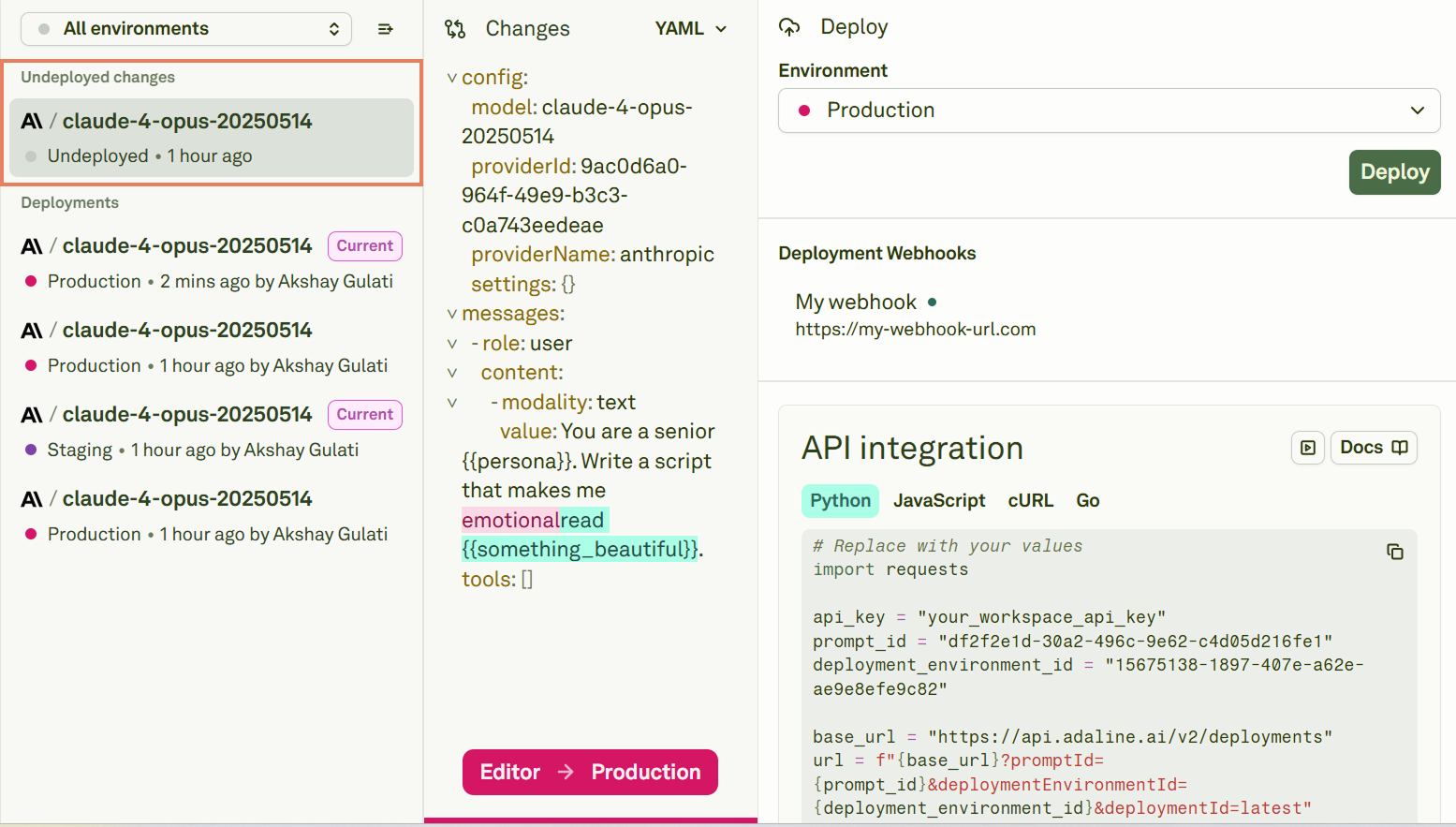
- Currently deployed prompts — The top entries indicate which prompt version is active in each environment (e.g., the latest is deployed to production, the next to staging).
- Previously deployed prompts — Older entries that are no longer deployed to any environment but can be restored at any time.
Perform a rollback
To rollback to a previous prompt version, select an undeployed prompt from the history and click Rollback: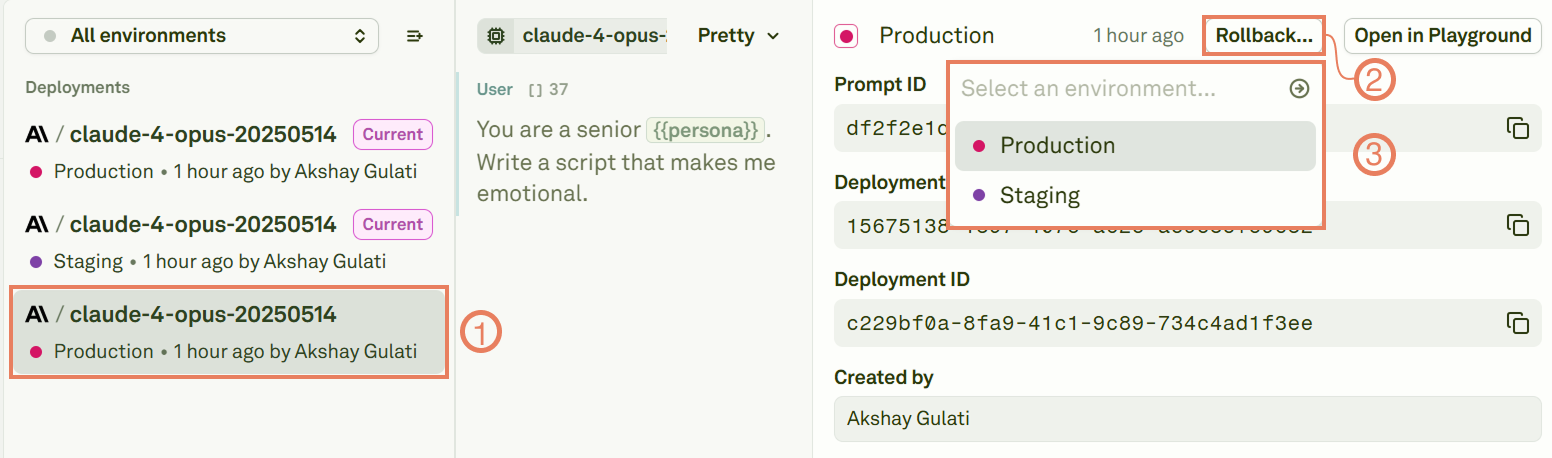
When to rollback
- Unexpected behavior — A deployed prompt produces incorrect or unexpected outputs in production.
- Quick recovery — You need to restore a working version while you investigate and fix the issue in the Editor.
- A/B comparison — You want to switch between versions to compare their behavior in a live environment.
- Failed evaluation — Post-deployment monitoring (via the Monitor pillar) reveals a quality regression.
Next steps
Compare Your Deployments
Review diffs between versions before rolling back.
Deploy Your Prompt
Deploy a new prompt version after fixing issues.