

Quick start
1
Create a prompt with variables
Set up your prompt in the Editor with at least one 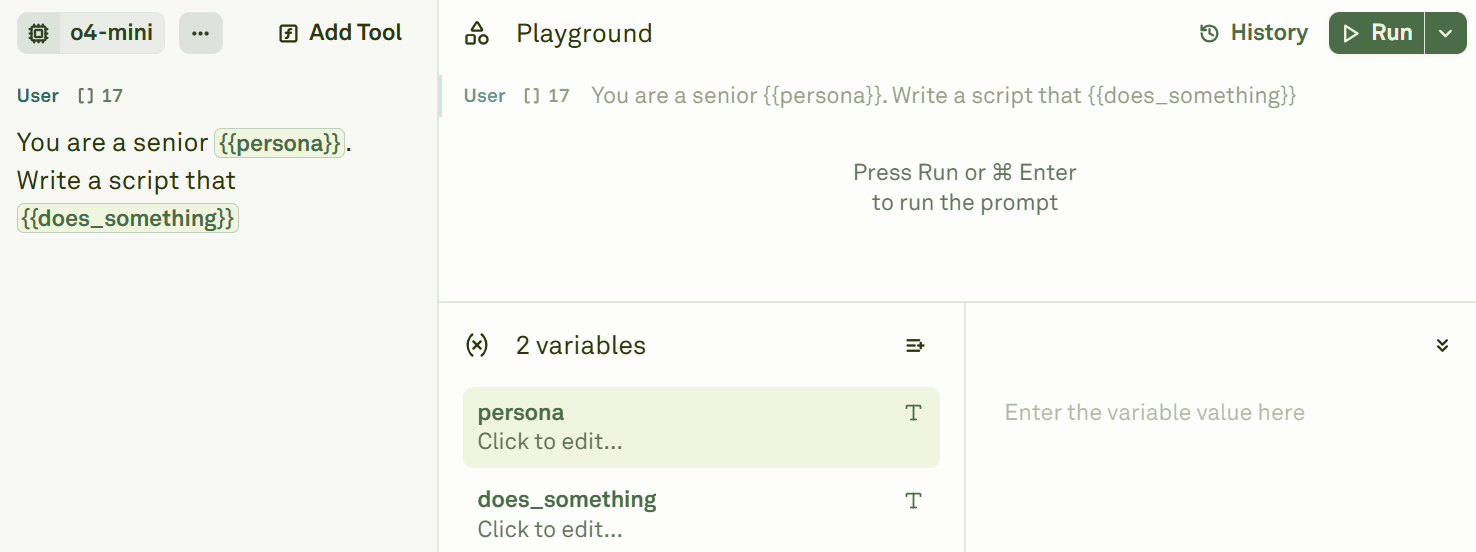
{{variable}} placeholder.2
Link the dataset
In the Playground, click Link Dataset and select a dataset from your workspace.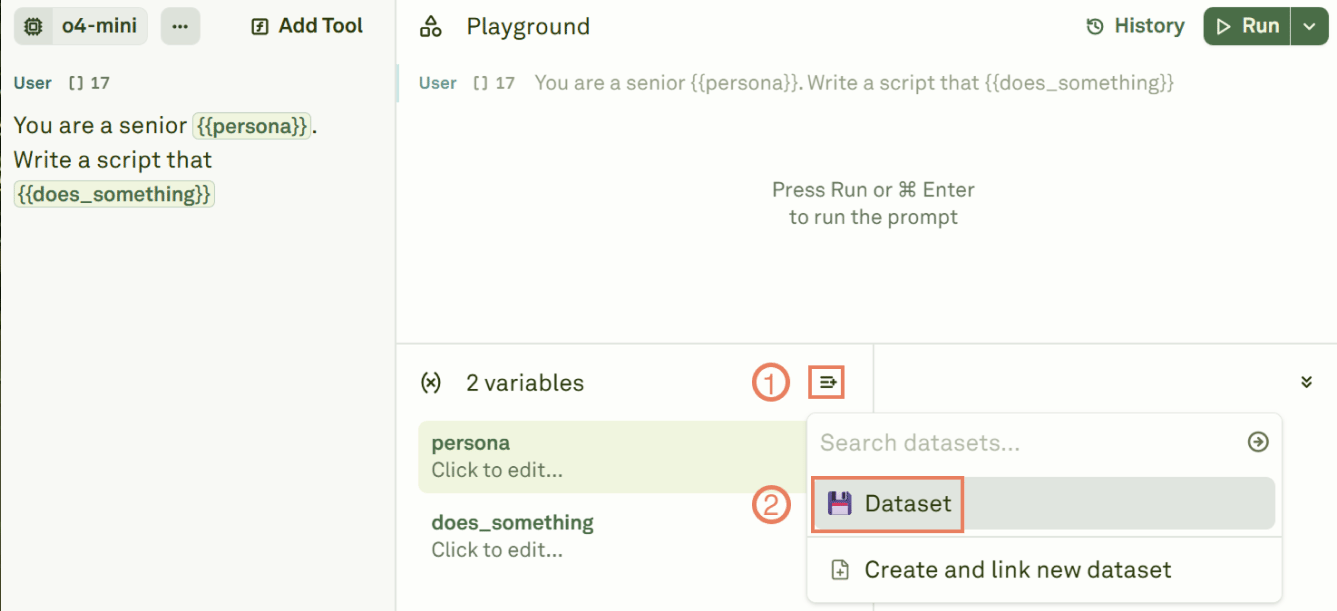
3
Navigate and run
Browse through dataset rows — selecting a row populates the Variable Editor with that row’s values. Click Run to execute the prompt with the selected row’s inputs.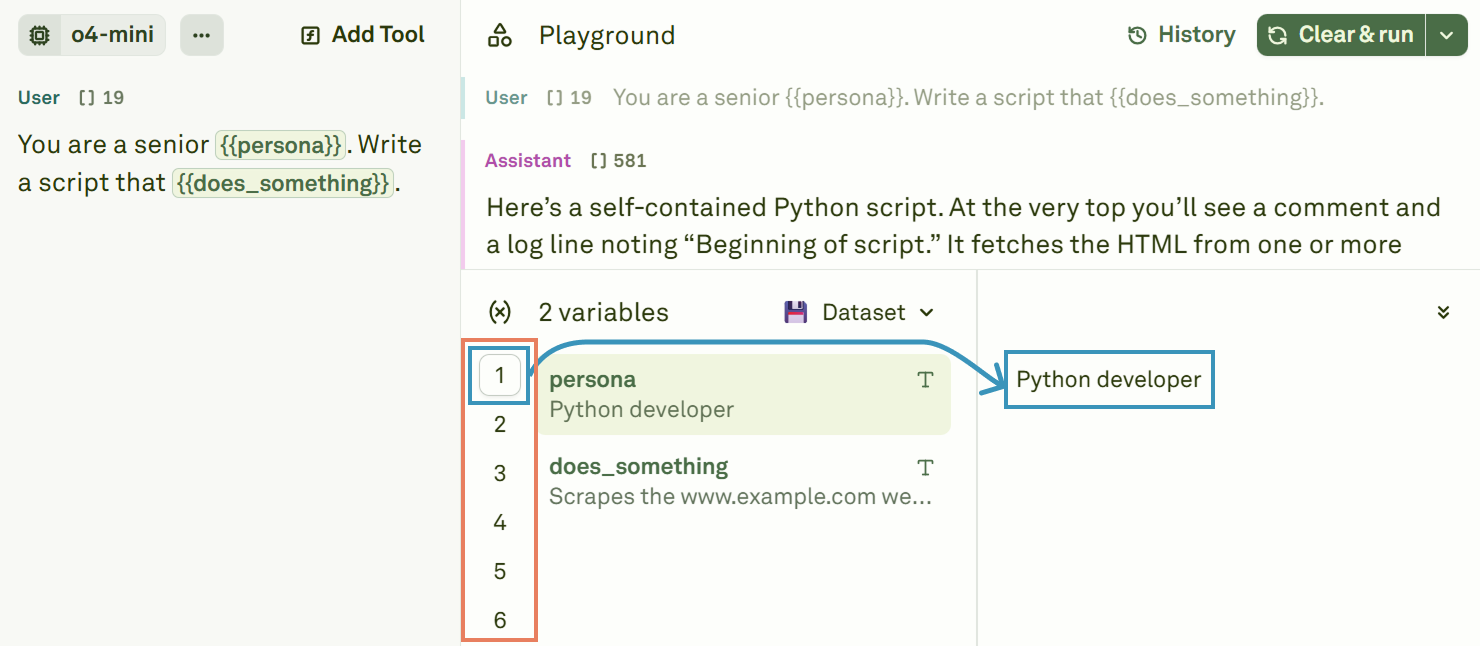
Key features
- Full bi-directional sync — New variables in the Editor automatically create columns in the linked dataset, and vice versa. Same for rows and cells.
- Column mapping — Columns map to variables by name. Extra columns are ignored; missing columns fall back to Variable Editor values.
- Dynamic columns — Columns configured as API or Prompt sources are executed at runtime with fresh data.
Learn more
Setup Dataset
Build and configure your dataset structure.
Dynamic Columns
Fetch live data at runtime in your datasets.
Run Prompts in Playground
Execute prompts with linked dataset inputs.