

Run a prompt
After configuring your prompt in the Editor and setting variable values in the Variable Editor, click Run to execute the prompt and see the model’s response: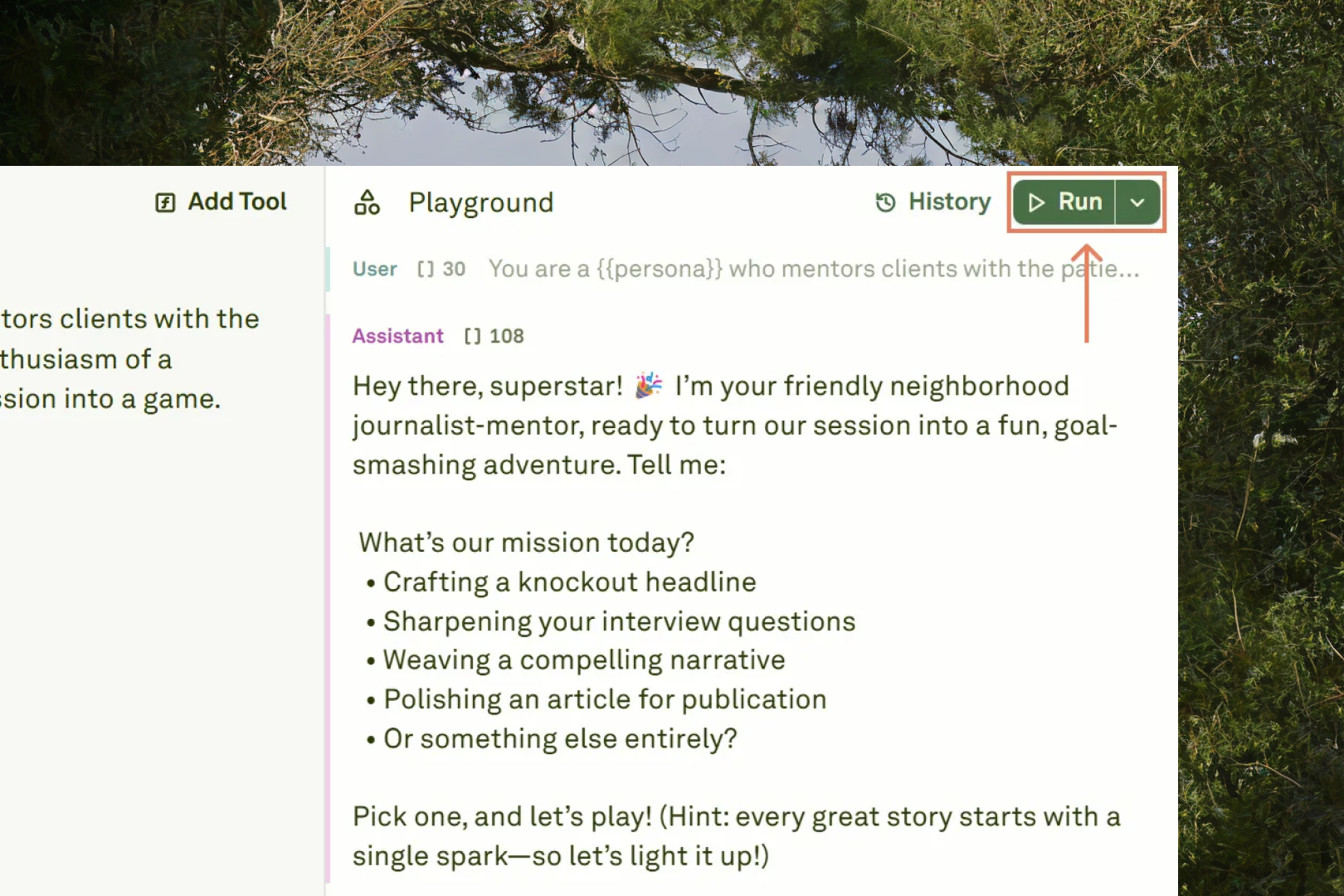
Stop a running prompt
If a prompt is taking too long or you notice an error in your setup, click the Stop generation button to immediately terminate the execution:
Execution options
The Playground provides two execution modes for different workflows: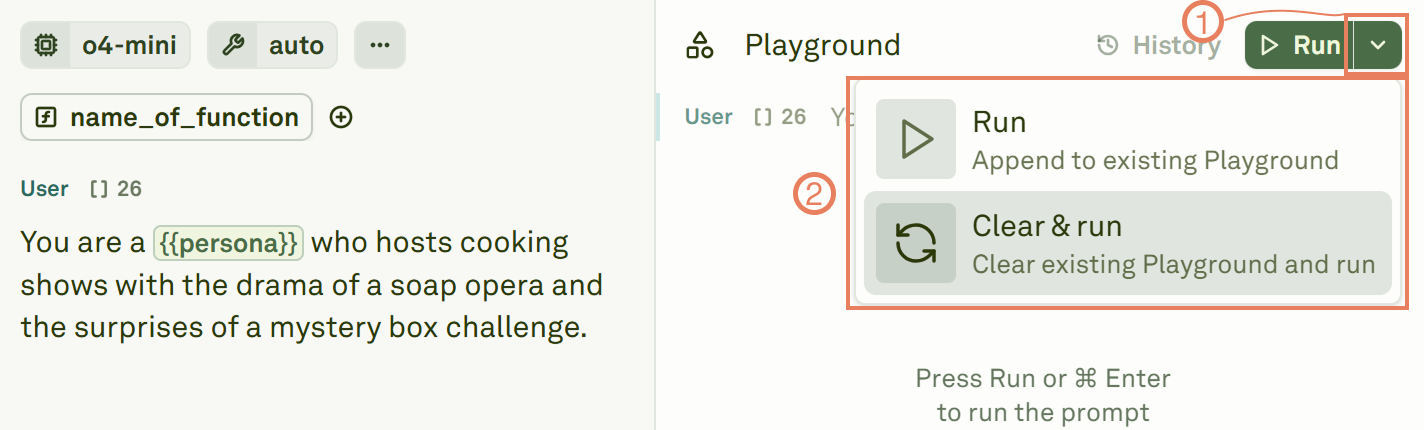
Build a conversation thread
You can have multi-turn conversations with the model directly in the Playground. After receiving a response, add a new User message to continue the conversation. The model retains the full context of previous exchanges. This works the same way as creating multi-shot prompts in the Editor, but happens interactively:- Run the prompt — The model generates a response (shown as an Assistant message).
- Add a follow-up — Type a new User message below the response to continue the conversation.
- Run again — Click Run to send the full conversation (including all prior messages) to the model.
- Include tool responses — If the model makes a tool call, provide the tool response and run again to see how the model incorporates external data.
Iterate on your prompt
The Playground is designed for rapid iteration. A typical workflow looks like:- Run your prompt with initial inputs.
- Review the model’s response — check for accuracy, tone, format, and completeness.
- Adjust your prompt in the Editor (refine instructions, add examples, tweak parameters).
- Run again to compare the new output against the previous one.
- Repeat until the output meets your quality bar.
Next steps
View Past Prompt Runs
Access your complete run history and restore previous states.
Tool Calls in Playground
Handle tool calls and auto tool execution.