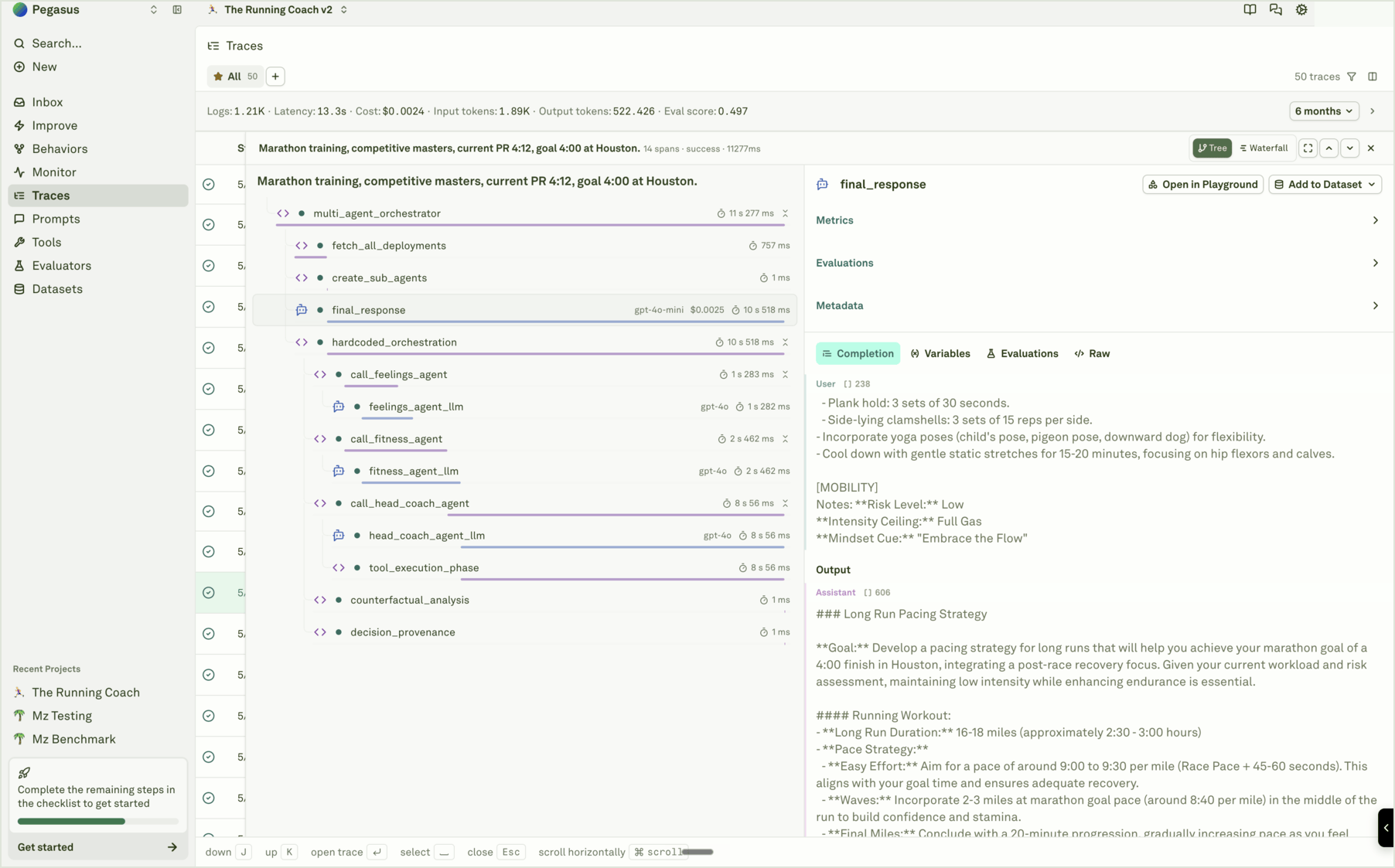
Spot the issue
The first step is finding the logs that indicate a problem. Use filters and search to narrow down to the signals that matter:| Signal | How to find it |
|---|---|
| Failed requests | Filter traces by failure status to find errors, timeouts, and rejected requests. |
| Low quality responses | Filter spans with low continuous evaluation scores. |
| User complaints | Filter by tags like thumbs-down or attributes like user_feedback: negative. See Log User Feedback for setup. |
| Cost outliers | Filter by cost above a threshold to find expensive requests. |
| Latency spikes | Filter by duration to find requests that exceeded your SLA. |
| Anomalies in charts | Spot trend changes in analytics charts, then click a data point to drill into the underlying traces. |

Reproduce in the Playground
Every span in the Monitor has an Open in Playground button. Clicking it loads the exact request configuration into the Playground — the same prompt messages, model settings, variable values, and tools that were active when the request ran in production.
- Click “Open in Playground” on the problematic span.
- Run the prompt — the Playground executes with the same inputs and settings, producing the same (or similar) problematic output.
- Confirm the issue — verify that you can see the bug, hallucination, format error, or whatever went wrong.
Iterate on a fix
With the issue reproduced, you can now iterate directly in the Editor:- Refine instructions — Strengthen the system message, add constraints, or clarify ambiguous guidance.
- Add examples — Use multi-shot prompting to show the model the correct behavior for this type of input.
- Adjust parameters — Change the model, temperature, or response format to improve output quality.
- Add guardrails — Use JSON schema response format to enforce structure, or add tools for validation.

Common issues and fixes
| Issue | What you see in logs | How to fix |
|---|---|---|
| Hallucinations | Response contains incorrect information not supported by context. | Add stronger grounding instructions, provide more context, or use retrieval to inject factual data. |
| Format errors | Output doesn’t match expected structure (JSON, markdown, etc.). | Add explicit format instructions, use JSON schema response format, or add a JavaScript evaluator. |
| Tone issues | Response uses inappropriate or inconsistent voice. | Refine system message persona instructions, add tone examples using multi-shot prompting. |
| Edge cases | Inputs the prompt doesn’t handle well (unusual queries, empty inputs, multi-language). | Add handling instructions, provide examples of tricky inputs, use text matcher evaluation to catch patterns. |
| Excessive cost | Span shows high token usage relative to output quality. | Shorten system prompts, reduce few-shot examples, prune context, or switch to a smaller model. |
| High latency | Span duration exceeds SLA requirements. | Reduce prompt complexity, switch to a faster model, or enable streaming. |
Account for the case in your datasets
Once you have fixed the prompt, add the original failing case to a dataset so it becomes a permanent regression test. This ensures the issue never silently reappears after future prompt changes. From the span you debugged:- Click “Add to Dataset” to add the original production inputs and the (previously broken) output as a new row.
- Add an expected output column — write the correct response by hand, so evaluators can compare against it.
- Add an annotation — note what went wrong and what you changed, so your team has context.
Set up an evaluator
With the failing case in your dataset, configure an evaluator to catch this class of issue automatically:- LLM-as-a-Judge — Write a rubric that checks for the specific quality dimension that failed (e.g., factual accuracy, format compliance, tone).
- JavaScript — Write code to validate structured outputs, enforce business rules, or check for specific patterns.
- Text Matcher — Check for required keywords, banned phrases, or regex patterns.
- Cost or Latency — Set thresholds to catch operational regressions.
Deploy the fix
Once your evaluation confirms the fix works:- Deploy the improved prompt to production.
- Monitor the incoming logs and charts to confirm the fix holds under real traffic.
- Check continuous evaluations — if enabled, the eval score chart should reflect the improvement.
The full workflow
- Filter logs to find the problematic span.
- Open in Playground to reproduce with exact production inputs.
- Diagnose the root cause — instructions, model, missing context, or edge case.
- Iterate on the prompt in the Editor until the output is correct.
- Add to dataset so the case becomes a permanent regression test.
- Set up evaluators to catch this class of issue automatically.
- Evaluate to verify the fix works across all test cases.
- Deploy the improved prompt to production.
- Monitor to confirm the fix holds in production.
Next steps
Filter and Search Logs
Find the logs that indicate problems.
Build Datasets from Logs
Turn production cases into evaluation datasets.
Run Prompts in Playground
Test and iterate on prompts interactively.
Evaluate Prompts
Verify fixes across all test cases.