

View evaluation results
Once your evaluation finishes, the results are displayed automatically: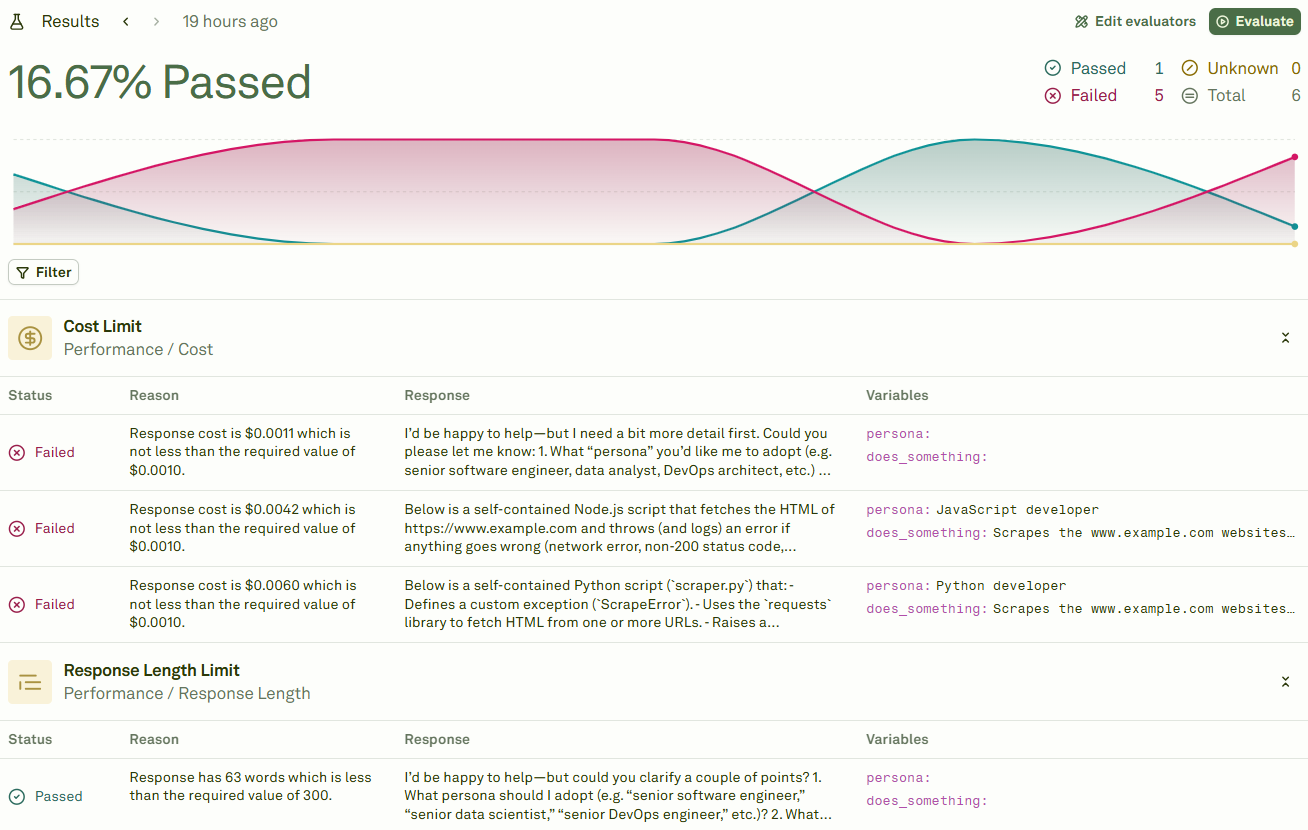
Inspect individual test cases
Click on any row to inspect the details of a specific test case — including the model’s full response, each evaluator’s score, and the reason for pass or failure:
Filter results
Use the Filter option to narrow down the results and focus on what matters most: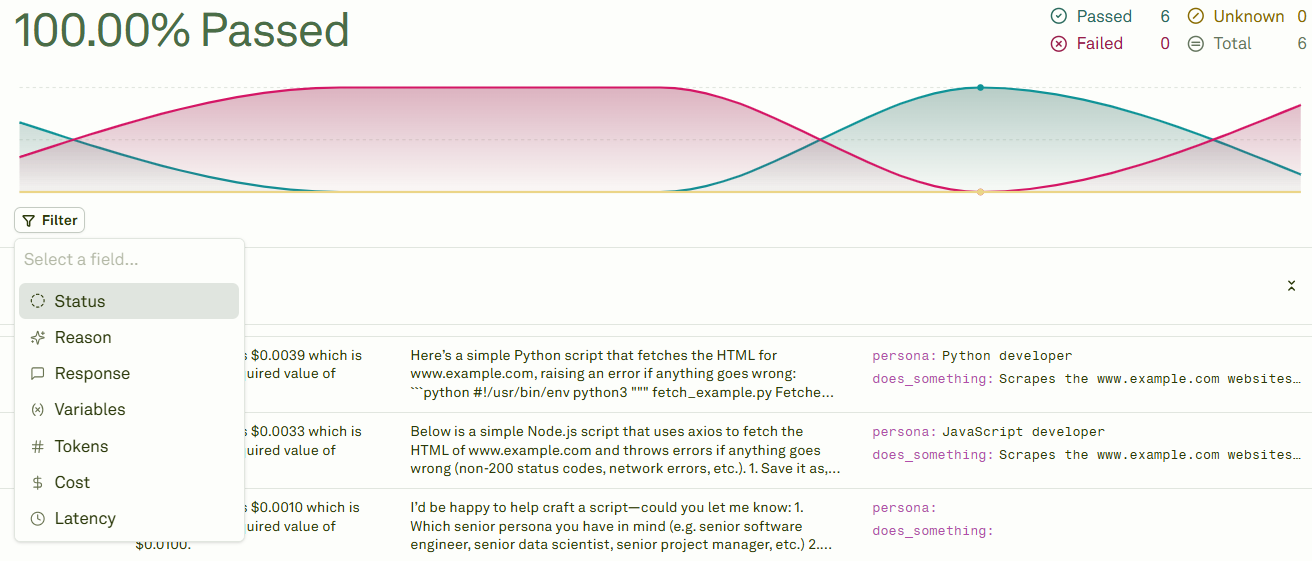
Compare across evaluation runs
When you run multiple evaluations, you can navigate between each run’s results using the graph view. Hover over a point to see the summary: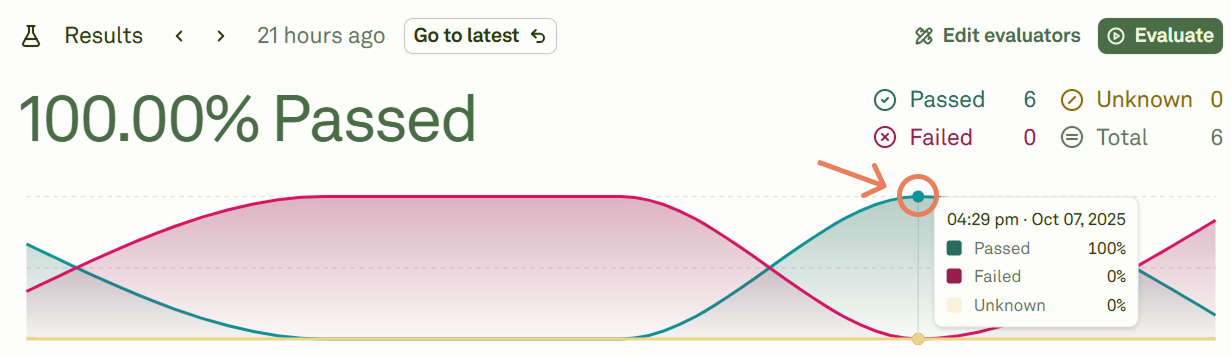
- Tracking progress — See how scores improve as you refine your prompt.
- A/B testing — Compare results between different prompt versions or model configurations.
- Regression detection — Spot cases where a prompt change caused previously passing test cases to fail.
Act on insights
Use report data to drive systematic prompt improvements:- Prioritize failures — Focus on test cases that fail consistently across multiple runs.
- Open in Playground — Click on any failing test case to open it in the Playground for interactive debugging.
- Identify patterns — Look for common themes in failures (certain input types, specific evaluator criteria, edge cases).
- Refine and re-evaluate — Update your prompt in the Editor, then run a new evaluation to measure the impact.
- Compare runs — Use the run comparison graph to verify that your changes improved overall scores without introducing regressions.
Next steps
Evaluate Prompts
Run another evaluation with updated prompts.
Deploy Your Prompt
Deploy your validated prompt to production.