

How tool calls work in the Playground
When the model decides it needs to invoke a tool, the Playground displays the tool call as a distinct content block in the conversation flow. The tool call appears as an Assistant message containing the tool name and its parameters. You then have two options:- Manually provide a tool response — Enter the tool result yourself and continue the conversation.
- Enable auto tool calls — Let the Playground automatically execute tools that have a configured HTTP endpoint.
Manual tool call workflow
Manual tool calls give you complete control over the tool interaction. This is useful for debugging, testing edge cases, or simulating specific tool responses. Suppose you have a tool that answers “yes” or “no” to questions. When the model invokes it, you see the tool call in the Playground: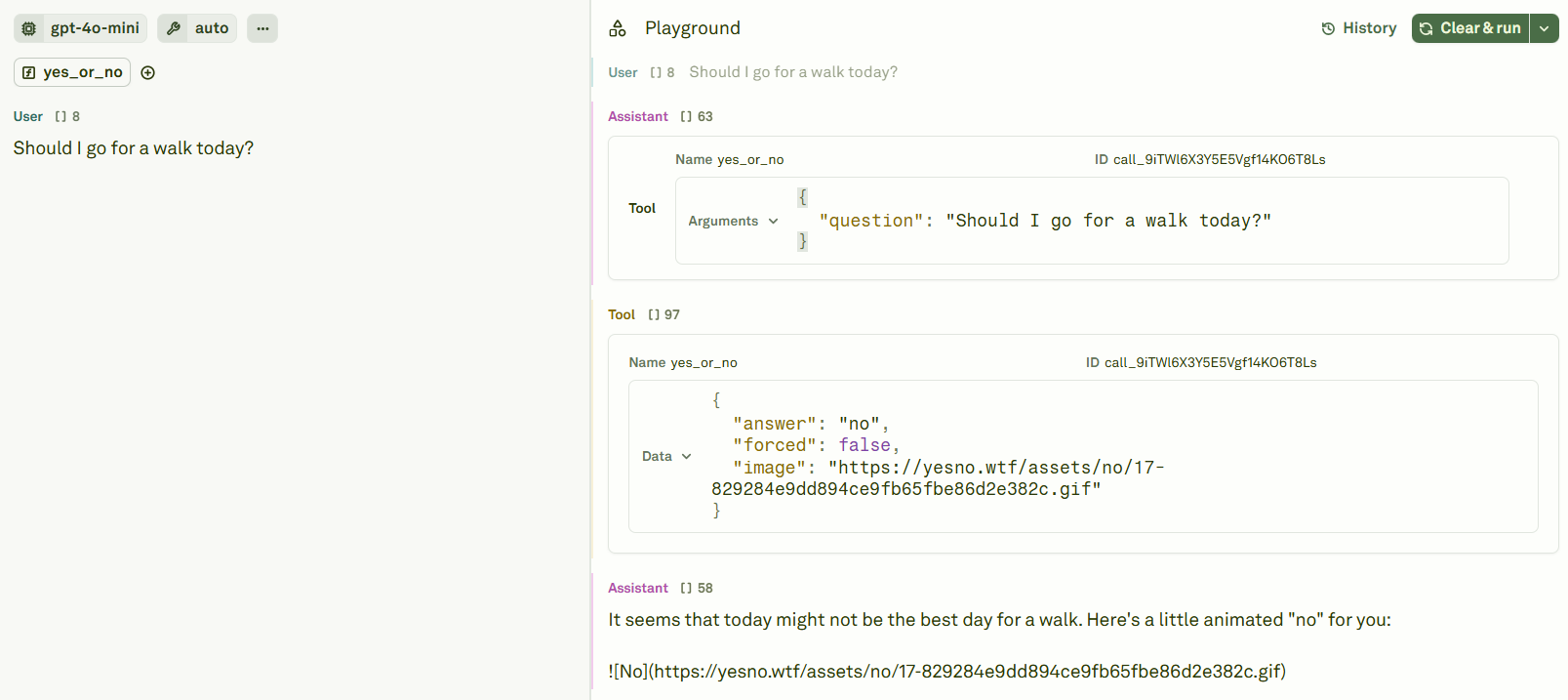
answer field to test how the model handles different tool outputs:
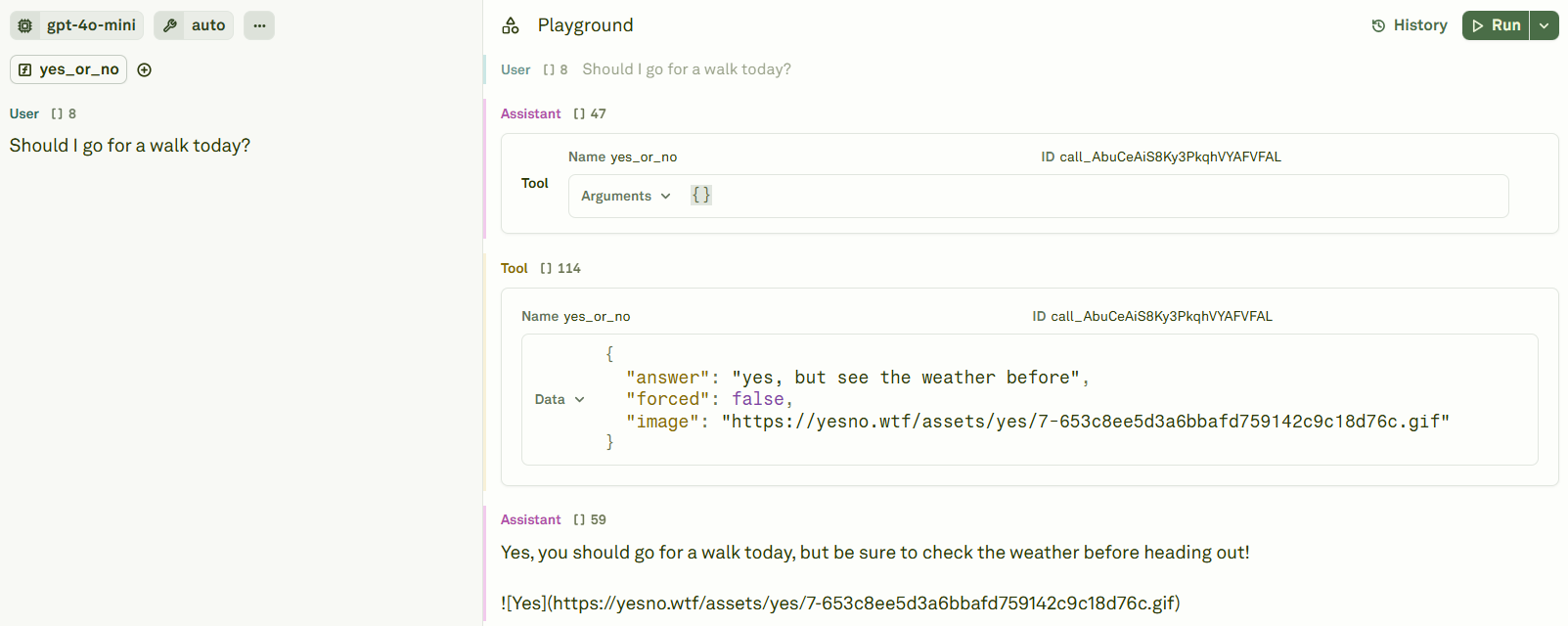
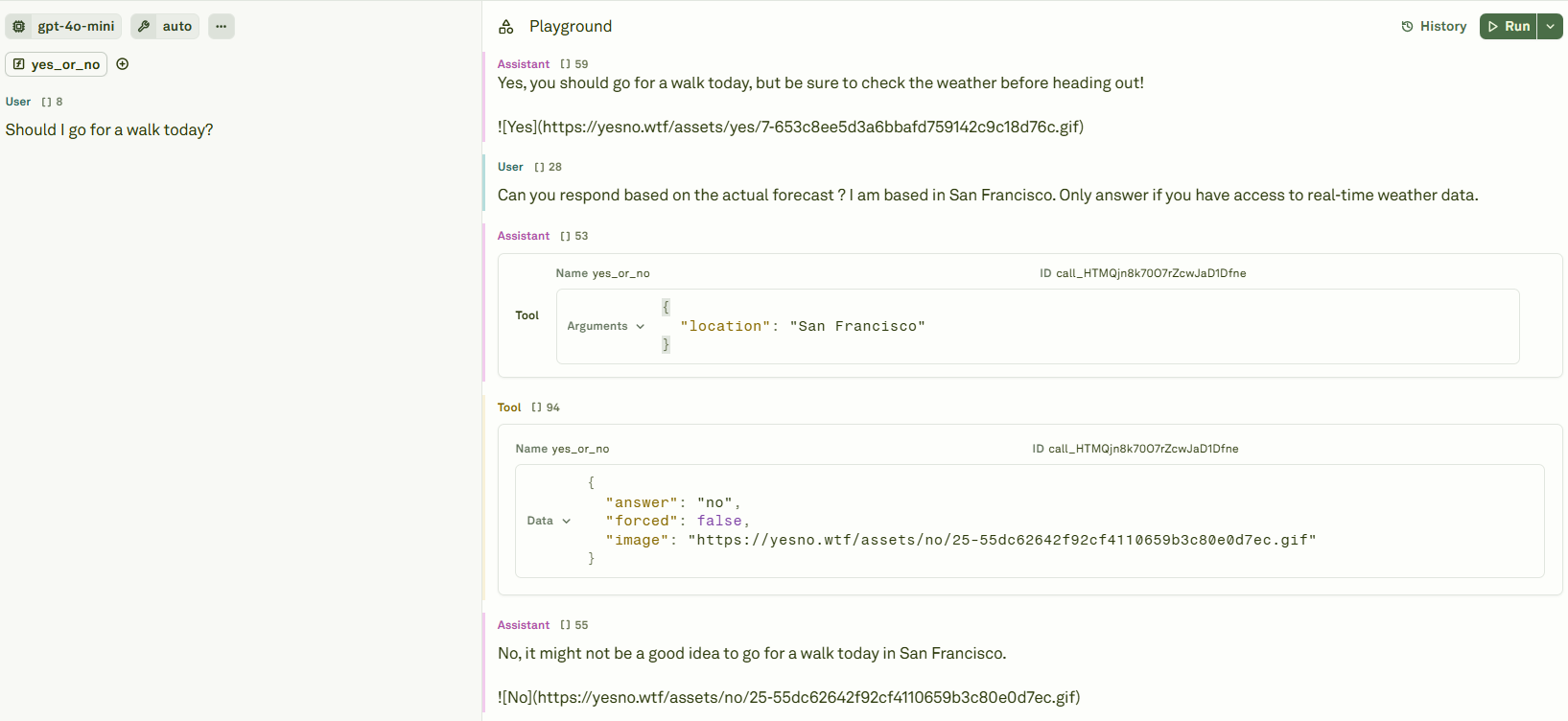
Auto tool calls
When tools are configured with arequest object (an HTTP endpoint), the Playground can automatically:
- Execute the tool call — Send the HTTP request to the configured backend.
- Inject the response — Insert the tool response into the conversation.
- Continue the conversation — Pass the full context back to the model for its next response.
Auto tool calls also work with MCP servers. When MCP is enabled and the model calls a tool provided by an MCP server, the Playground automatically routes the call through the MCP protocol.
Debugging tool interactions
The Playground provides full transparency into tool interactions:Best practices
- Start with manual responses — Test your tool-enabled prompt manually first to understand the interaction pattern before enabling auto tool calls.
- Validate tool schemas — Ensure your tool definitions have clear descriptions and well-defined parameters so the model knows when and how to use them.
- Test edge cases — Use the Playground to simulate unexpected tool responses (empty results, errors, timeouts) and verify your prompt handles them gracefully.
- Review auto tool call chains — When using auto tool calls, review the full conversation to ensure the model isn’t making unnecessary or incorrect tool invocations.
Next steps
Use Tools in Prompts
Define tools and configure auto tool call backends.
Link Datasets
Test tool-enabled prompts with multiple input samples.