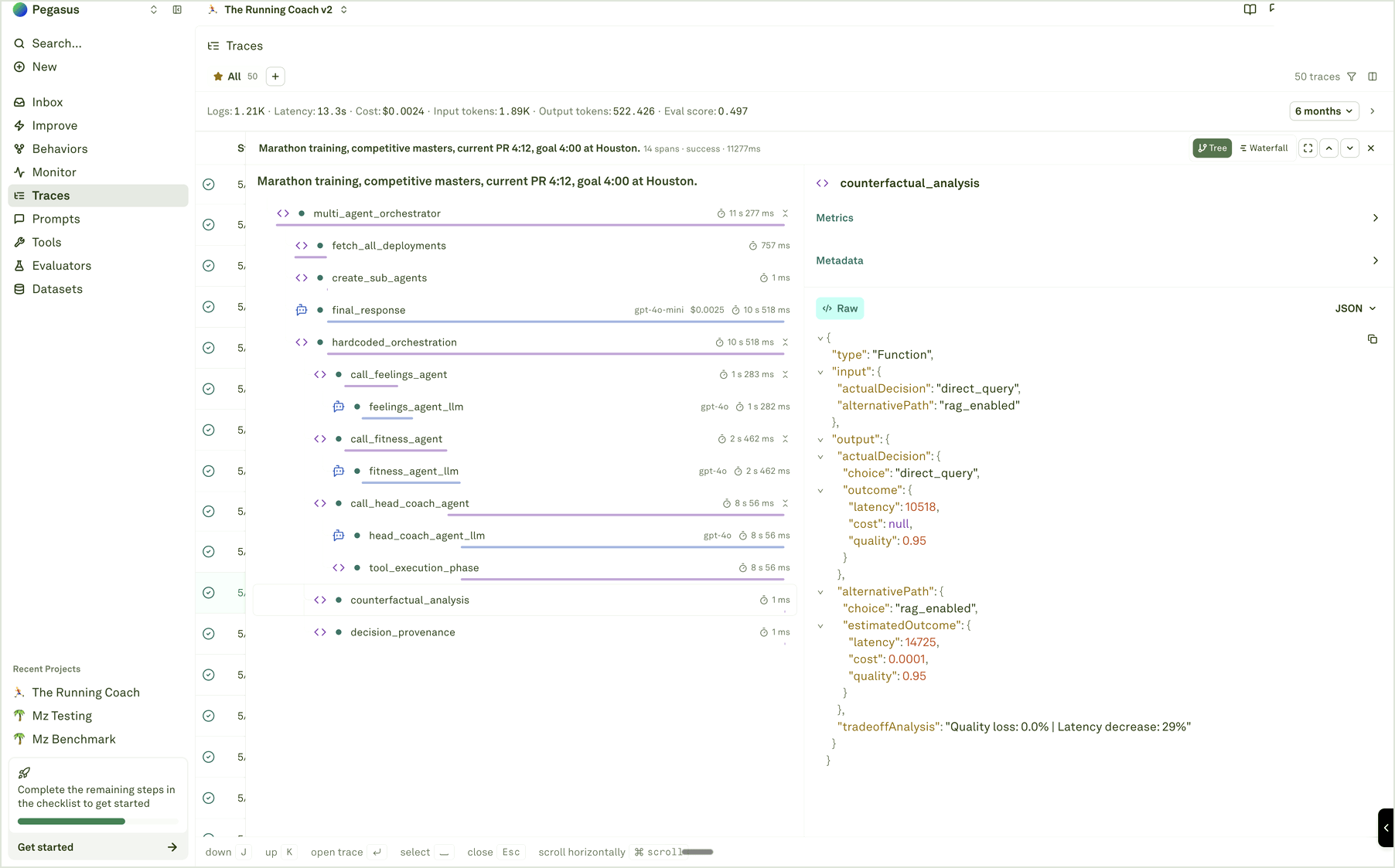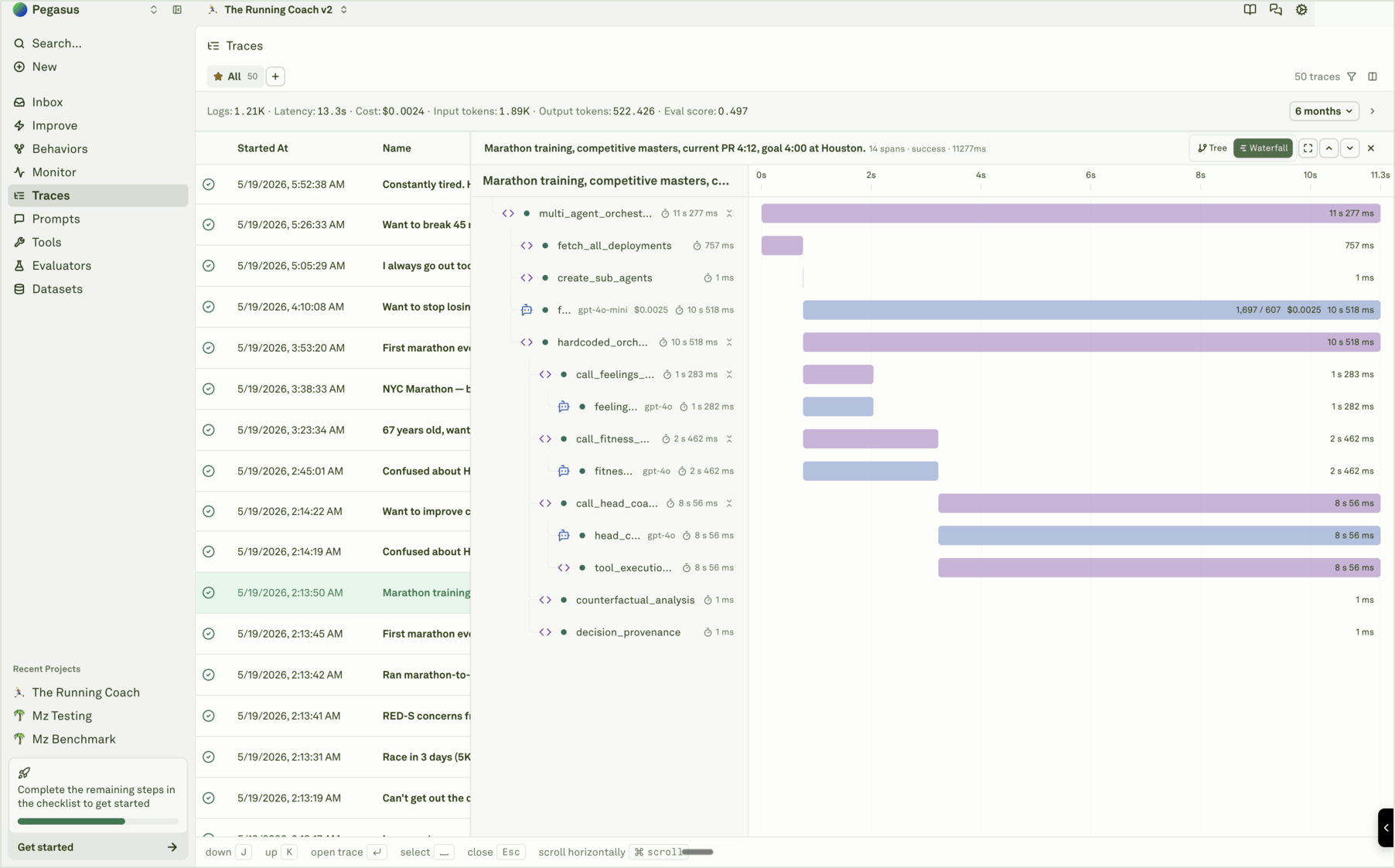
Spans represent individual operations within a trace — such as LLM calls, tool executions, embedding generation, and retrieval operations. Analyzing spans gives you granular visibility into each step of your AI agent’s workflow.

View spans for a prompt

Each prompt in Adaline can have spans associated with it. Navigate to the Monitor section of a specific prompt to see all spans logged against it: Viewing spans for a prompt This view shows all spans that were logged with this prompt’s ID — giving you a focused view of how a specific prompt performs across all traces.

Span types

Adaline recognizes several span types, each representing a different kind of operation:
Span typeDescriptionKey metrics
ModelLLM inference calls (chat completions, text generation)Latency, input/output tokens, cost, model name
ModelStreamStreaming LLM responsesLatency, input/output tokens, cost, model name
ToolFunction and tool executionsLatency, input/output data
EmbeddingVector embedding generationLatency, tokens, model name
RetrievalRAG and vector database queriesLatency, query, results
FunctionCustom application logicLatency, input/output
GuardrailSafety and compliance checksLatency, pass/fail status
OtherAny custom operation typeLatency, input/output

Inspect a span

Click on any span (from the trace view or the prompt spans view) to open its detail panel:
SectionWhat you see
InputThe complete request data sent to the operation (e.g., full prompt messages for LLM spans).
OutputThe complete response data returned (e.g., model response content).
MetricsLatency, token counts (input/output), and calculated cost.
Model infoProvider name and model used (for LLM and embedding spans).
VariablesVariable values associated with the span (set via SDK or proxy headers).
TagsString labels for categorical filtering (e.g., rag-pipeline, premium-user).
AttributesCustom key-value metadata (e.g., user_id, session_id, environment).
ErrorsError messages and stack traces if the operation failed.
Evaluation scoresGrade, numeric score, and reason from continuous evaluations, if enabled.
Span object structure

Analyze LLM spans

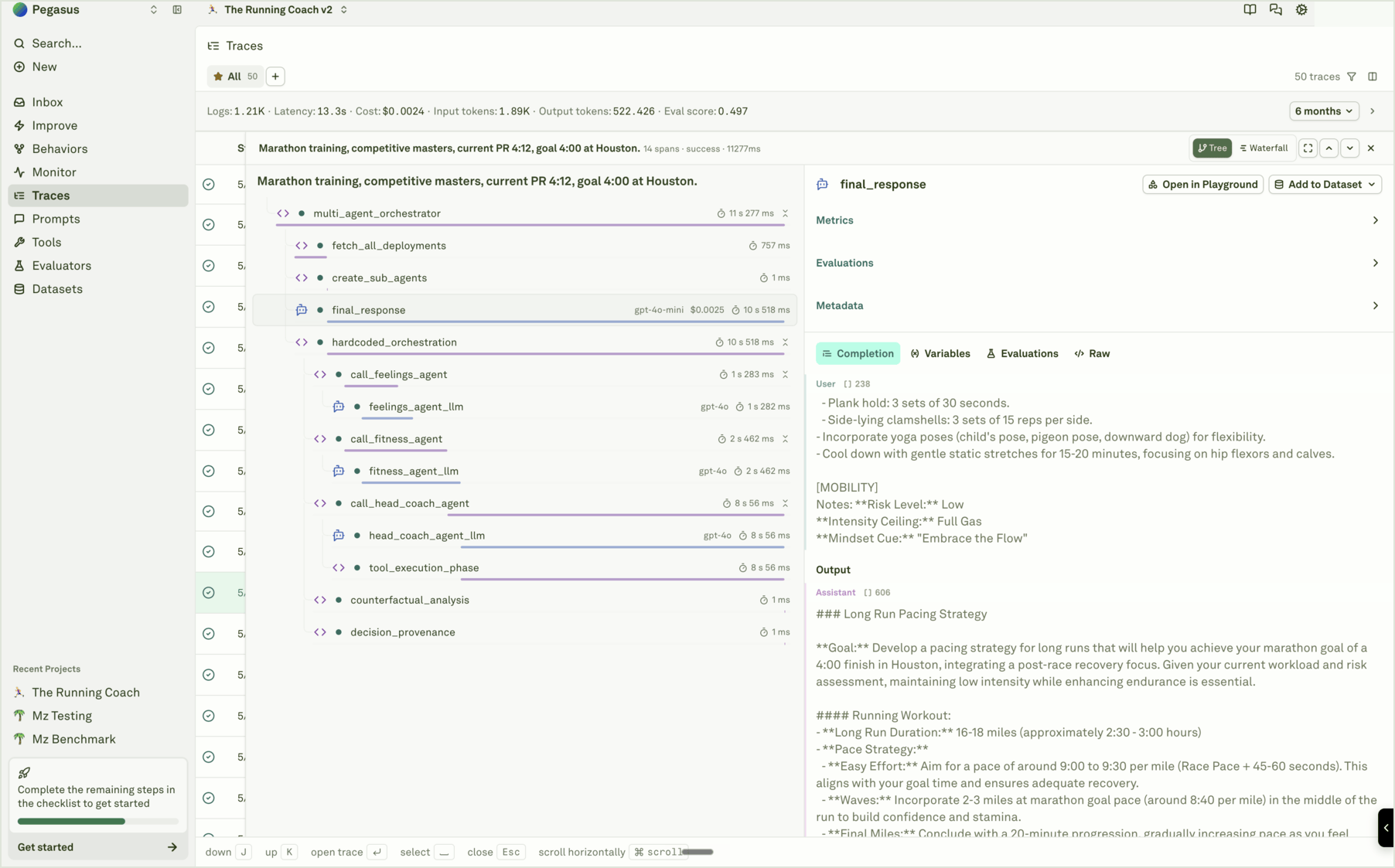
Spans of type Model and ModelStream (LLM calls) provide the richest set of details:
  • Complete prompt messages — All system, user, and assistant messages sent to the model, exactly as they were at runtime.
  • Full model response — The complete response content, including tool calls if applicable.
  • Token breakdown — Separate counts for input tokens (prompt) and output tokens (response), so you can see where token budgets are being consumed.
  • Cost calculation — Precise cost based on the model’s token pricing, computed from actual usage.
  • Variable values — The resolved values of any {{variables}} at the time of execution, useful for reproducing specific inputs.
  • Evaluation results — If continuous evaluations are enabled, the evaluation grade, score, and reason are shown alongside the span. This lets you immediately see whether the model’s output met your quality criteria.
From any LLM span, you can open the request in the Playground to reproduce the exact call and iterate on a fix.

Analyze tool and retrieval spans

For Tool and Retrieval spans, the detail panel shows:
  • Input — The function name, parameters, or query sent to the tool or vector database.
  • Output — The returned results, retrieved documents, or API response.
  • Duration — How long the external call took, helping you identify slow integrations.
These spans are especially useful for debugging RAG pipelines — you can verify that the retrieval step returned relevant documents and that tool calls returned the expected data before the LLM generated its response.

Filter spans

Use filters to narrow down spans across large volumes of data. You can filter by span type, status, duration, cost, tags, attributes, and prompt association — and combine multiple filters to isolate exactly the spans you need. Filtering spans in Adaline See Filter and Search Logs for the full guide on all available filters, common use cases, and best practices.

Next steps

Analyze Log Charts

View aggregated metrics and trends over time.

Setup Continuous Evaluations

Automatically evaluate LLM spans on live data.

Use Logs to Improve Prompts

Debug issues by opening any span in the Playground.

Filter and Search Logs

Find specific spans with filters and metadata search.