

Supported models
Image inputs work with vision-capable models, including GPT-4o, Claude 3.5, Gemini Pro, and others that support multi-modal inputs. Select a compatible model in the model settings before adding images to your prompt.Add an image to a message
1
Open the image picker
Navigate to the message block where you want to add an image and click the image button . You can choose to upload an image from your computer, paste a URL, or retrieve the image from a variable.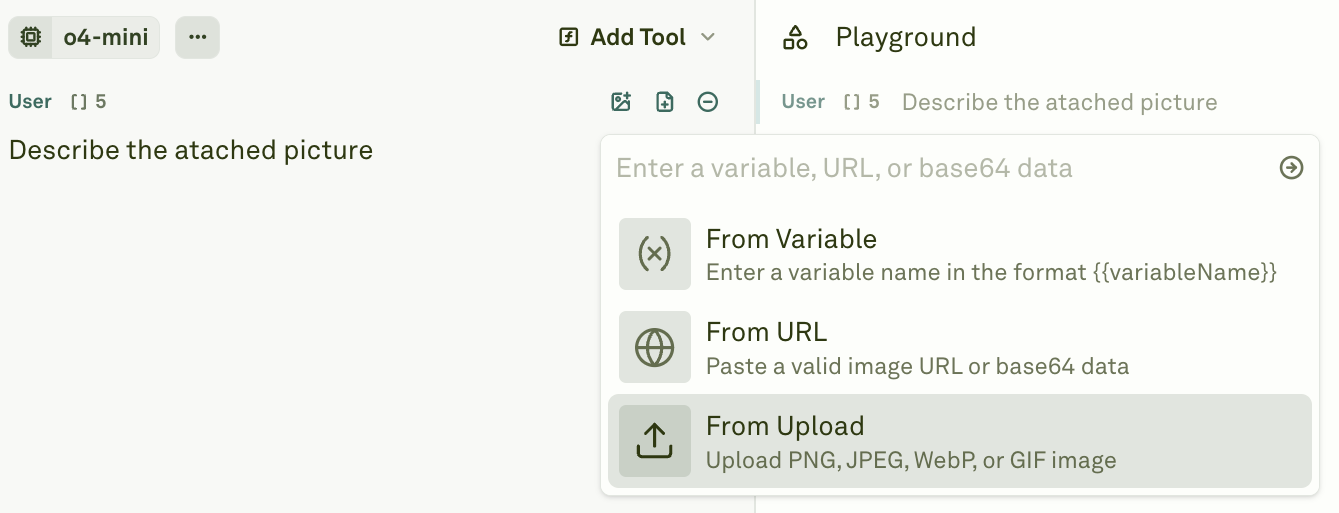
2
Preview the attached image
Once attached, the Editor displays a preview of the image within the message block.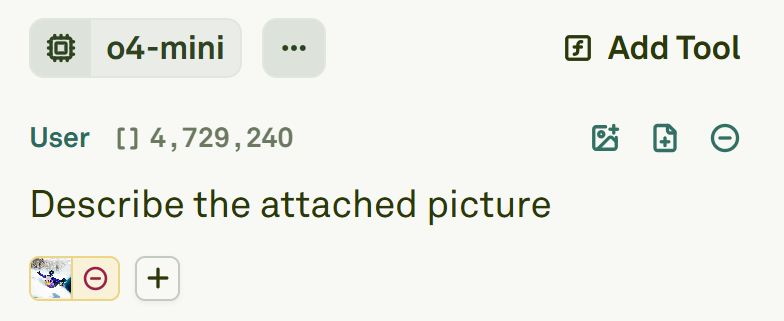
3
Add more images (optional)
To include additional images in the same message, click the plus button and repeat the previous steps. Each message can contain multiple images.
Use image variables
Image variables let you dynamically swap images at runtime without modifying the prompt structure. This is useful for workflows that process different images with the same prompt template.1
Create an image variable
Click the image button in the message block and select From Variable.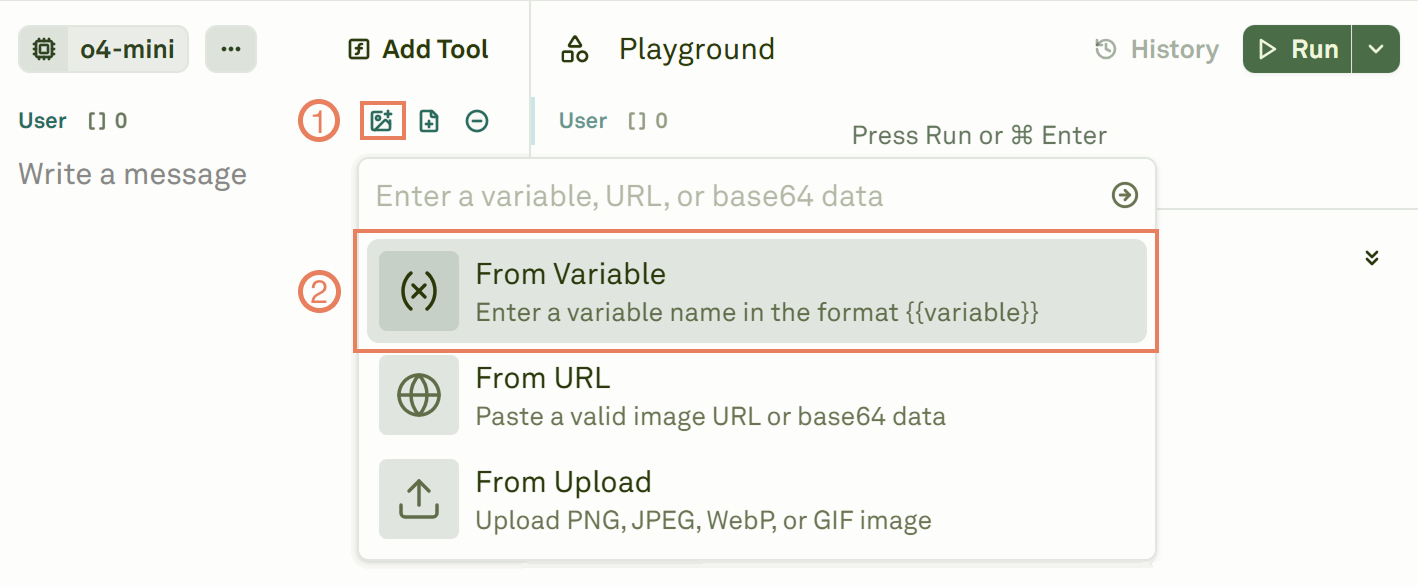
2
Name and attach the variable
Define a descriptive name for the image variable and attach it to the message.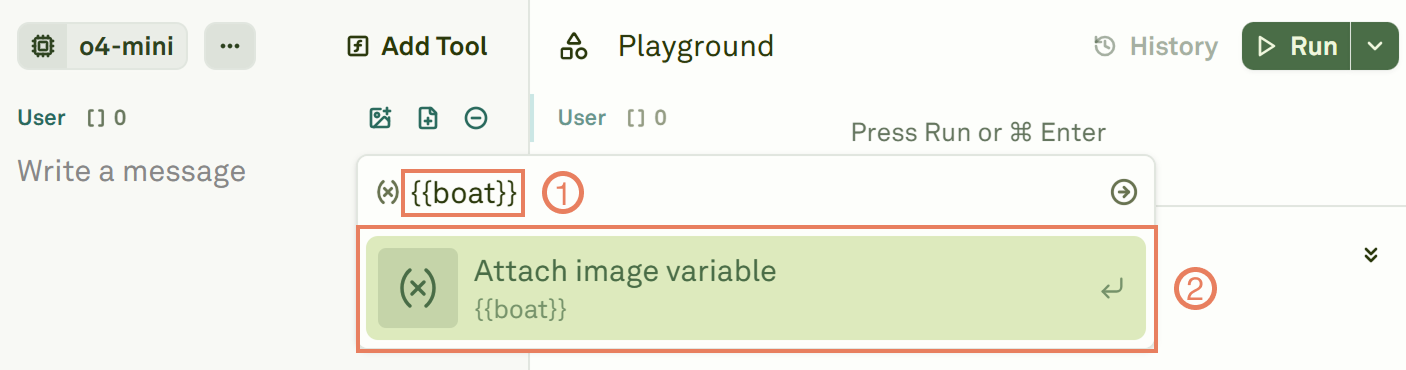
3
Set the variable value
In the Variable Editor, attach the actual image to the variable. You can paste a URL, provide a base64-encoded string, or upload a file from your computer.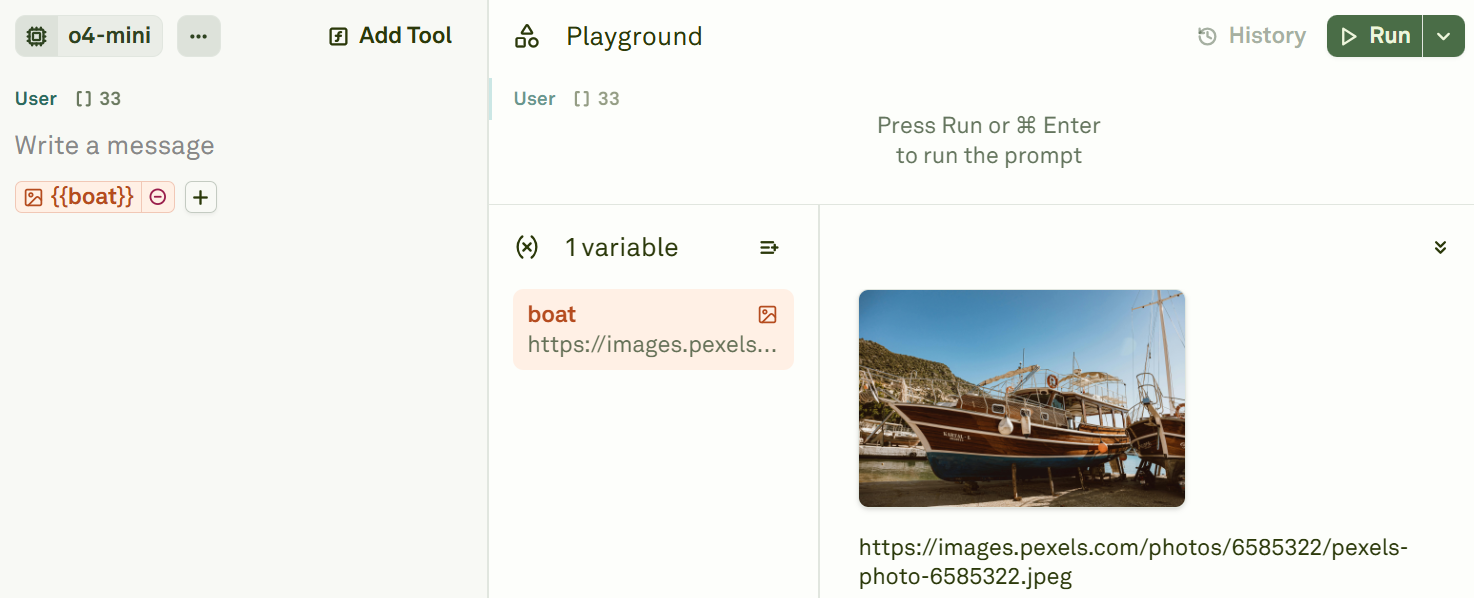
Use cases
- Image classification — Have the model categorize or tag images based on their content.
- Visual Q&A — Ask questions about the contents of an image and receive detailed answers.
- Diagram interpretation — Extract information from charts, flowcharts, or architectural diagrams.
- Accessibility — Generate alt text or descriptions for images.
- Multi-shot visual prompting — Provide example image/response pairs to teach the model a specific output format. See creating multi-shot prompts for a walkthrough.
Next steps
Use PDFs in Prompts
Add PDF documents as context for analysis tasks.
Use Variables in Prompts
Learn about all variable types, including image variables.