

Adding Together AI Credentials
You can add Together AI credentials by navigating to the Providers page under Settings.1
Configure Provider Name
Click on the plus (+) icon next to Together AI.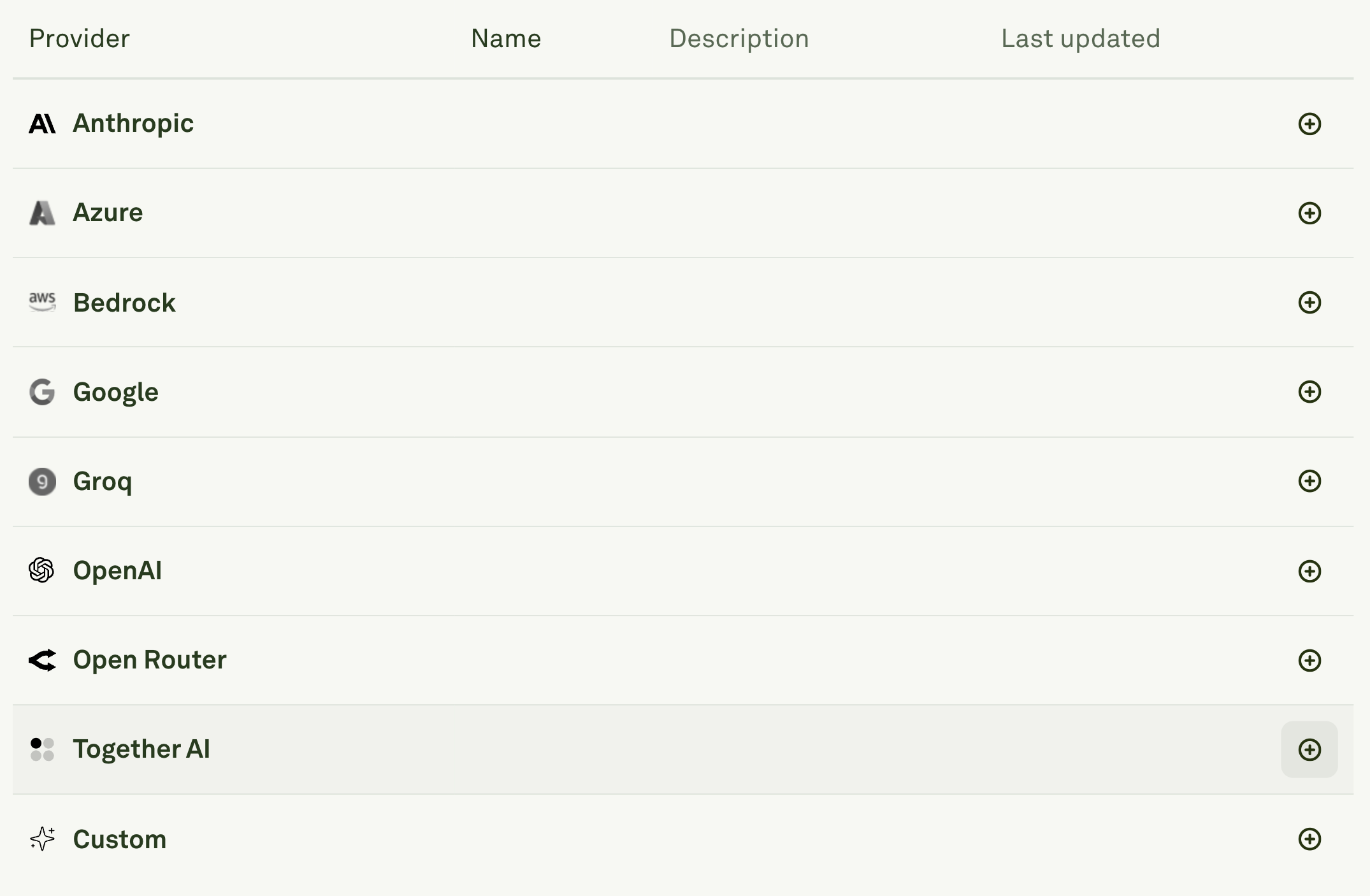
- Enter a unique Name for your Together AI configuration (e.g., “together-ai-prompt”).
- This name will be used to identify the provider configuration in model dropdowns throughout Adaline.
- The name appears as a prefix before each model name to help you distinguish between different Together AI accounts.
2
Enter API Credentials
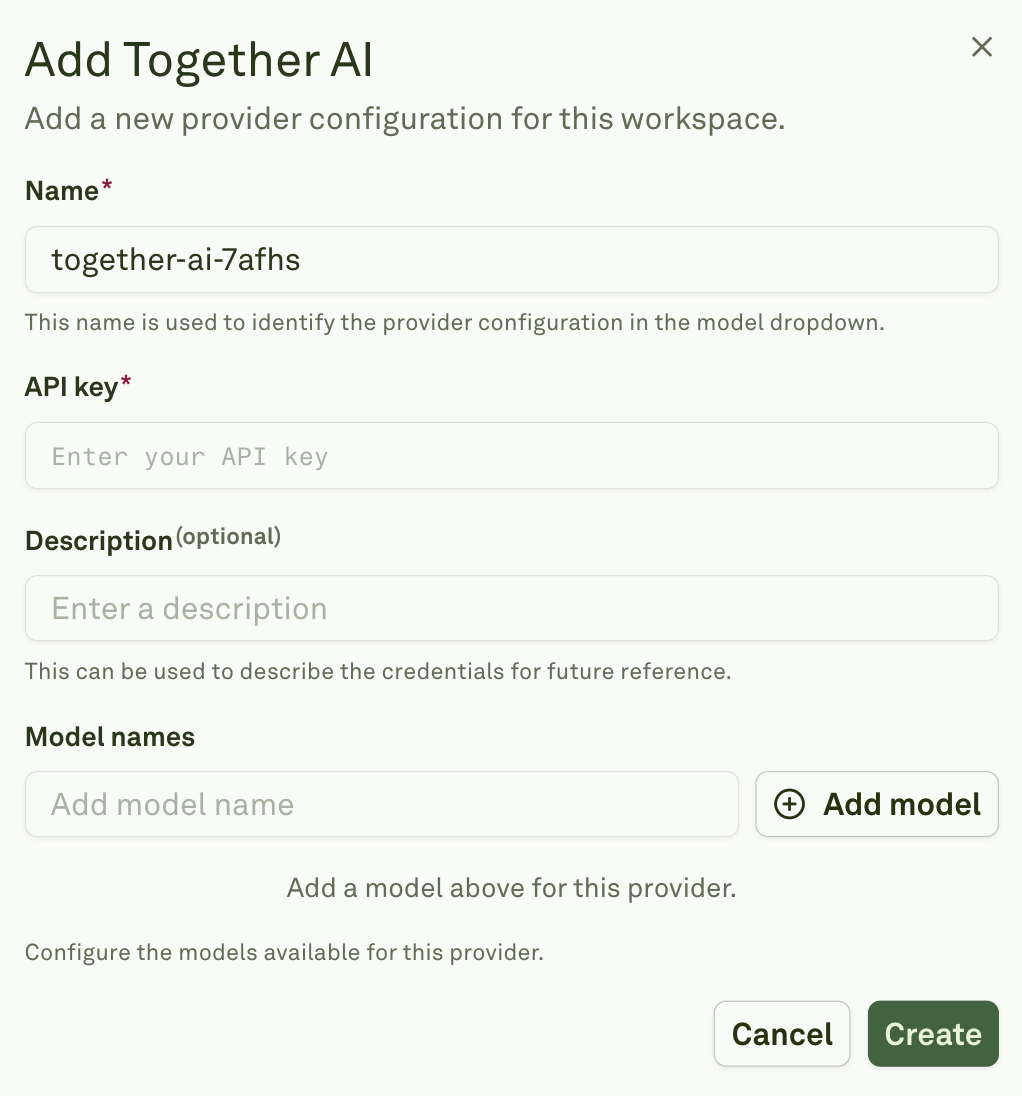
- Add your API key in the required field.
- Optionally, add a Description to help identify the purpose of these credentials for future reference (e.g., “Main Together AI account” or “Research team access”).
3
Configure Available Models
In the Model names section, click “Add model” to specify which models should be available from Together AI.
- You’ll need to manually add each model name you want to use.
4
Create
Click “Create” to save your Together AI provider configuration.