

Column types
Set up a dynamic column
1
Convert a column to dynamic
Click the icon next to the column name to convert it from static to dynamic: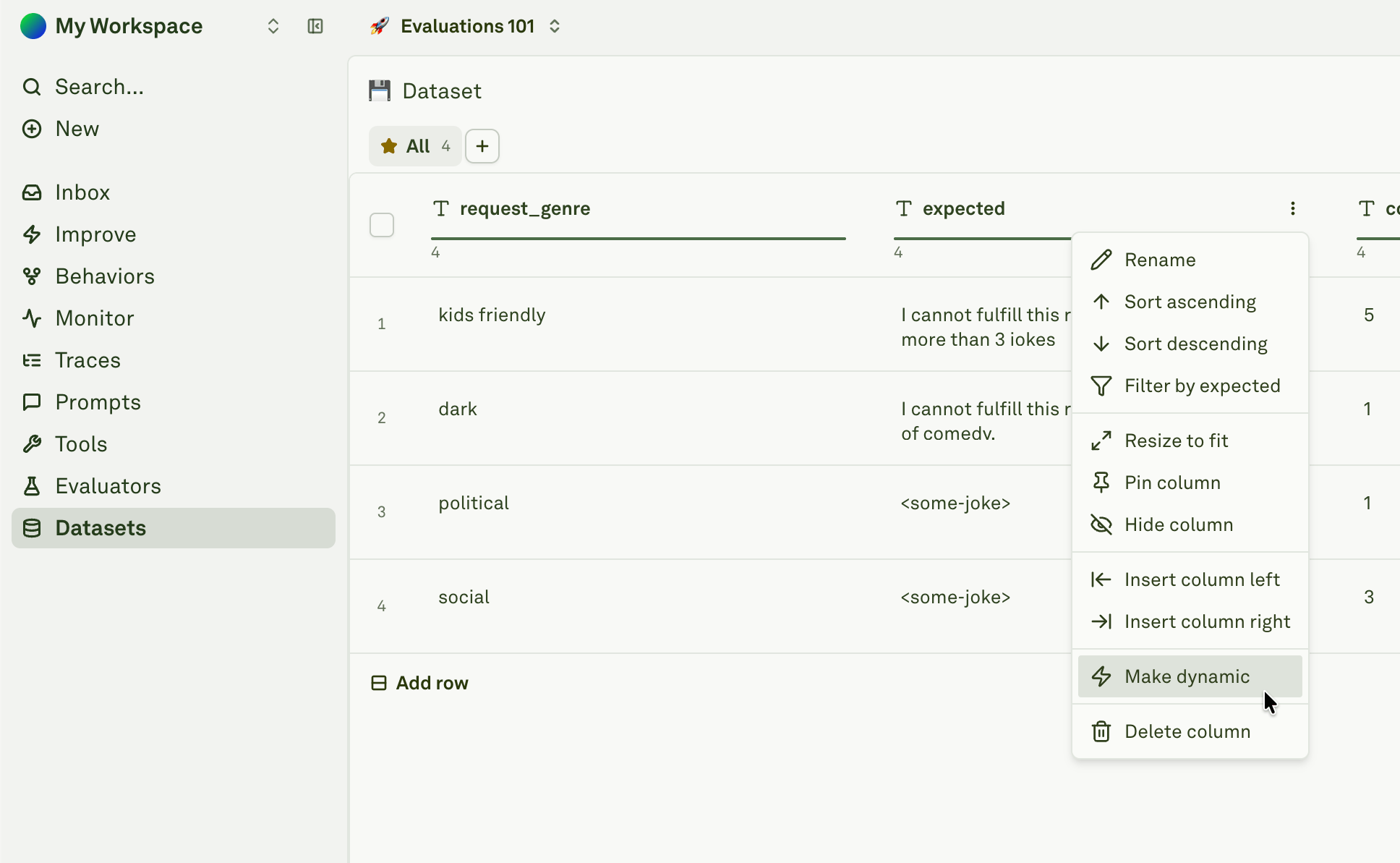
2
Select the source type
Choose the source type from the dropdown:
- API Variable — Fetch from an external HTTP endpoint
- Prompt Variable — Execute another prompt and use its output
3
Configure the source
Configure the selected source type (see detailed sections below).
API Variable columns
API variable columns fetch data from external HTTP endpoints. You can configure the full request — URL, HTTP method, query parameters, headers, and body: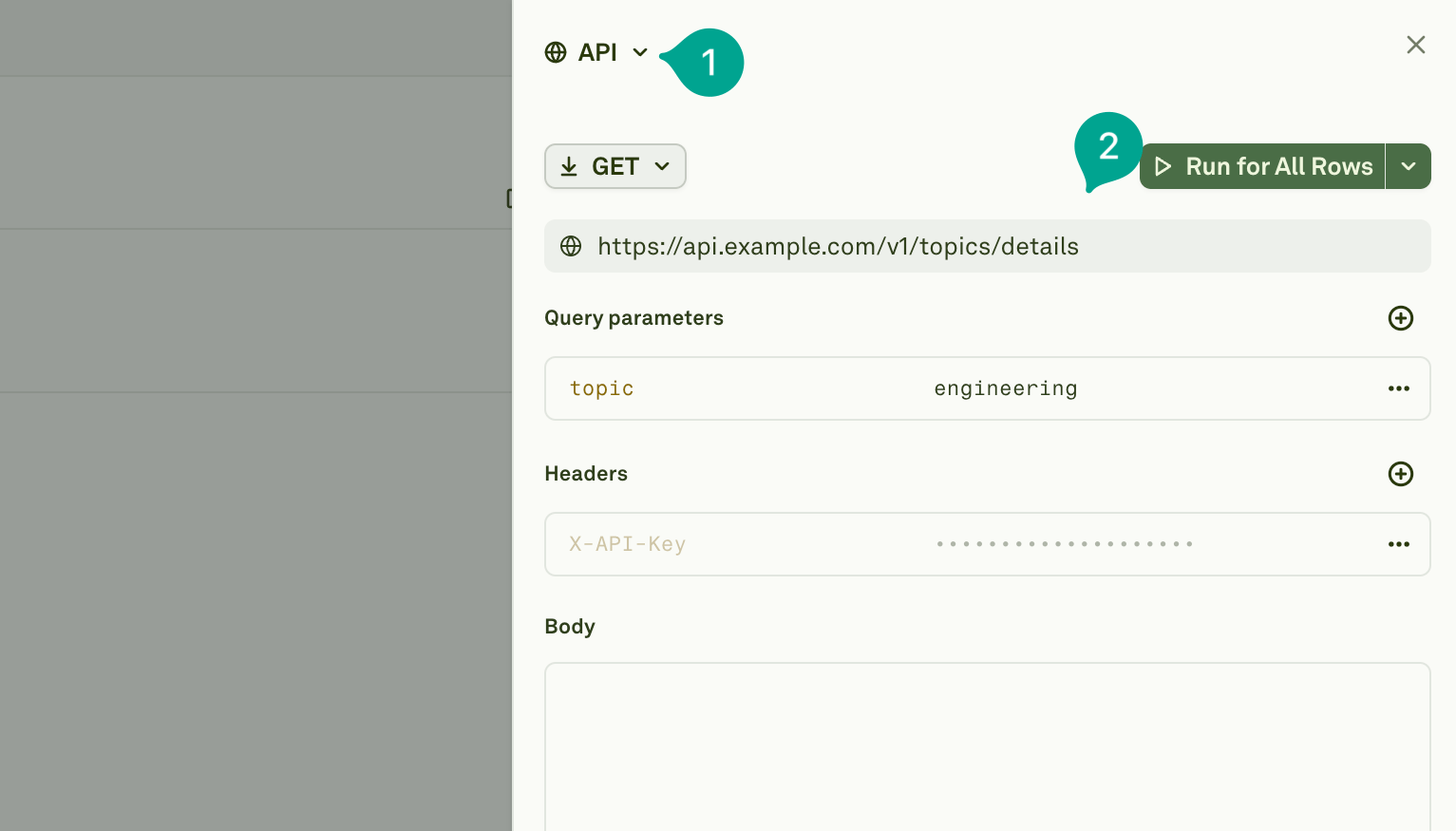
How it works
When an API variable column is executed for a row:- Placeholder resolution — Placeholders in the API configuration (like
{{user_id}}in the URL or query parameters) are replaced with values from other columns in the same row. - HTTP request — The system makes the HTTP request with the fully resolved configuration.
- Response storage — The API response is stored in the column cell for that row.
- Persistence — The fetched value remains in the dataset until you refresh it.
Referencing other columns
You can use{{column_name}} placeholders anywhere in your API configuration — in the URL, query parameters, headers, or request body. These are resolved per-row using the values from other columns in the same dataset row.
Example: fetching user data from an API
Suppose your dataset has auser_id column with static values, and you want a user_profile column that fetches the full profile from your API:
For each row,
{{user_id}} is replaced with that row’s value, and the API response is stored in the user_profile cell.
Example: sending data in a POST body
You can also construct POST requests with data from multiple columns:Prompt Variable columns
Prompt variable columns execute another prompt from your project and store its output as the cell value. This enables prompt chaining — where one prompt’s output feeds into the prompt you’re evaluating.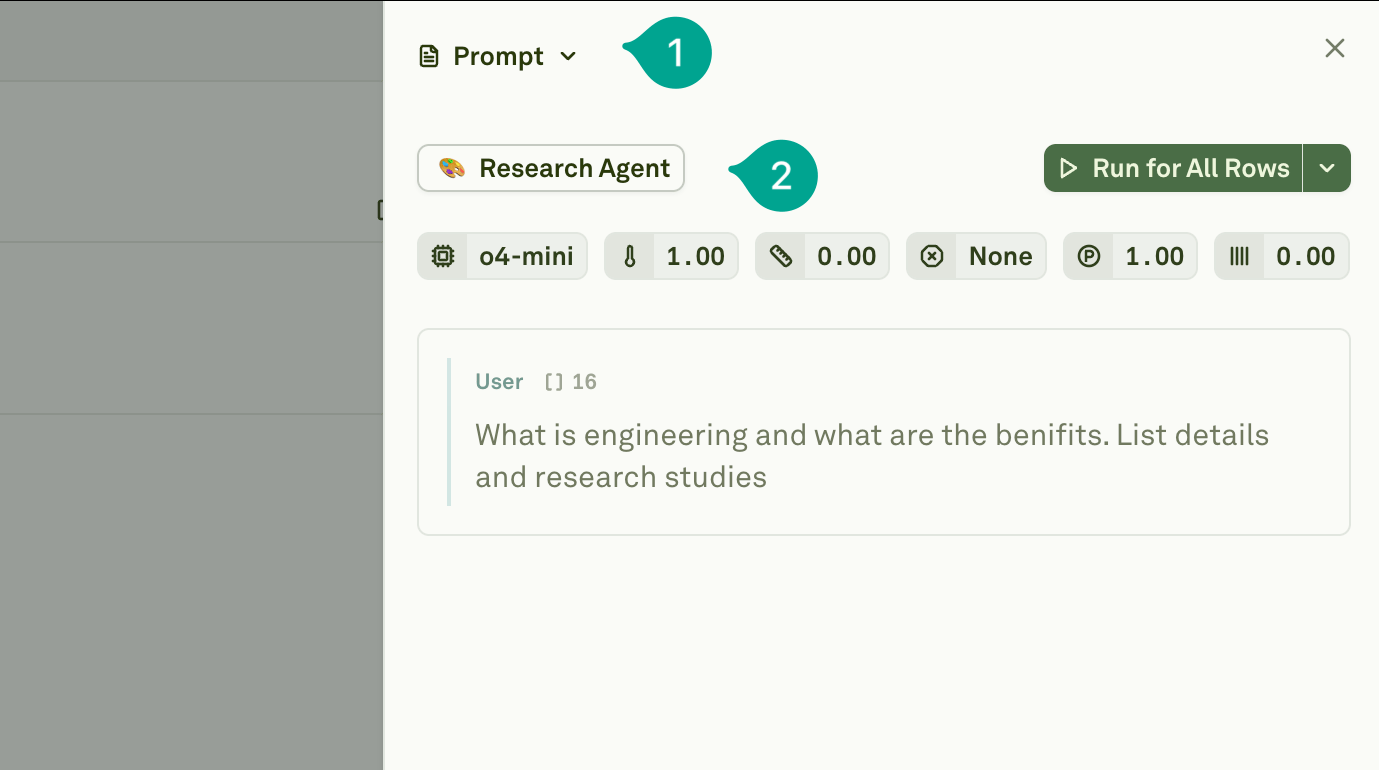
How it works
When a prompt variable column is executed for a row:- Data inheritance — All columns from the current dataset row are available to the referenced prompt as variable values.
- Prompt execution — The system executes the selected prompt with the row’s data.
- Output storage — The prompt’s output is stored in the column cell for that row.
- Persistence — The result remains in the dataset until you refresh it.
Example: generating summaries for evaluation
Suppose you’re evaluating a Q&A prompt and want each test case to include a summary of a research article. You could:- Create a
researchprompt that takes a{{topic}}variable and generates a research summary. - In your dataset, add a
topiccolumn with static values like “machine learning”, “quantum computing”, etc. - Convert a
research_summarycolumn to a Prompt Variable and link it to yourresearchprompt. - When executed, each row’s
topicvalue is passed to theresearchprompt, and the generated summary is stored inresearch_summary.
{{topic}} and {{research_summary}} as variables.
Child prompts’ linked datasets are ignored during dynamic column execution. All variables referenced by the child prompt must be present as columns in the current dataset. See Evaluate Chained Prompts for details on how prompt chaining works during evaluations.
Running dynamic columns
After configuring dynamic columns, you need to fetch their values. Click the Run dropdown on the dynamic column to choose an execution mode: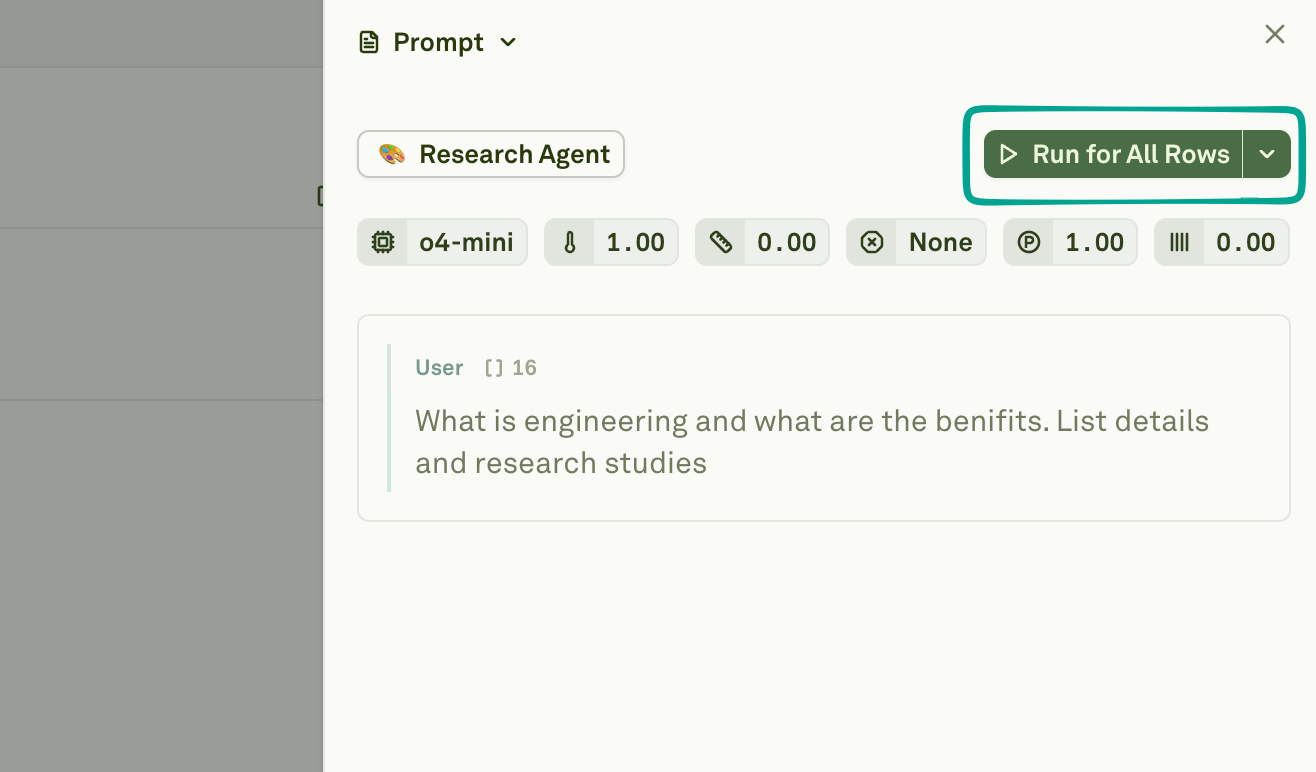
Execution behavior
- Row-level execution — Each row triggers its own independent API request or prompt execution.
- Parallel vs. sequential — Independent dynamic columns run in parallel. Dependent columns (where one dynamic column references another) run sequentially in the correct order.
- Error handling — Failed executions are marked, allowing you to retry only failed rows with “Run for Failed Rows”.
- Caching — Fetched values are stored in the dataset. Subsequent evaluations use cached values unless you explicitly refresh them.
Integration with evaluations
Dynamic columns work seamlessly with the evaluation workflow:- Auto-resolution — When you run an evaluation, dynamic columns are automatically resolved with fresh values before the evaluation begins. You do not need to manually run dynamic columns before starting an evaluation.
- Fresh data — Use API variables to fetch real-time data for each evaluation run, ensuring your test cases use up-to-date information.
- Prompt chaining — Use prompt variables to build multi-step workflows where one prompt’s output feeds into the prompt being evaluated.
Best practices
- Test first — Always use “Run for First Row” to verify your configuration before running on all rows.
- Handle failures gracefully — Use “Run for Failed Rows” to retry failed executions instead of re-running everything.
- Mind rate limits — Consider the number of API calls or prompt executions when running on large datasets. If your external API has rate limits, stagger your runs.
- Use descriptive column names — Name dynamic columns clearly (e.g.,
user_profile_datarather thanapi_result) so their purpose is obvious in the dataset. - Keep dependencies simple — Avoid deeply nested chains of dynamic columns that reference each other. Keep the dependency graph shallow for easier debugging.
Next steps
Setup Dataset
Create and configure datasets for evaluation.
Evaluate Prompts
Run evaluations with your dynamic dataset.
Use APIs in Prompt
Learn how APIs work in prompts.